


Method 1: The Standard Demographics Report
The quickest way to see where your visitors are coming from is to use the built-in “User Attributes” report in Google Analytics.
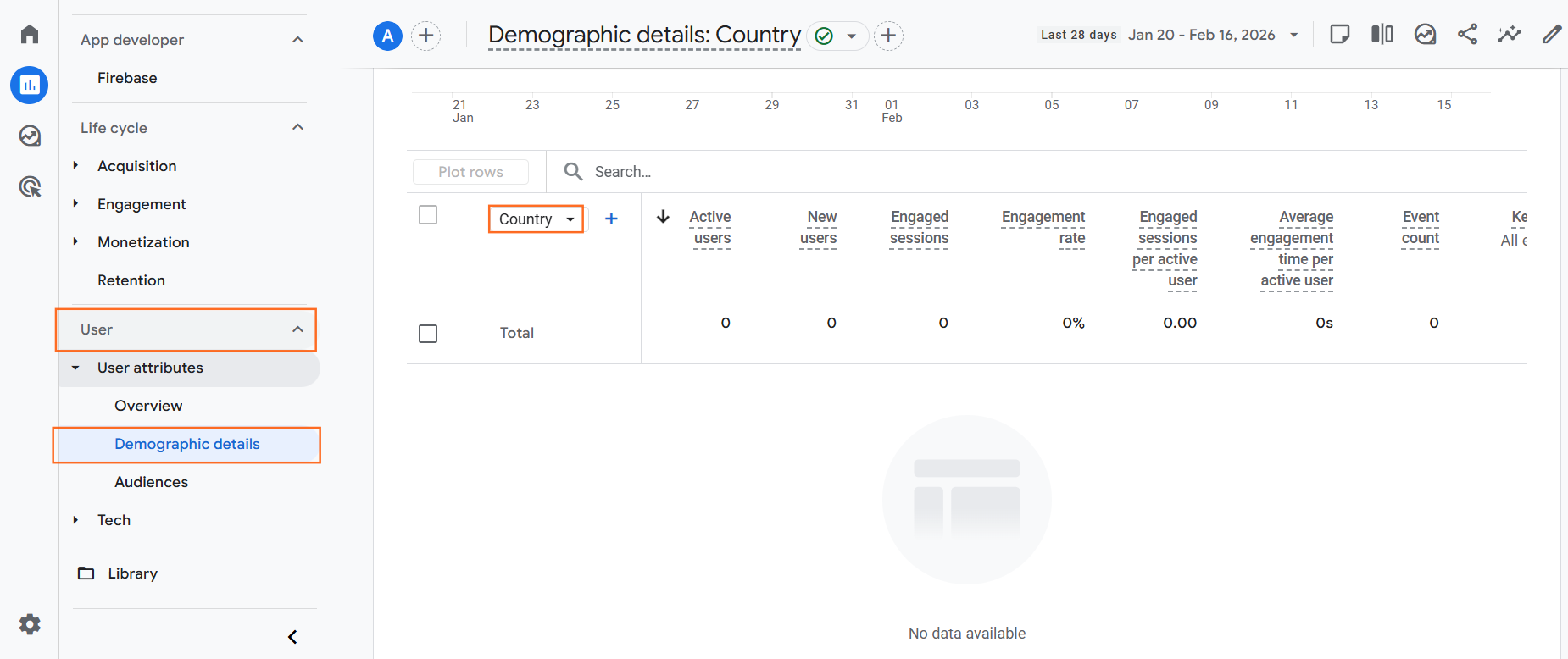
- Navigate: Go to Reports > User attributes> Demographic details.
- Default View: By default, this table shows “Country”.
- Change Dimension: Click the small dropdown arrow next to “Country” in the first column of the table.
- Select City: Choose Town/City or Region (which usually corresponds to Counties or States).
This report will show you exactly how many “Engaged Sessions” and “Conversions” came from a specific city (e.g., “London” vs. “Manchester”).
Method 2: Creating a Custom “Exploration” (Best for Analysis)
The standard report is limited. If you want to build a table that compares “City” vs. “Bounce Rate” vs. “Revenue,” you need the Explore tool.
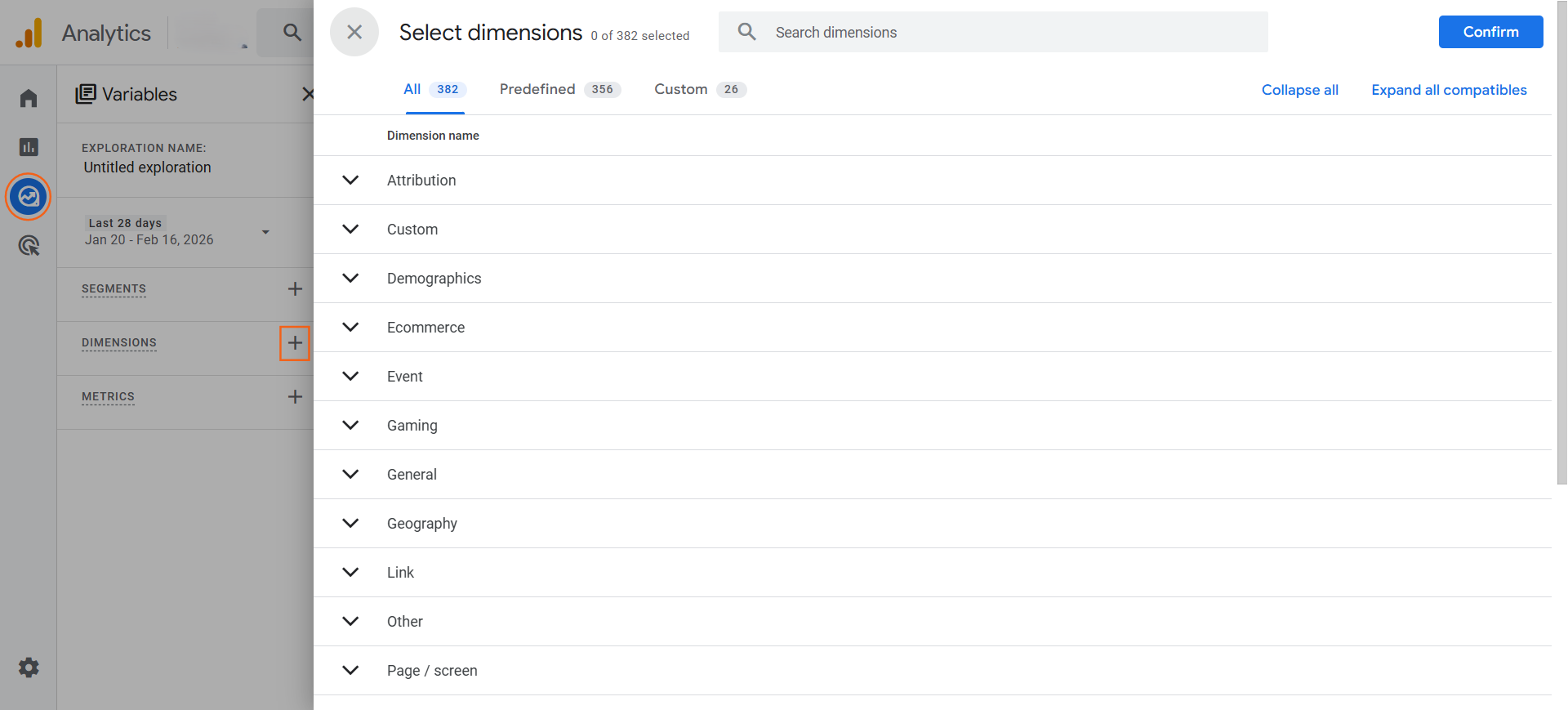
- Navigate: Click Explore in the left-hand menu.
- Start New: Click Blank.
- Dimensions: Click the + next to Dimensions and search for/import Town/City.
- Metrics: Click the + next to Metrics and import Sessions, Engaged Sessions, and Conversions.
- Drag and Drop:
- Drag “Town/City” to the Rows area.
- Drag your Metrics to the Values area.
You now have a clean, exportable Excel-style table of your top performing cities.
Method 3: Using “Comparisons” to Filter
Sometimes you don’t want a list of cities; you want to see how London users behave on your landing pages compared to everyone else.
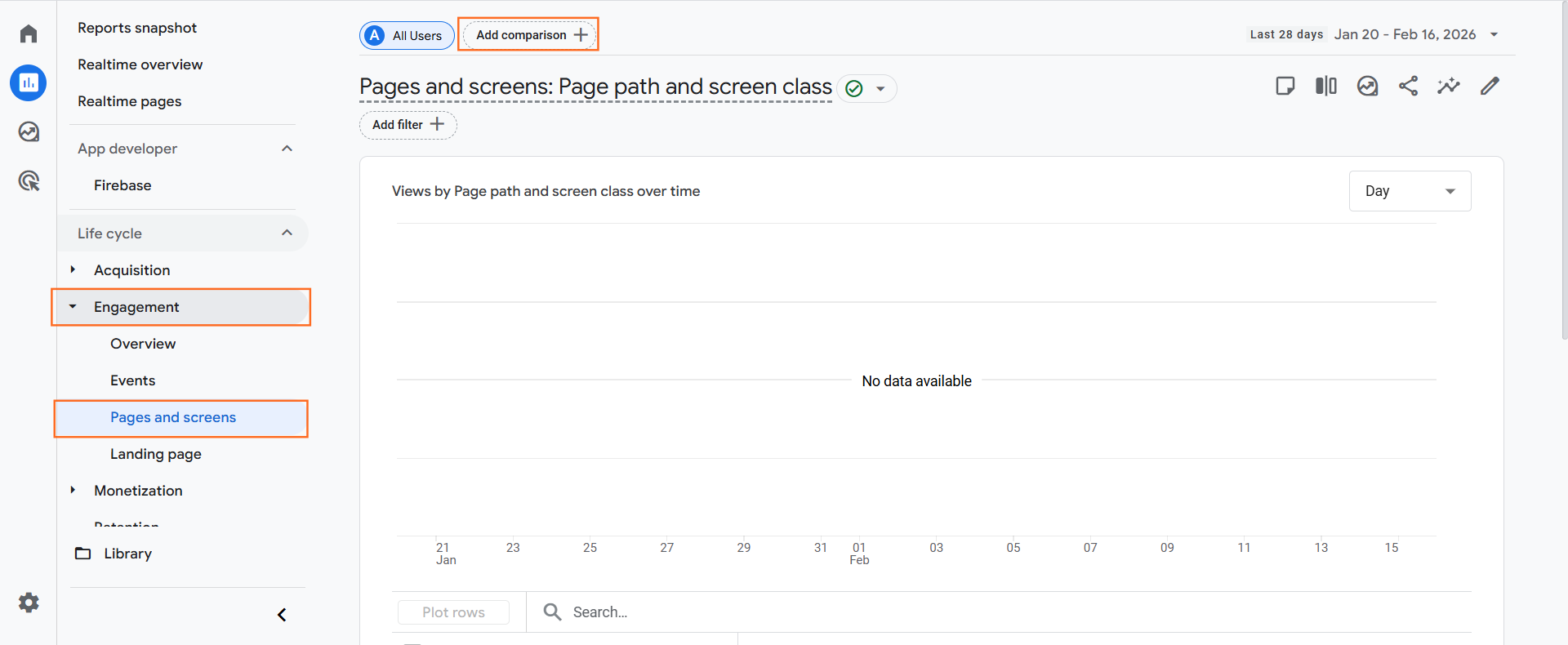
- Open any Report: Go to Reports > Engagement > Pages and screens.
- Add Comparison: Click the “Add comparison +” button at the top.
- Define Condition by + Create New:
- Dimension: Town/City.
- Match Type: exactly matches.
- Value: Select your target city (e.g., Birmingham).
- Apply: The report will now show two lines: “All Users” (Blue) and “Birmingham” (Orange). You can see if local users stay longer or convert better than the average.
Important Note on Accuracy (VPNs and Privacy)
Location data in GA4 is derived from IP addresses. It is generally accurate to the City level, but not the Postcode level.
Limitations:
- VPNs: Users browsing via a VPN will appear to be in a different city or country.
- Mobile Networks: Users on 4G/5G often have their IP routed through a central hub (e.g., a user in Leeds might show up as London because that is where the O2 data centre is).
- Privacy: If a user has denied cookie consent, their location data may be modeled or missing entirely.

 Salesforce

