


Tracking phone calls as conversions is crucial for measuring the ROI of your digital strategy..This requires tagging the phone numbers on your website so that every time a user clicks or taps a number, an event is sent to Google Analytics 4 (GA4).
Step 1: Implement Click-to-Call Tracking
The most common and effective method is to track the click event when a user initiates a call from a desktop or mobile device. This must be done via Google Tag Manager (GTM) for optimal control and implementation.
A. Set up the Phone Link (HTML)
Ensure the phone number link on your website uses the standard tel: protocol.
Example HTML: <a href=”tel:+355692913855“>Call 069291 3855 Now</a>
B. Configure the GTM Variables
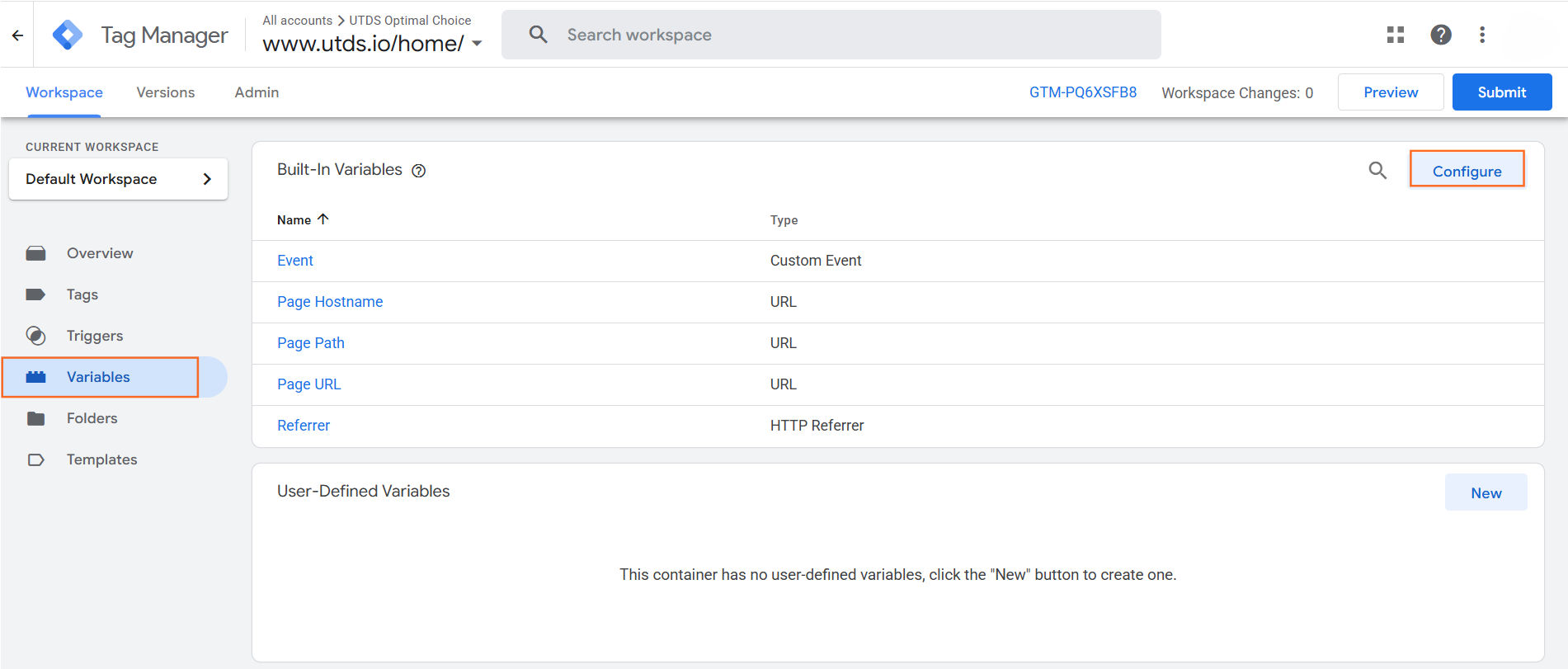
In Google Tag Manager, ensure the Click URL variable is enabled.
- Navigate to Variables in GTM.
- Click “Configure” under Built-In Variables.
- Check the box next to “Click URL”.
C. Create the GTM Trigger
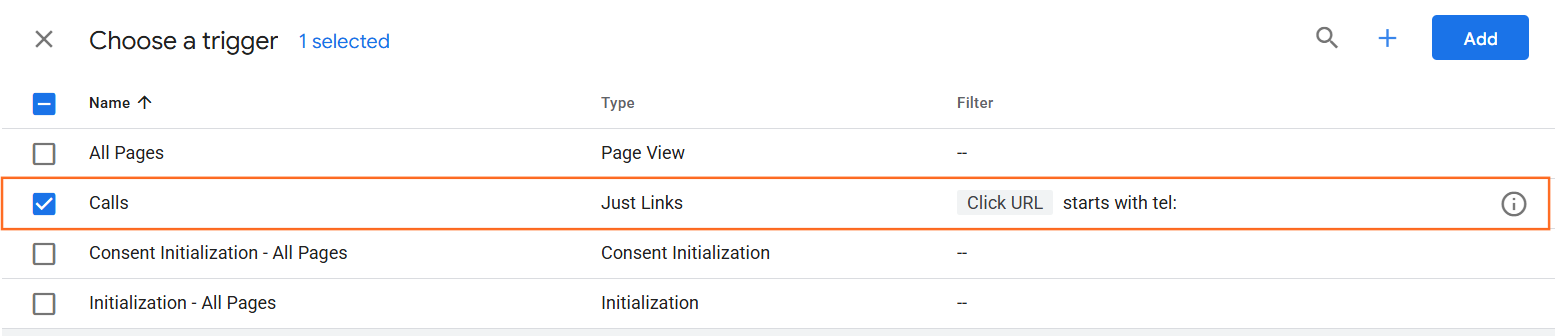
This trigger fires only when a click is made on a link containing the tel: protocol.
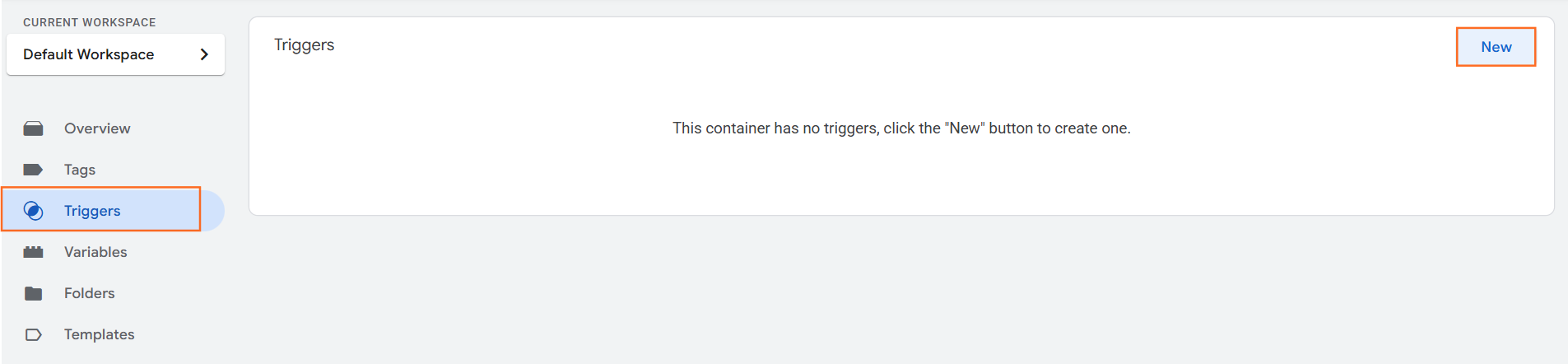
- Navigate to Triggers in GTM and click “New”.
- Choose Trigger Configuration > Choose Trigger Type
- Under Clicks, choose Just Links.
- Set the trigger to fire on Some Link Clicks.
- Define the condition: Click URL > starts with to tel:
For tracking phone calls using the Click – Just Links trigger in Google Tag Manager (GTM), you should generally untick both “Wait for Tags” and “Check Validation.”
Optimal Configuration Rationale
Option | Optimal Action | Why (UTDS Optimal Choice Strategy) |
Wait for Tags | UNTICK (Leave unchecked) | Prevents Interference: Ticking this box tells GTM to pause the browser’s default action (the phone call redirection) until all associated tags (your GA4 event tag) have finished firing. While this guarantees the tag fires, it can interfere with website functionality, especially on mobile, potentially causing the link to feel sluggish or the call to fail. For a simple event, the tag should fire fast enough without pausing the browser. |
Check Validation | UNTICK (Leave unchecked) | Ensures Firing: This option is typically used for form submissions to ensure the tag only fires if the form submits successfully. For link clicks (like a tel: link), the “validation” mechanism is often unreliable or tied to internal site logic. Unticking it ensures the tag fires whenever the tel: URL condition is met, regardless of any browser-level validation issues. |
D. Create the GA4 Event Tag
This tag sends the event to your GA4 property when the trigger fires.
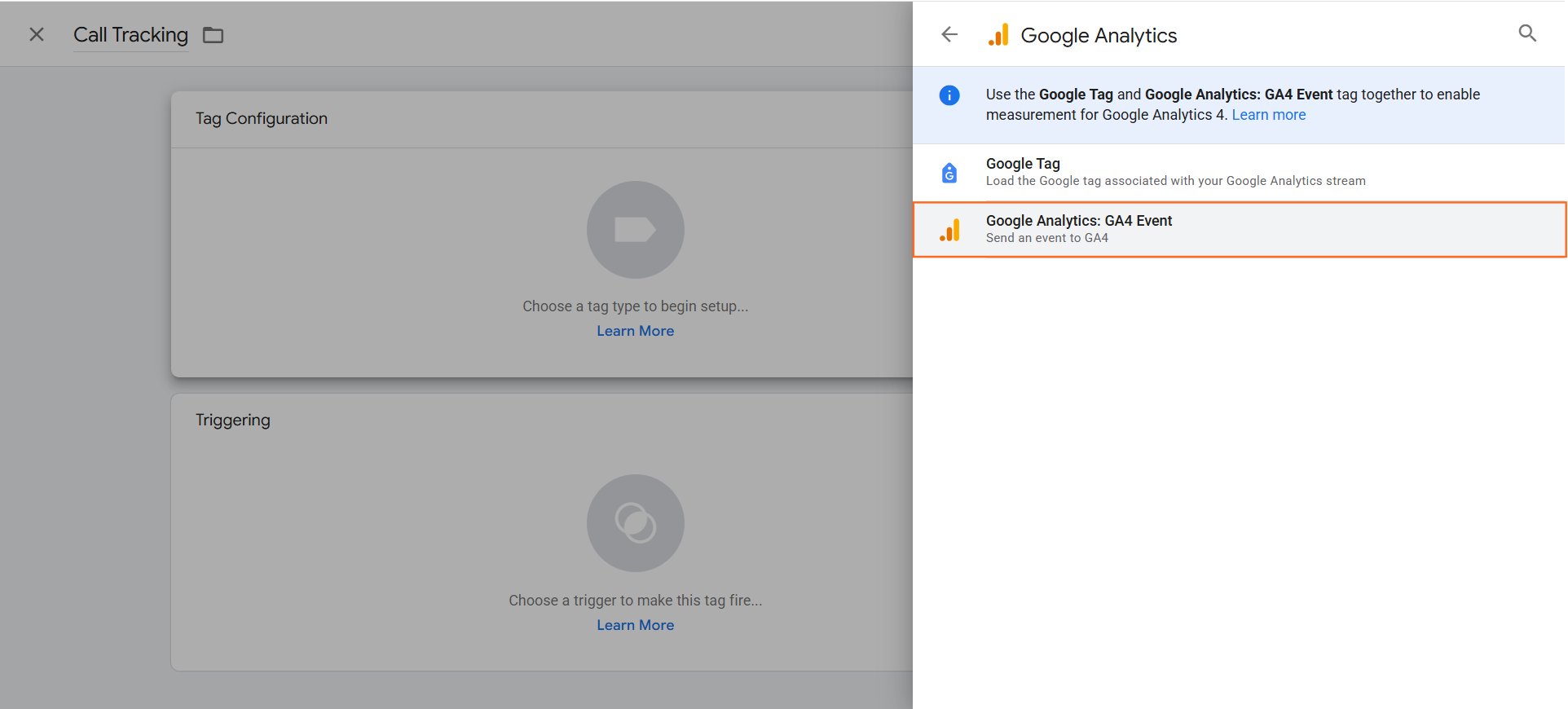
- Navigate to Tags in GTM and click “New”.
- Select Tag Configuration to Google Analytics: GA4 Event.
- Enter your GA4 Measurement ID (G-XXXXXX).
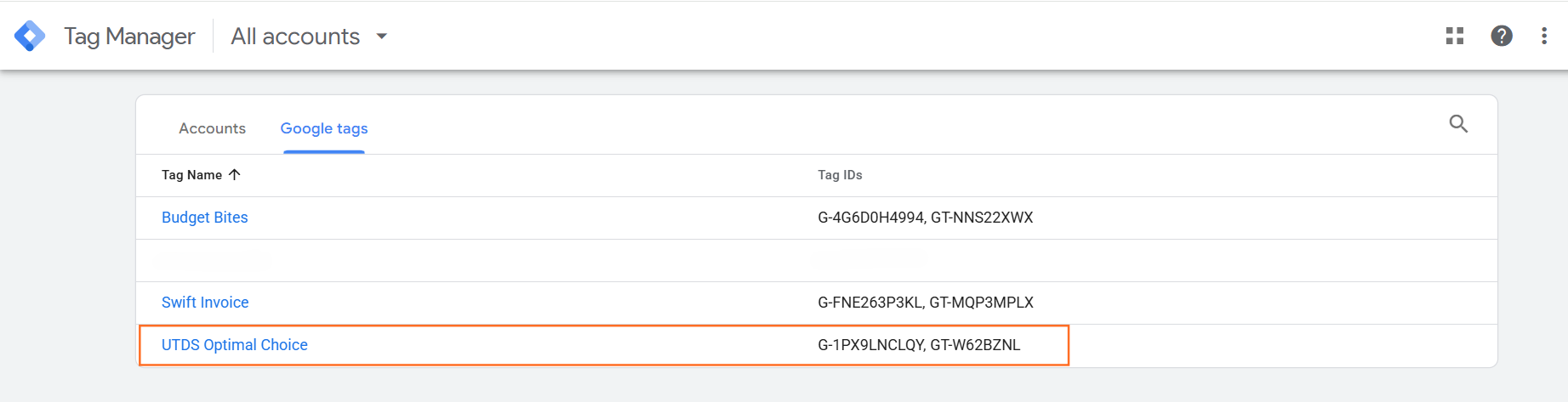
Note: Go to the main dashboard in Tag manager with all accounts, you will find two tabs Accounts and Google Tags. In the Google tags tab, you will find the Measurement ID of each property you’ve added to Google Analytics
- Set the Event Name to a descriptive value, such as phone_call_click.
- Set the Triggering to the Click-to-Call Trigger you created in Step C.
- Save the GTM Container.
Step 2: Register the Event as a Conversion in GA4
Once the event is sent from your website via GTM, you must tell GA4 to treat it as a high-value conversion.
- Wait for Data: After publishing the GTM container, wait 24-48 hours for the phone_call_click event to appear in the Realtime and Events reports in GA4.
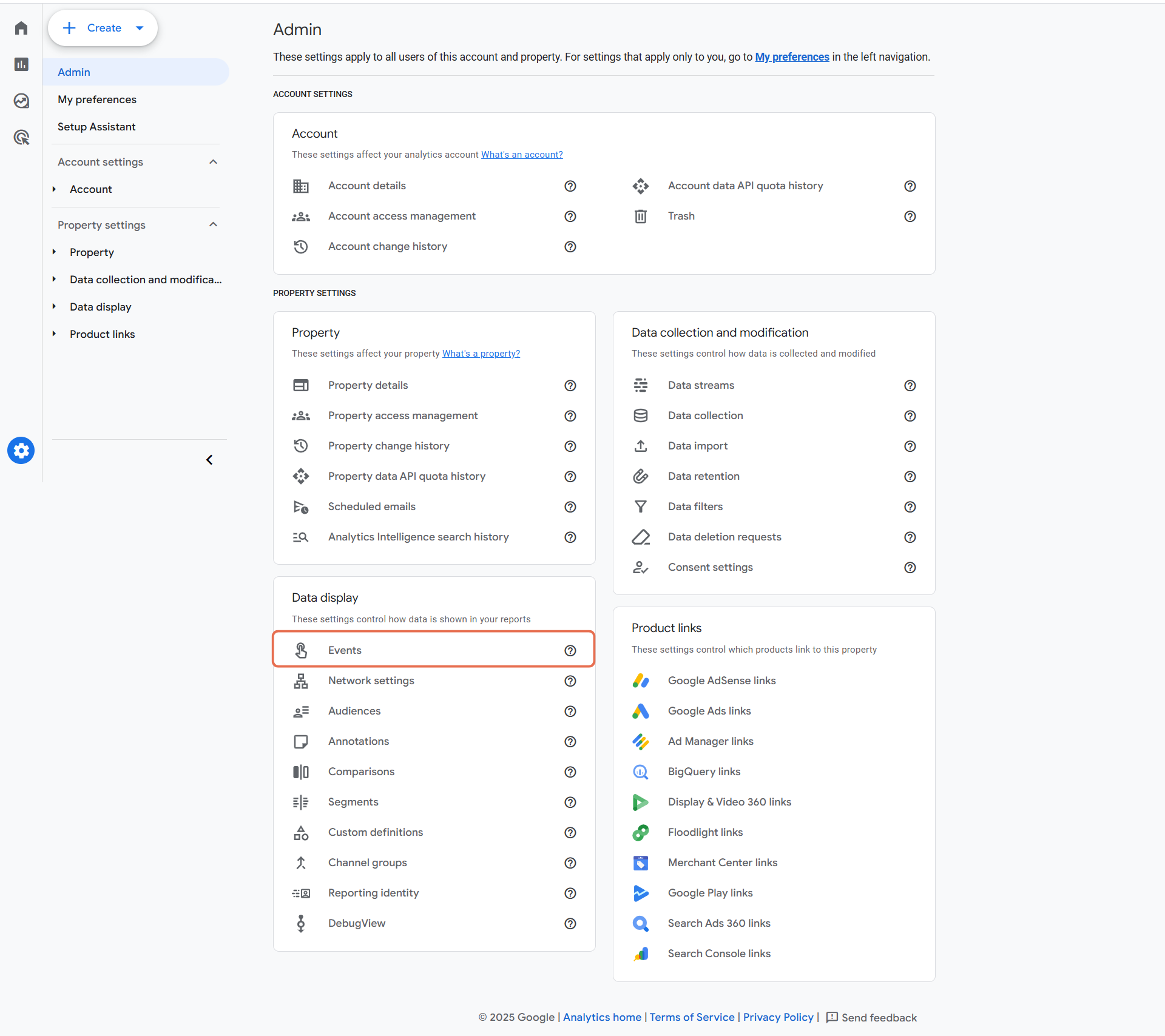
- Mark as Conversion:
- Go to Admin to Events in Google Analytics
- Find the phone_call_click event in the list.
- Toggle the switch in the Mark as conversion column to ON.
Note: The conversion will now appear in all your GA4 conversion reports, allowing you to track which campaigns, sources (Organic Search, Paid Ads, etc.), and pages lead to phone calls.
Step 3: Tracking Call Duration (Advanced)
For a more optimal approach, you may want to track calls that last longer than a certain time (e.g., 30 seconds) to filter out accidental clicks. This requires advanced server-side or third-party call tracking solutions (like CallRail or Infinity) that integrate directly with GA4 via custom events, allowing for more granular reporting on the quality of the call, not just the click.

 Salesforce

