


Responding to reviews is one of the few direct levers you have to influence public perception. A response does not just reply to one customer; it performs a public demonstration of your customer service standards to thousands of future visitors.
Follow this process to handle reviews professionally.
1. Access the Dashboard
As with other features, you now manage this directly on Google Search or Maps.
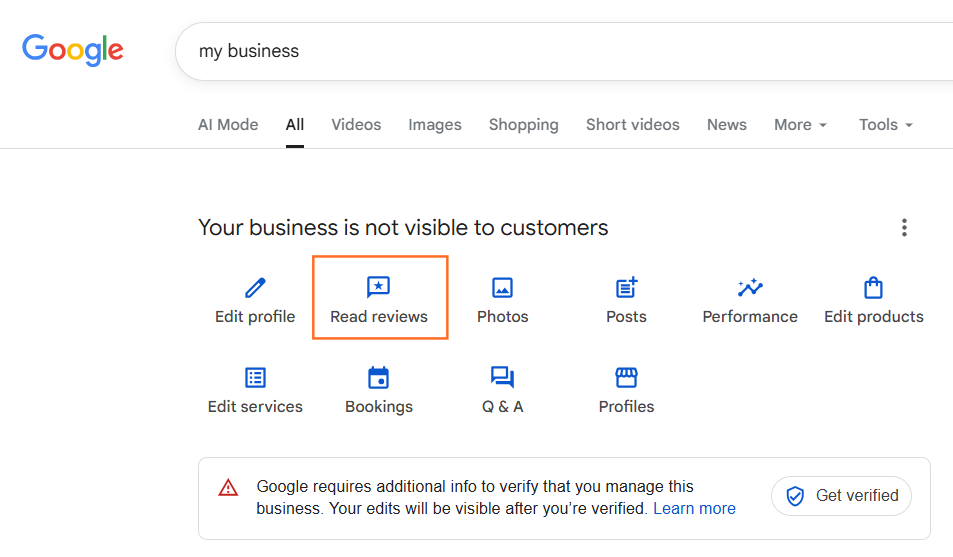
- Search: Go to Google and search for “my business”.
- Click: Select “Read reviews” from the dashboard buttons.
- Filter: You can sort by “Newest” or “Lowest” to prioritise urgent replies.
- Reply: Click the “Reply” button under the specific customer comment.
2. How to Respond to Positive Reviews
Do not ignore happy customers. A generic “Thanks” is better than silence, but a specific reply is best.
- Mention the Service: “Thank you for choosing us for your boiler repair…” (This reinforces keywords naturally).
- Personalise it: Use the customer’s name.
- Invite them back: “We look forward to seeing you for your annual service next year.”
3. How to Respond to Negative Reviews (The “EAR” Method)
Negative reviews can be damaging, but a calm, professional response can actually win you new customers who see that you are reasonable and caring.
Use the EAR acronym:
- E – Empathise: Acknowledge their frustration without admitting legal liability.
- Bad: “You are wrong, we arrived on time.”
- Good: “I am sorry to hear you were frustrated with the delay.”
- A – Address: Briefly explain the situation (if necessary) or clarify the standard.
- Example: “We aim to attend every emergency within 2 hours, but heavy traffic unfortunately caused a delay this time.”
- R – Resolve (Offline): Move the conversation away from the public eye immediately.
- Action: “Please call our office manager, Sarah, on 020 1234 5678 so we can fix this for you.”
- Action: “Please call our office manager, Sarah, on 020 1234 5678 so we can fix this for you.”
4. How to Handle “Fake” Reviews
If you receive a 1-star review from someone who is not a customer (or a competitor), you cannot just “delete” it. You must report it to Google.
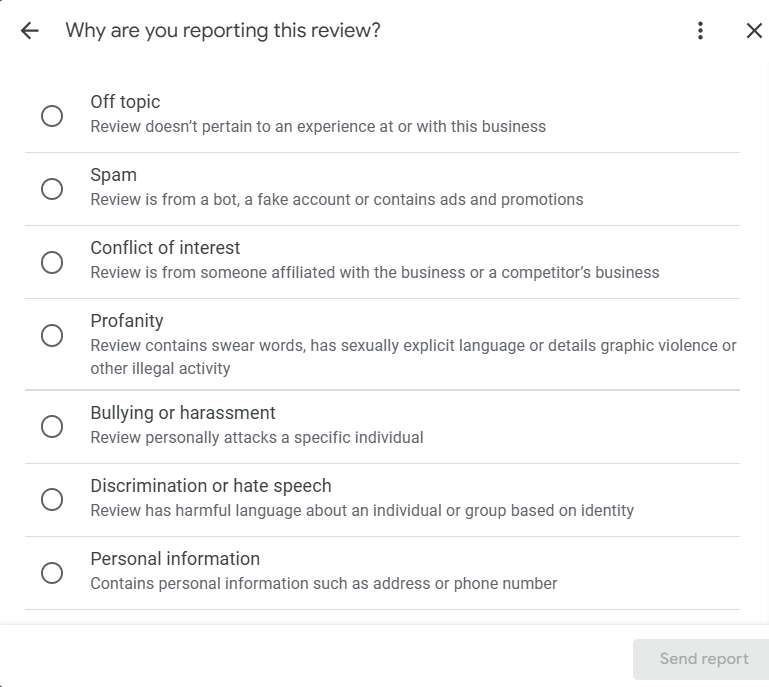
- Find the Review: Click the three dots (menu) next to the review.
- Select: “Report review”.
- Choose Reason: Select “Spam” or “Conflict of Interest”.
- Wait: Google will review it. This can take up to 3 days.
The Impact on Consumer Trust
Responding to reviews is not just polite; it is a critical conversion factor. Data shows that customers actively look for owner responses before making a decision.

 Salesforce

