


Verifying your Google Business Profile (GBP) without waiting for a postcard is possible if your business meets certain criteria, as the available verification methods are determined by Google based on your business category, public information, and region.
Step-by-Step Guide
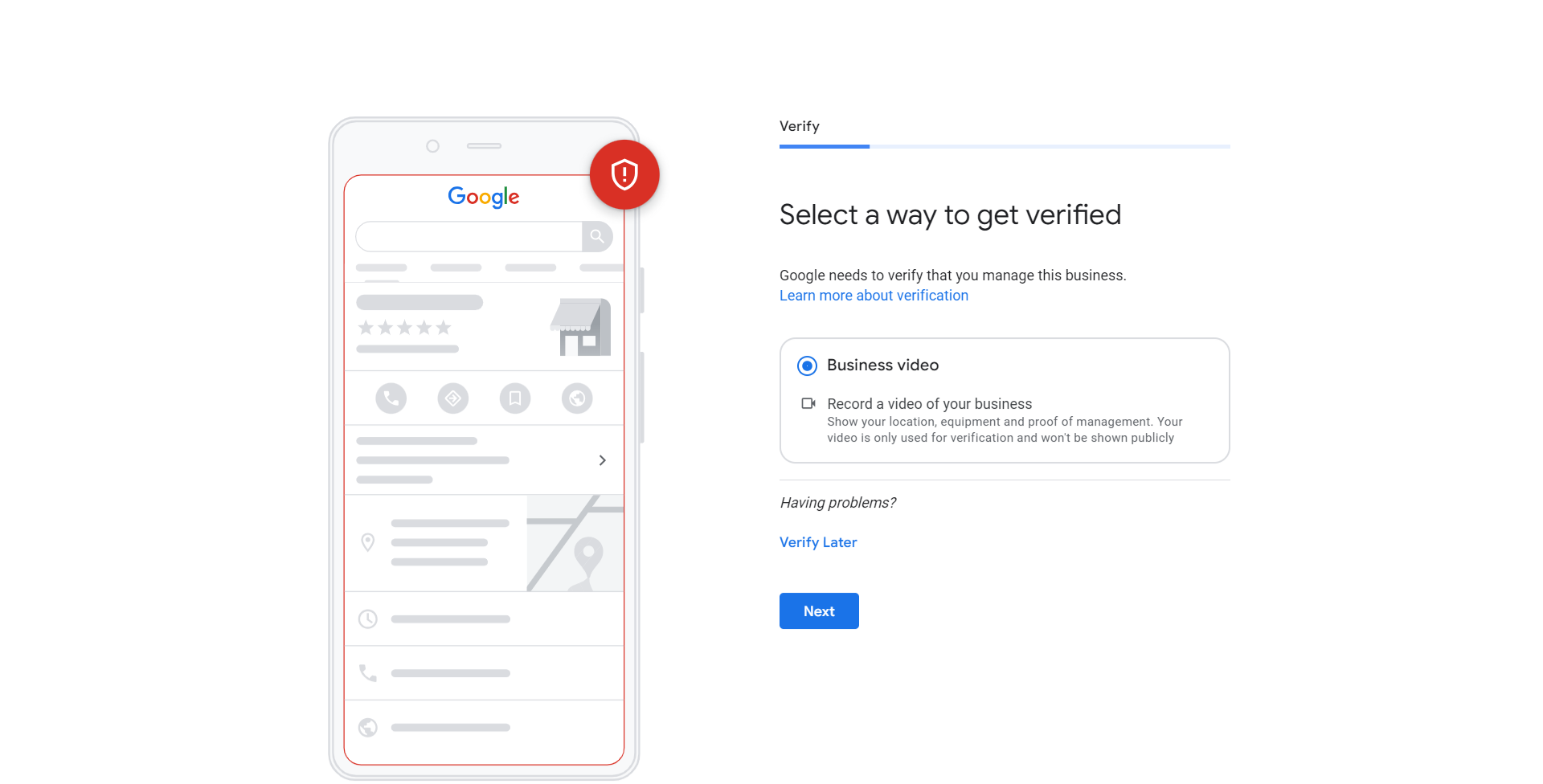
Step 1: Start the Verification Process
- Sign in to your Google account and go to the Google Business Profile Manager.
- If you have not already, click Verify now next to the profile you want to claim.
- Confirm or update your business details (Name, Address, Category).
Step 2: Check for Alternative Methods
When you reach the verification screen, Google will automatically present the fastest method it can support for your business. Do not click “Mail” immediately. Look for other options:
Verification Method | When It’s Available | Action |
Phone Call/Text | Most common for service-area businesses or those with publicly listed phone numbers. | Select “Call” or “Text.” You will receive an automated call or text message with a code that you enter immediately on the screen. |
Often available if you have an email address associated with your business domain (e.g., info@yourdomain.co.uk). | Select “Email.” A code will be sent to the listed address. Retrieve the code and enter it on the screen. | |
Instant Verification | Available if your website is already verified in Google Search Console (GSC) using the same Google account you are using for GBP. | If offered, it verifies automatically. This is the fastest method. |
Video Recording | An increasingly common method for service-area businesses without a physical shop front. You must prove your identity and association with the business location. | You record a short video showing your location (if applicable), vehicle/equipment, and proof of management (e.g., accessing your business tools). Google reviews this video. |
Step 3: Use the Video Recording Method (If Offered)
If you are a service-area business (like a plumber) and you are offered video verification, this is typically faster than waiting for mail.
- Select the Video recording option.
- Follow the instructions to record and upload a single, continuous video that proves three things:
- Location: Show your street address sign, business vehicle, or a nearby landmark.
- Business Equipment: Show inventory, equipment, or machinery used for your service.
- Proof of Management: Show yourself accessing a restricted area or a company document.
- Submit the video. Google usually reviews video submissions within 24 to 72 hours.
Our Advice
1. Verify Search Console First
- Advise: To increase your chances of getting Instant Verification, make sure your website is verified in Google Search Console before you try to claim your Google Business Profile. Use the exact same Google account for both.
2. Service-Area Business (SAB)
- Note: If you are an SAB and do not want your home address visible, ensure you select “Hide my address” during the setup process, but you will still need to verify your service area and may need to use video verification to prove your operating location.
3. What If Only Postcard is Offered?
- Action: If the postcard is the only option available, unfortunately, you must select it. Wait the designated time, and if the postcard doesn’t arrive after two weeks, you can request a new one (sometimes unlocking a different verification method after multiple failed attempts).

 Salesforce

