


In Salesforce, restricting record access is handled by the Record-Level Security layer. Unlike Profiles (which control what a user can do), this layer controls which specific rows of data a user can see.
To restrict access, you must follow the “Lock then Open” principle.
Step 1: The Baseline: Organization-Wide Defaults (OWD)
To restrict access, you must first “lock the door” by setting the baseline access to the most restrictive level.
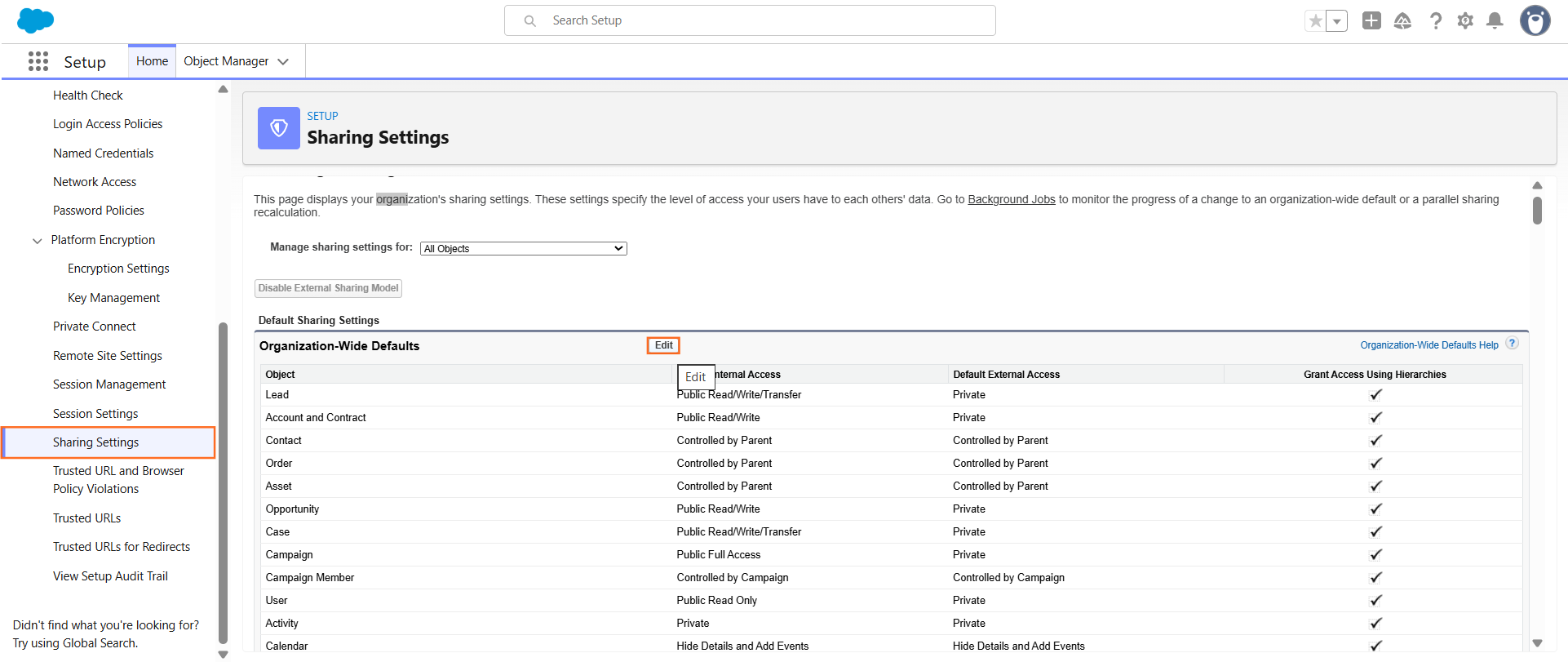
- Navigate to Setup > Security > Sharing Settings.
- Locate the Organization-Wide Defaults section.
- Click Edit.
- Set the Internal Access for the desired object to Private.
- Private: Only the record owner and those above them in the role hierarchy can see the record.
- Public Read-Only: Everyone can see the record, but only the owner can edit it.
- Click Save.
Step 2: The Exception: Restriction Rules
While OWD sets the baseline, Restriction Rules (introduced for finer control) allow you to hide records even if a user has access via sharing rules or the role hierarchy. This is ideal for highly sensitive data like legal contracts or private HR records.
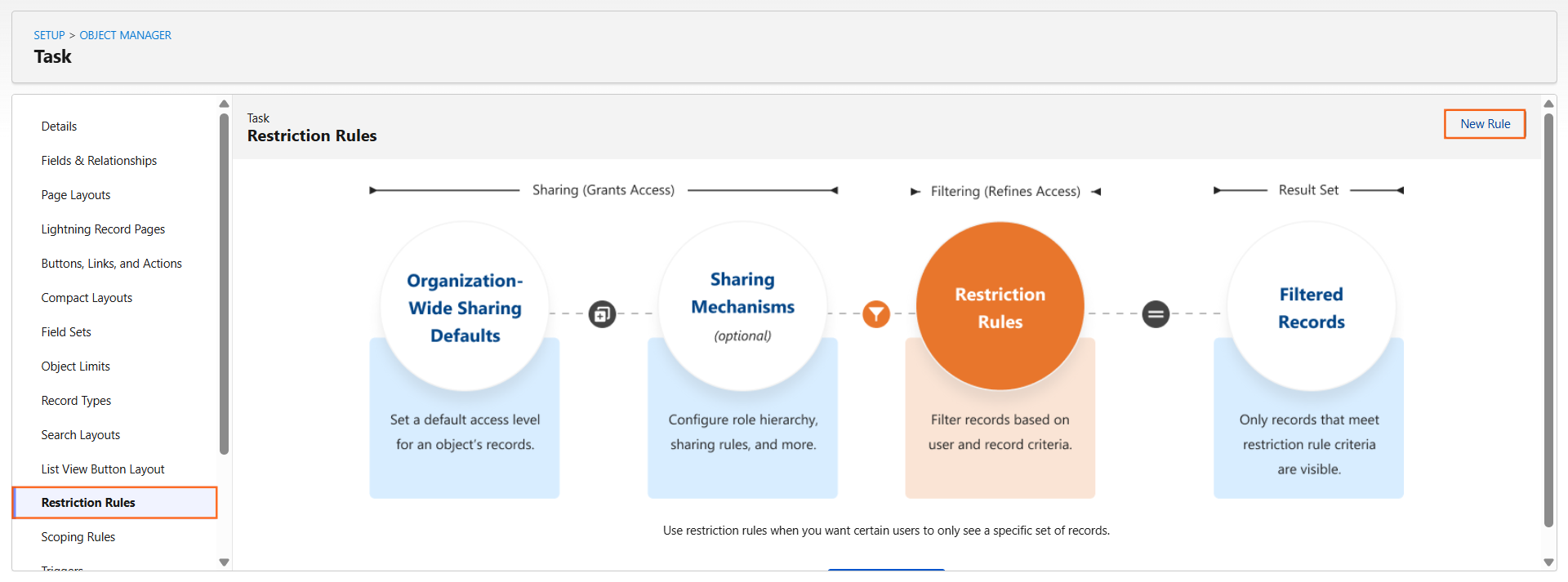
- Navigate to Setup > Object Manager > [Choose your custom object].
- Click Restriction Rules in the sidebar.
- Click Create New Rule.
- Define User Criteria (Who does this apply to? e.g., “All users with Profile X”).
- Define Record Criteria (What should they see? e.g., “Only records where Status = Active”).
- Click Save.
Note: Restriction rules are absolute. Even if a sharing rule says “Give access,” the Restriction Rule will override it and hide the record if the criteria aren’t met.
Step 3: Record Security Hierarchy
In instructional design, it is helpful to visualize how Salesforce decides who sees what. The system starts restrictive and opens up:
Layer | Action | Purpose |
OWD | Restrict | Sets the minimum access for everyone. |
Role Hierarchy | Open | Grants vertical access (managers see subordinates’ records). |
Sharing Rules | Open | Grants horizontal access (lateral sharing between groups). |
Manual Sharing | Open | One-off access granted by the owner. |
Restriction Rules | Restrict | The “Final Filter” that overrides all “Open” layers above. |
Step 4: Special Case: Master-Detail Relationships
If you are trying to restrict access to a “Child” record in a Master-Detail relationship, you cannot do so directly.
- Access to the “Detail” (Child) record is entirely controlled by the “Master” (Parent) record.
- If a user can see the Parent, they can see the Child. To restrict the Child, you must restrict the Parent.

 Salesforce

