


How to Pause or Enable Multiple Campaigns at Once
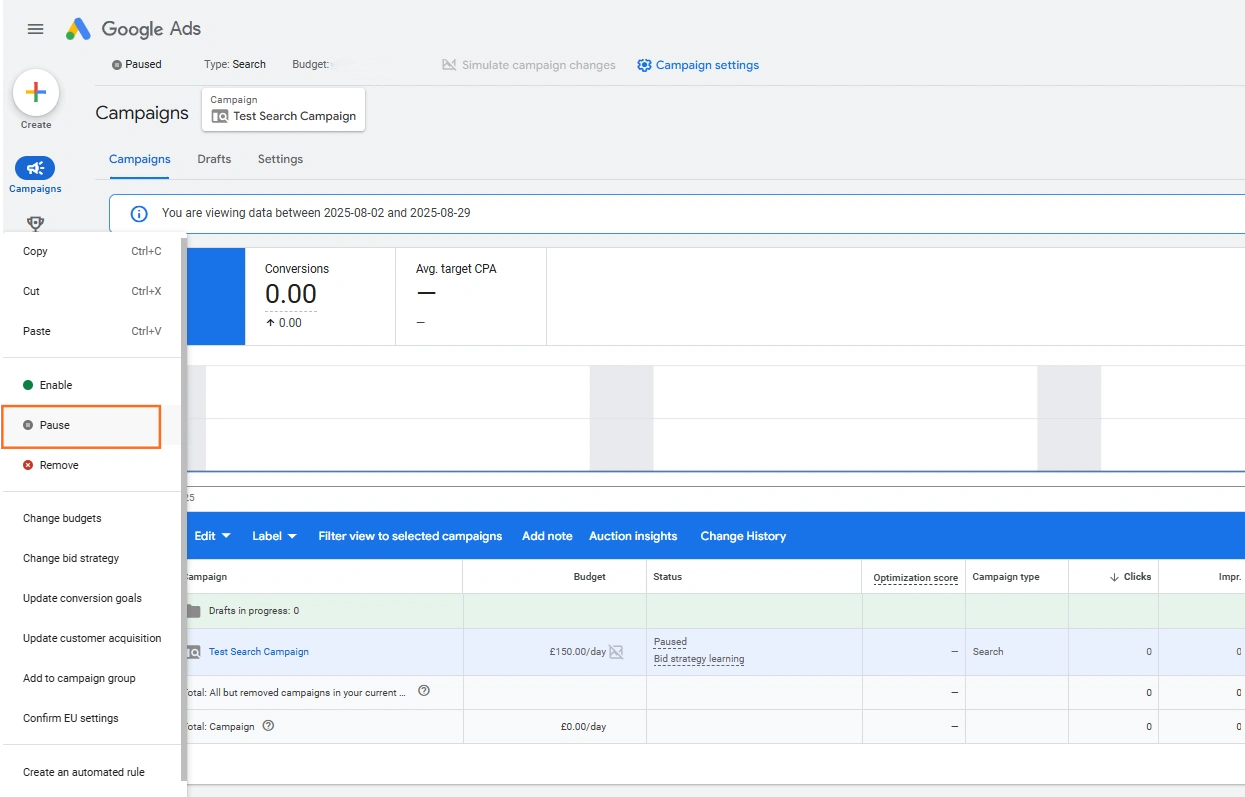
Step 1: Select the Campaigns
- Navigate to Campaigns: In your Google Ads account, click on Campaigns in the main left-hand menu.
- Filter (Optional): Use the filter bar above the campaign table if you need to select campaigns based on specific criteria (e.g., filter by ‘Status: Paused’ or ‘Campaign Type: Search’).
- Select Multiple: Use the checkboxes next to the campaign names to select all the campaigns you wish to modify.
Step 2: Access the Bulk Edit Menu
- Once two or more campaigns are selected, an Edit menu will appear in a blue bar directly above the campaign table.
- Click the Edit drop-down menu.
Step 3: Change the Status
- From the Edit menu, hover over ‘Change status’.
- Select the desired action:
- Pause: To stop all selected campaigns from showing ads immediately.
- Enable: To resume all selected paused campaigns.
- Remove: To permanently delete the selected campaigns (cannot be undone, use with caution!).
- Confirm: Google Ads will process the change, and the Status column for the selected campaigns will update almost instantly.
Advice and Tips for Bulk Status Changes
| Tip/Best Practice | Rationale and Context |
| Check the Hierarchy | Crucial: Enabling a campaign only works if the ad groups, keywords, and ads within that campaign are also Enabled. If you bulk-enable a campaign but an ad group inside it is Paused, the ads will still not run. |
| Use Automated Rules | Stat: Use Automated Rules (found under Tools > Bulk actions > Rules) to automate pausing. For example, create a rule to automatically Pause any seasonal campaign when the date passes a specific End Date, or when Cost exceeds a certain threshold. |
| ‘Remove’ vs. ‘Pause’ | Pause stops spending but keeps all historical data, keywords, and settings intact it’s temporary. Remove permanently deletes the campaign and its history, meaning it cannot be resumed. |
| Audit Post-Change | After enabling campaigns, check the Status column a few hours later for warnings like ‘Eligible (limited)’ (which usually means the budget is too low) or ‘Bid strategy limited’ (which may require more conversion data). |
 Google Ads

 Search Engine Optimisation
 About Us