


A slow website can have several causes, including large images, excessive scripts, slow server response or poorly configured caching. The first step is to identify where the delay occurs rather than changing settings at random.
1. Check your website performance
Test the affected page using a tool such as Google PageSpeed Insights. Test both mobile and desktop versions and review the specific recommendations rather than relying only on the overall score.
2. Check your images
Large image files can take longer to download. Review images used on the affected page and:
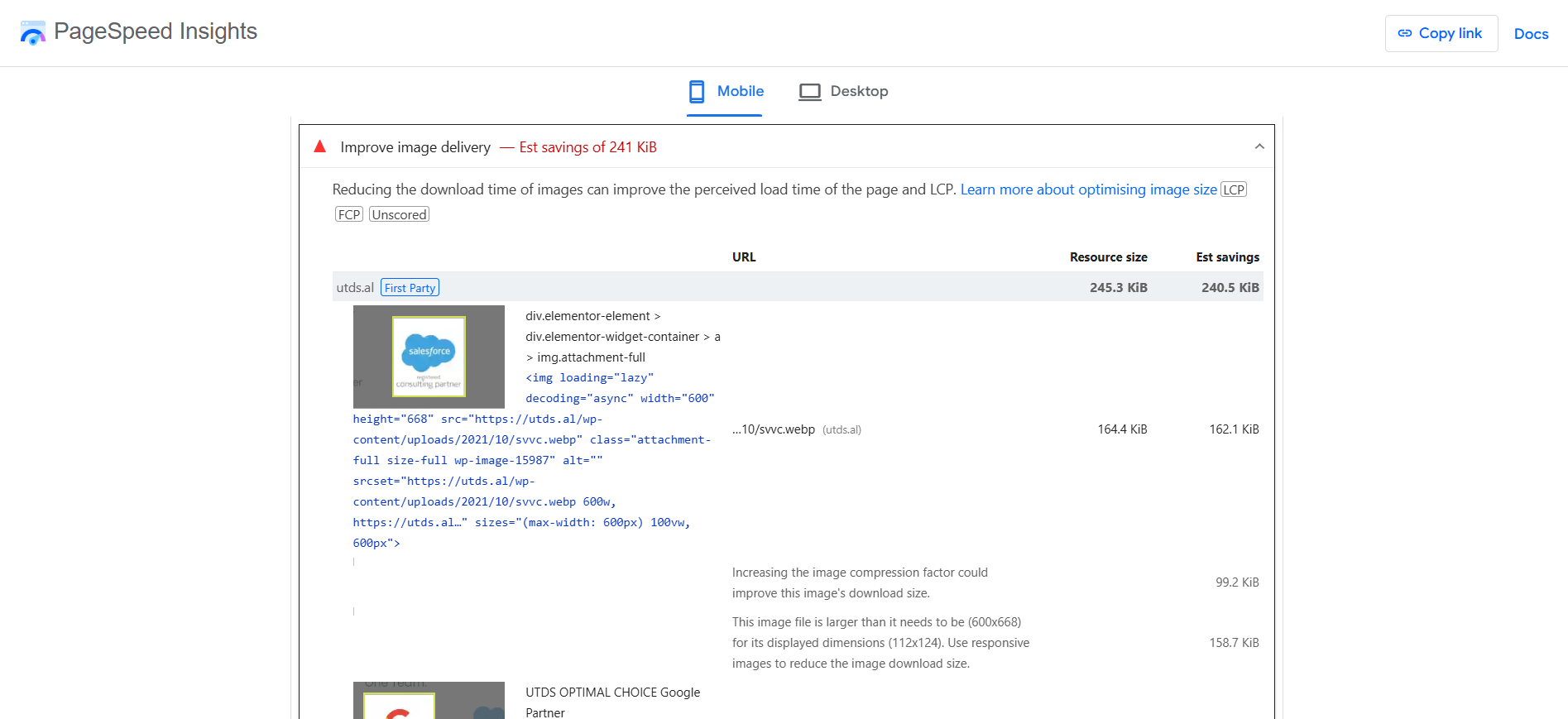
- Resize images to appropriate dimensions.
- Use suitable modern image formats where supported.
- Avoid uploading unnecessarily large files.
- Use responsive image techniques so suitable image resources can be selected for different screen sizes.
3. Review plugins and scripts
Plugins and third-party services can add JavaScript, CSS or other resources to a page.
If the problem started after installing or updating a plugin, test whether the issue changes when that plugin is disabled. Also review unnecessary third-party scripts such as chat, tracking or embedded services.
4. Check your hosting and server response
If the server takes a long time to begin responding, the problem may be related to hosting resources, server configuration, database activity or application processing.
Check your hosting provider’s performance information and server response metrics before changing website code.
5. Check caching
Caching can reduce the amount of work required to generate and deliver pages. If your WordPress website uses a caching plugin or hosting-level caching, check that it is configured correctly.
Do not install multiple caching systems without understanding how they interact.

 Salesforce

