


Keeping WordPress plugins and themes updated helps maintain compatibility, security and functionality. Before updating, make sure you can recover the website if an update causes a problem.
1. Create a backup
Create a recent backup of your website before making significant updates. The backup should include the website files and database.
If possible, confirm that the backup can actually be restored.
2. Check available updates
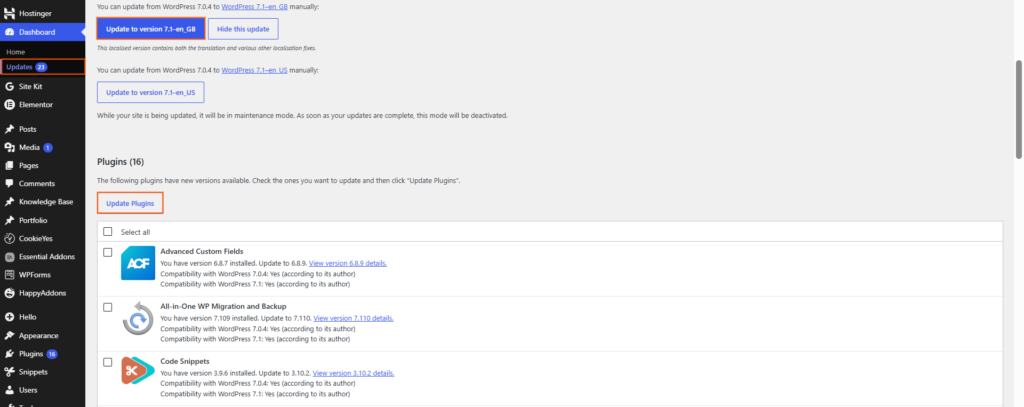
Log in to your WordPress dashboard and go to Dashboard → Updates or Plugins → Installed Plugins.
For themes, go to Appearance → Themes and check whether an update is available.
Review the plugin or theme developer’s information for important compatibility or configuration notes.
3. Update plugins
Update plugins through the WordPress dashboard when an update is available.
If you manage several plugins, consider updating them individually or in small groups on an important website. This makes it easier to identify the source of a problem if something stops working.
4. Update your theme
Go to Appearance → Themes and update the relevant theme when an update is available.
If you have made custom changes directly to the theme’s files, check how those changes are managed before updating. Direct modifications to a parent theme can be overwritten by an update.
5. Test the website
After updating, visit important pages and test key features such as:
- Navigation
- Contact forms
- Login areas
- Page layouts
- Ecommerce or booking
- functions
- Third-party integrations
Also check the website on both desktop and mobile.
6. Fix problems promptly
If an update causes an error or breaks a feature, identify the affected plugin or theme and check its documentation or support information.
If necessary, restore a known-good backup or use an appropriate rollback method rather than leaving a broken website online.

 Salesforce

