


Updating your opening hours is done through your Google Business Profile (GBP), which controls how your business appears on Google Search and Maps. You must be signed in to the Google account that manages the profile to make these changes.
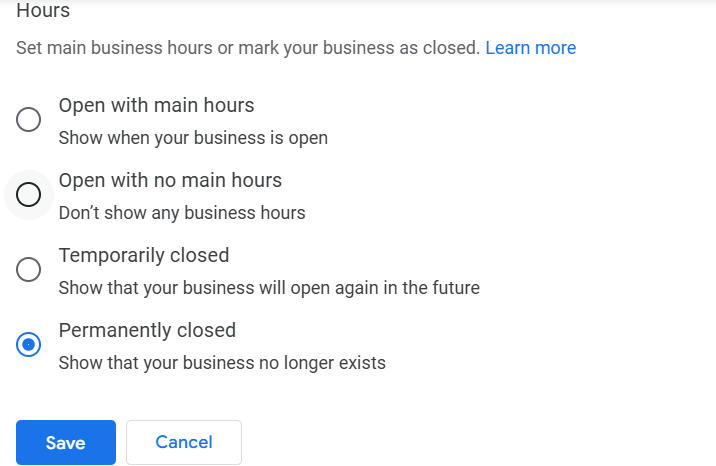
Step 1: Access Your Business Profile
- Sign in to the Google account linked to your GBP.
- Search for your business name in the Google Search bar (e.g., “Plumbing Immediately”).
- A management panel will appear directly above the search results or in the Knowledge Panel. Click Edit profile.
- Navigate to the Hours tab or section.
Step 2: Set Your Main Business Hours
Your Main Hours are your regular, week-to-week hours of operation.
- Ensure Open with main hours is selected.
- For each day of the week, check the box next to the day your business is open.
- Use the dropdown menus to select the opening time and closing time.
- If your business is open 24 hours, select the 24 hours option in the dropdowns.
- Click Save to confirm your changes.
Setting Split Hours (Breaks)
If your business closes for a break (e.g., a lunch closure), you can enter multiple blocks of time for a single day:
- For the day that has a break, set the first set of hours (e.g., 9:00 AM to 1:00 PM).
- Click the + Add hours option next to that day.
- Set the second set of hours (e.g., 2:00 PM to 5:00 PM).
Step 3: Set Special Hours (Holidays/Events)
Special Hours are crucial for holidays, temporary closures, or special events, as they override your main hours for a specific date range.
- In the Hours section, find the Special hours option and click Edit.
- Select the Date: Google may suggest upcoming holidays; otherwise, click Add a date and select the specific day from the calendar.
- Update Hours:
- If you are closed for that holiday, ensure the Closed box is checked.
- If you are open for a limited time, uncheck the Closed box and enter the temporary opening and closing times.
- Click Save.
Our Advice
1. Consistency is Key
- Advise: Ensure the hours you list on your GBP match the hours on your website and any other major business directories (Facebook, Yelp, etc.). Google uses multiple sources to verify your information, and inconsistency can lead to your changes being flagged or reverted by Google’s automated systems.
2. Temporary Closures
- If your business is closed for more than six days in a row (e.g., for maintenance or vacation), you should mark your business as Temporarily closed in the Hours section instead of setting special hours for every single day.

 Salesforce

