


Method 1: The “Thank You” Page (The Gold Standard)
The most robust way to track a form submission is to redirect the user to a dedicated “Thank You” page (e.g., example.com/thank-you) immediately after they click submit.
- Create the Page: Build a simple page that says “Thanks for contacting us.” Ensure this page is noindex so people don’t find it via Google search (which would skew your data).
- Redirect: Configure your form plugin (like WPForms or Contact Form 7) to redirect to this URL upon success.
- Track in GA4:
- Go to Admin > Events > Create Event.
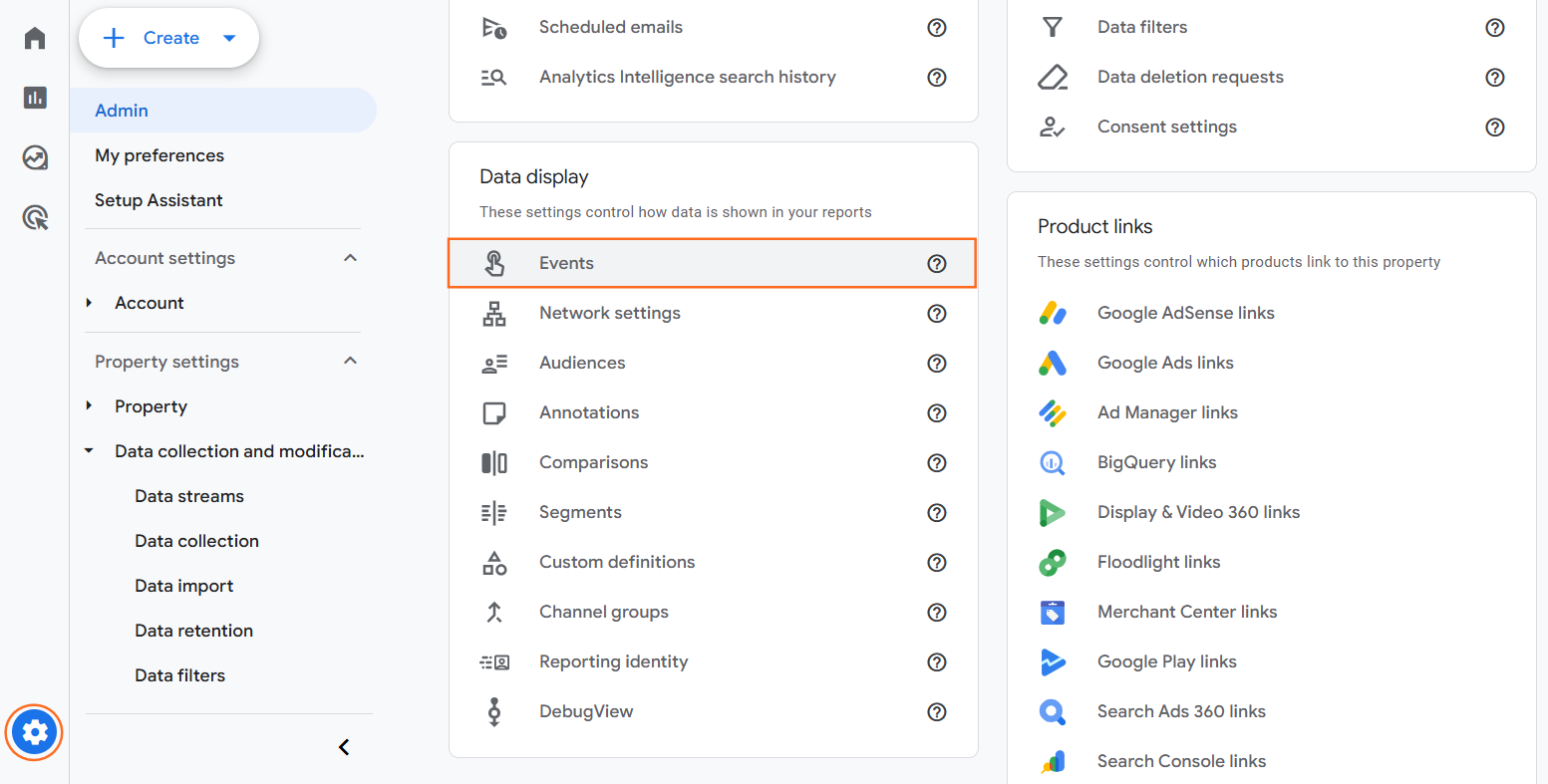
- Custom Event Name: generate_lead (This is a standard Google event name).
- Matching Conditions: event_name equals page_view AND page_location contains /thank-you.
- Mark as Conversion: Go to the “Conversions” tab and toggle the switch for generate_lead to “On”.
Method 2: Google Tag Manager (For AJAX Forms)
Modern forms often show a “Success!” message on the same screen without reloading the page (AJAX). To track this, you need a “listener” that detects the specific form submission code.
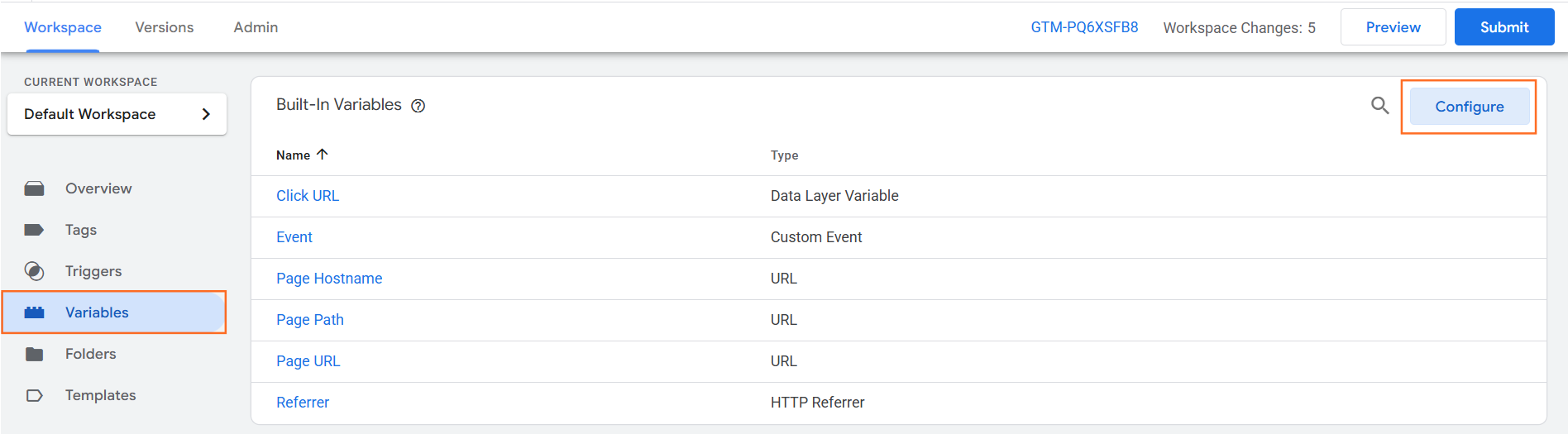
- Enable Variables: In GTM, go to Variables > Configure and tick all boxes under “Forms” (Form ID, Form Classes, etc.).
- Create Trigger:
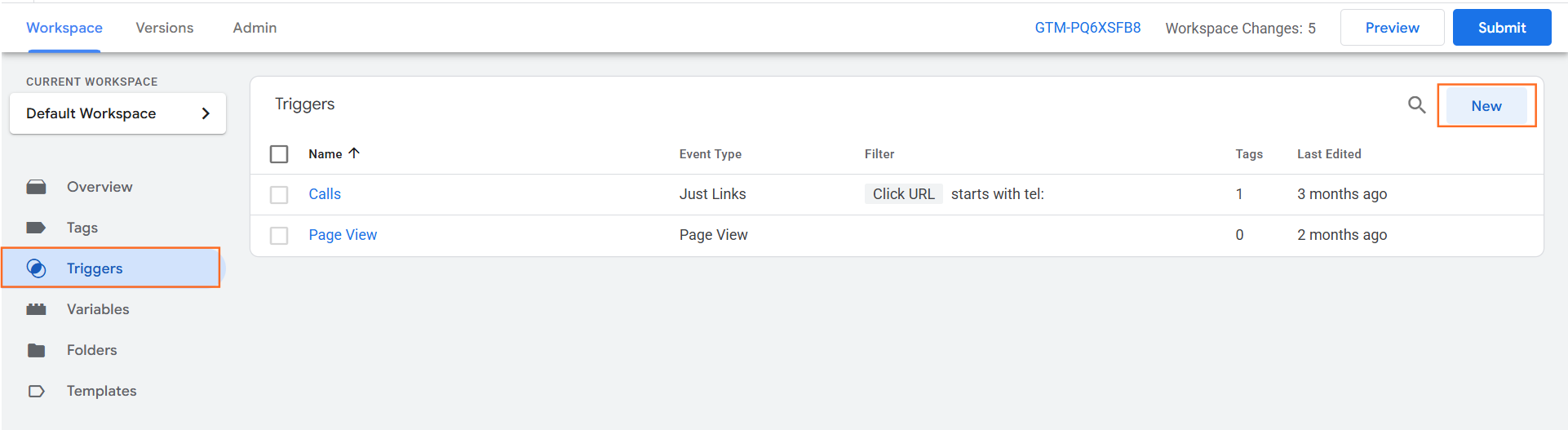
- Go to Triggers > New > Form Submission.
- Select “Check Validation” (to ensure empty forms aren’t counted).
- Fire On: Form ID equals [Your Form ID] (Inspect the HTML of your form to find this, e.g., wp-form-102).
- Create Tag:
- Tag Type: GA4 Event.
- Event Name: form_submit.
- Trigger: Select the trigger you just created.
Method 3: GA4 “Enhanced Measurement” (The Automatic Way)
Google Analytics 4 has a built-in feature that attempts to track forms automatically. While convenient, it can be inaccurate (often tracking people who start filling a form but abandon it).
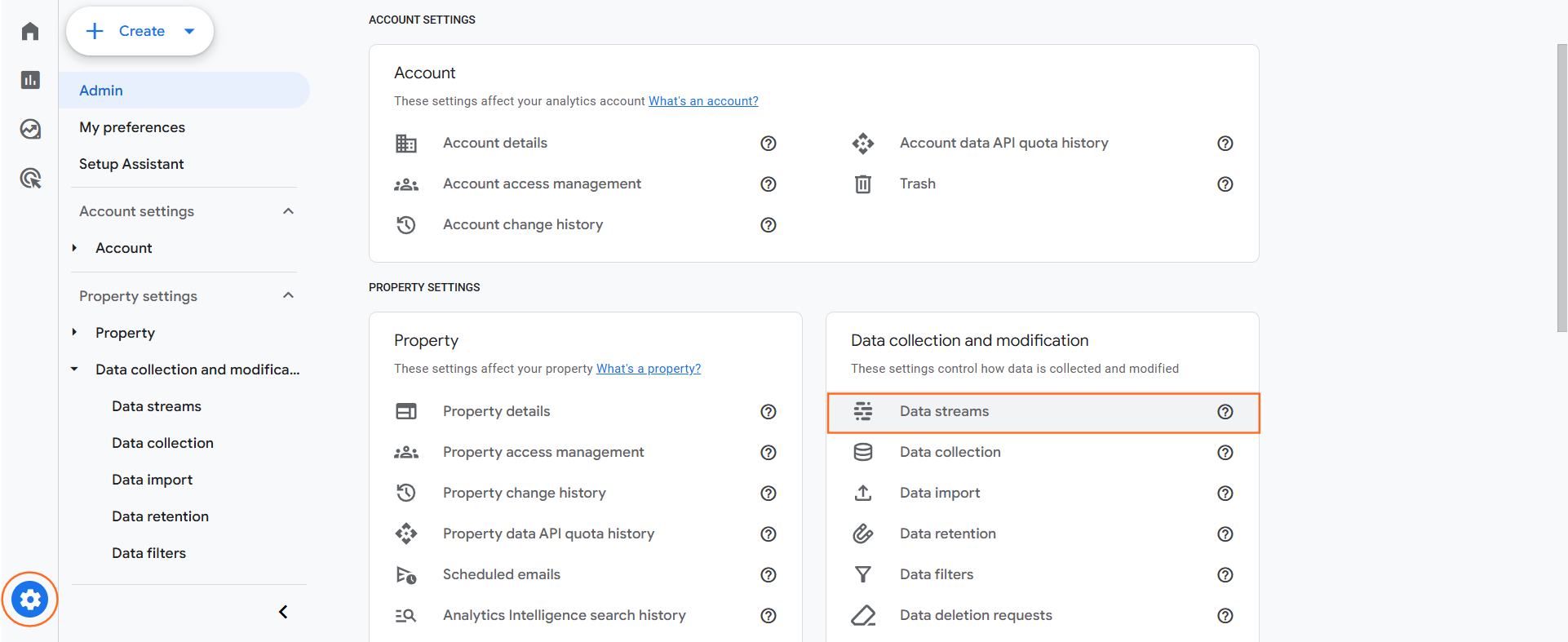
- Navigate: Go to Admin > Data Streams.
- Select Stream: Click on your website URL.
- Enhanced Measurement: Ensure the toggle is On
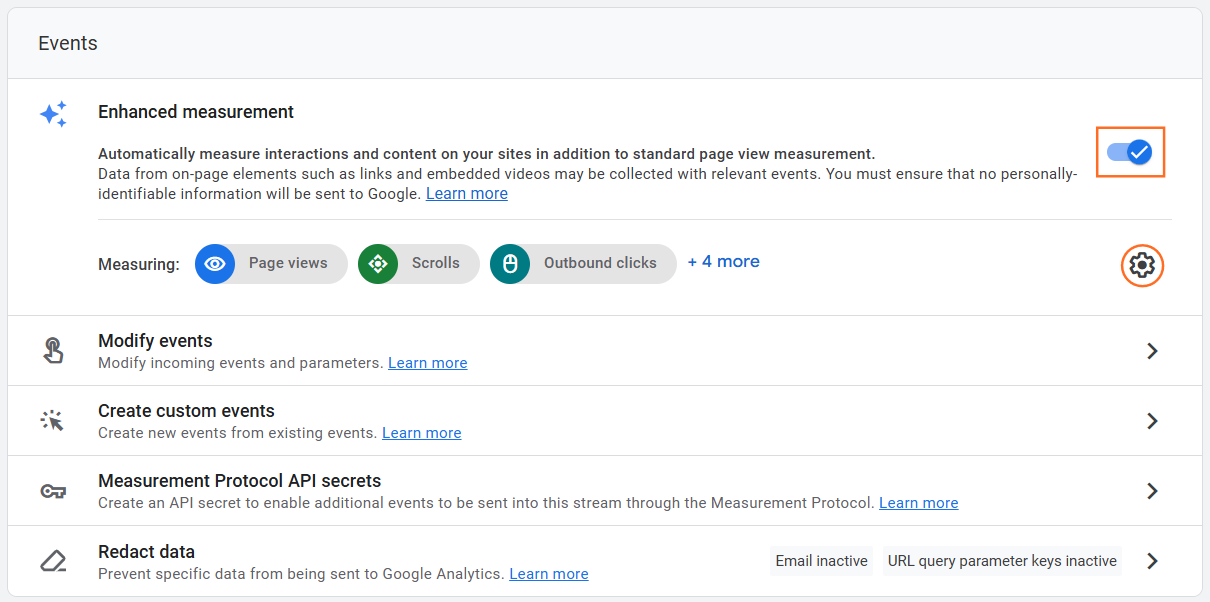
- Settings: Click the “Gear” icon and ensure Form interactions is checked.
- Warning: This tracks form_start (user clicks a field) and form_submit. You must ensure you are reporting on form_submit, not just interactions.
Validating Your Tracking (DebugView)
You must verify that the tracking works before trusting the data.
- GTM Preview: If using Tag Manager, click “Preview,” enter your website URL, and submit a test form. You should see the “Form Submit” tag fire in the debug window.
- GA4 DebugView:
- Go to Admin > DebugView.
- Submit a form on your live site.
- Watch the timeline. You should see a blue dot appear for generate_lead or form_submit. If you see it, your tracking is live.

 Salesforce

