


Connecting Google Analytics 4 (GA4) to Google Search Console (GSC) is essential for a complete digital strategy. This integration allows you to see search queries, impressions, and click-through rates (CTR) directly within your GA4 reports, bridging the gap between how users find your site and how they behave on it.
Prerequisites for Linking
Before starting, ensure these two foundational requirements are met:
- Matching Accounts: You must be logged into Google with an account that has Editor or Administrator access to the GA4 Property and Owner access (Verified or Delegated) to the GSC Property.
- Matching Domain: The domain URL used in the GSC Property must exactly match the URL used in the GA4 Web Data Stream.
Step 1: Initiating the Link in GA4
The connection is established directly within the Google Analytics 4 interface.
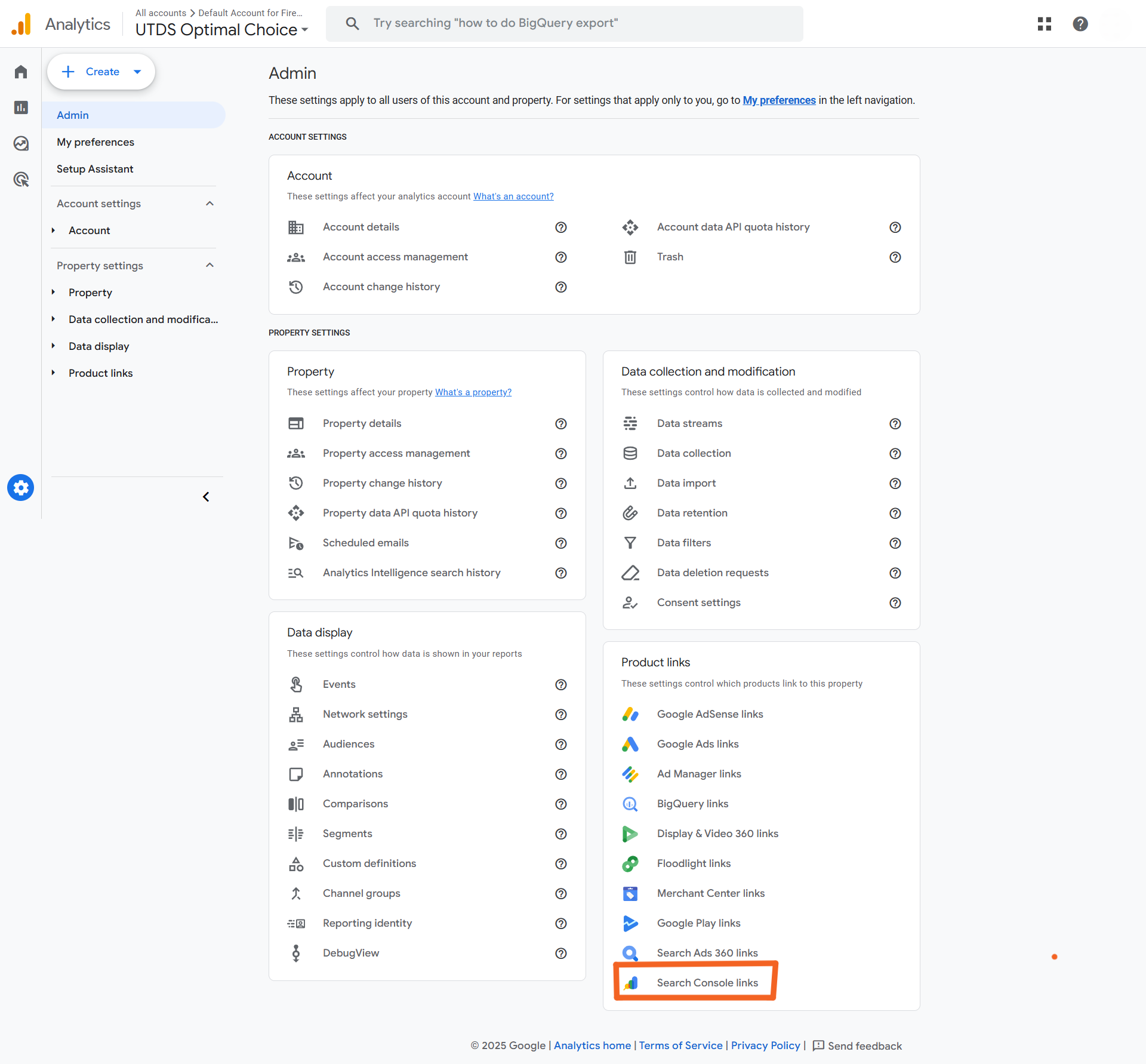
- Navigate to Admin: In your GA4 property, click the Admin gear icon (⚙️) in the bottom-left corner.Locate the Links Section: In the “Property” column, scroll down to the “Product Links” section and click on “Search Console Links”.
- Start the Process: Click the “Link” button.
- Choose the GSC Property:
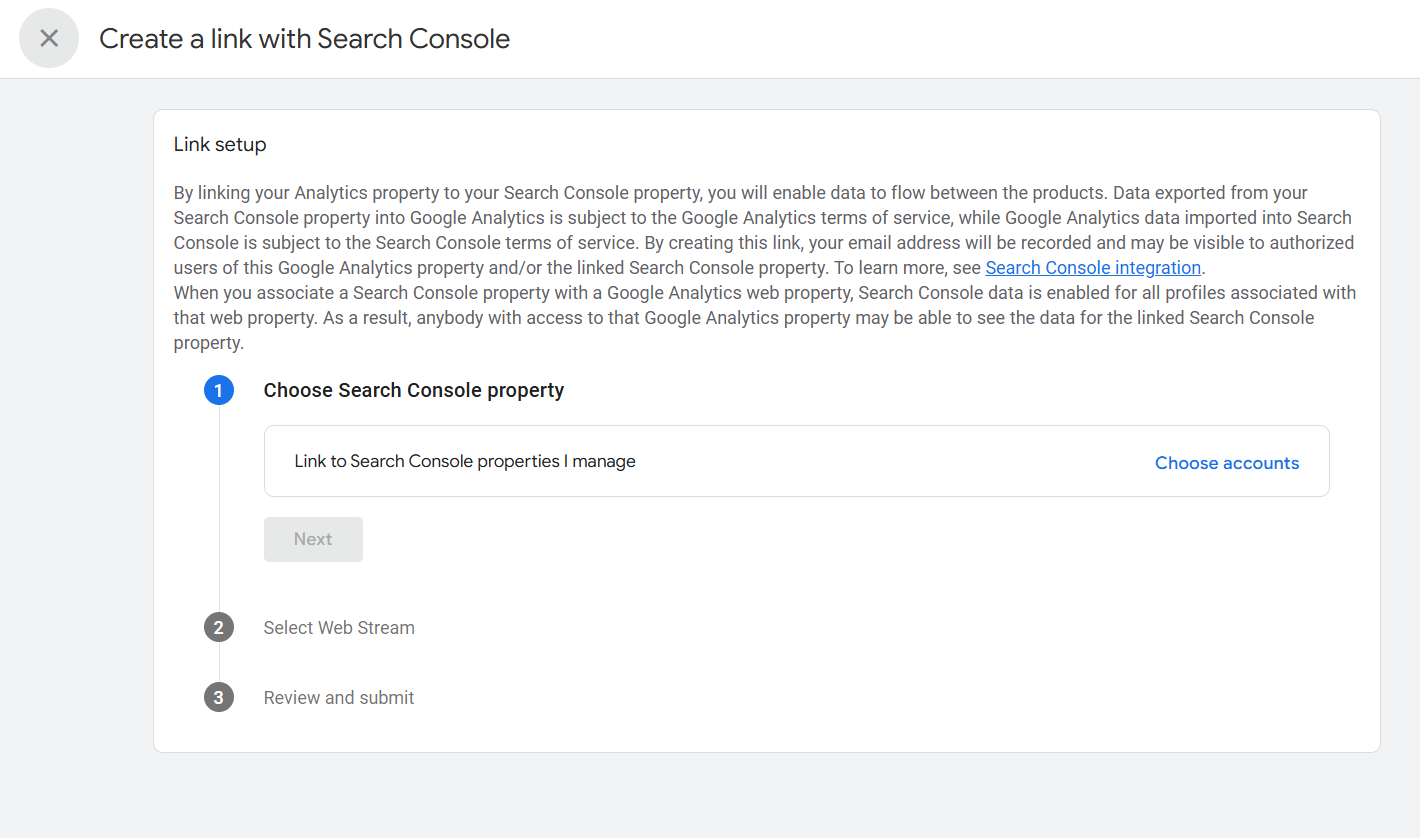
- Click “Choose accounts.” A list of GSC properties you own will appear.
- Select the GSC property that corresponds to the website you are linking.
- Click “Confirm.”
- Confirm the Web Stream: Click “Next.” GA4 will automatically select the correct web data stream for the linking GSC property.
Step 2: Finalizing and Saving the Link
- Review Settings: Review the confirmation screen, ensuring the correct GSC property and GA4 Web Stream are selected.
- Click “Submit”: This finalizes the linkage.
Note on Data: It can take up to 24–48 hours for GSC data to start flowing into the GA4 reports.Once connected, GA4 will begin pulling in historical data for the last six months from GSC.
Step 3: Accessing the Integrated Reports in GA4
Once the connection is established, two dedicated reports appear under the Acquisition section in your GA4 standard reports:
GA4 Report Name | Data Source | Key Insight for UTDS Optimal Choice |
Google Organic Search Queries | Google Search Console | Shows the exact search terms users entered, alongside impressions and CTR. This is the source for true keyword insights. |
Google Organic Search Traffic | Google Search Console & GA4 | Combines GSC data (Impressions, Clicks) with GA4 user data (Sessions, Engagement Rate, Conversions). |
Optimal Use of Integrated Data
- Bridge the Gap: Use the “Google Organic Search Traffic” report to see which landing pages have a high number of impressions but a low CTR, then use that data to optimise the meta descriptions (a previous knowledge base topic!).
- Validate Keywords: Identify high-impression search queries that are not leading to engagement (low session duration or high bounce rate).This suggests your content is not adequately matching the user’s intent.

 Salesforce

