


Crawl errors occur when search engine bots (like Googlebot) attempt to access a page on your site but are unable to do so, usually due to server issues, incorrect URLs, or access restrictions.Addressing these errors is critical, as uncrawlable pages cannot be indexed, and therefore, they cannot rank.
Essential Tool: Google Search Console (GSC)
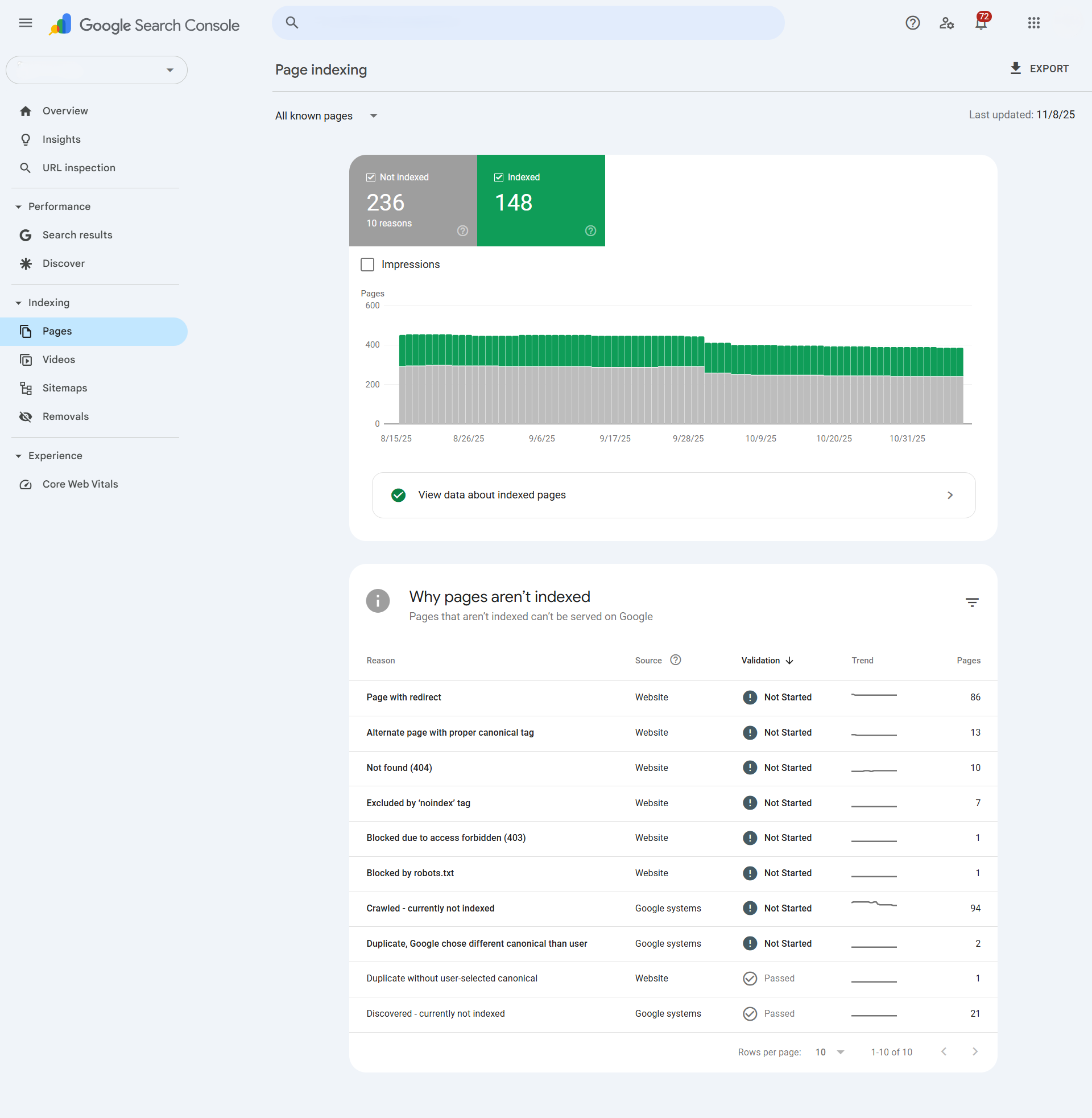
Google Search Console is the primary and most authoritative tool for diagnosing crawl errors, as it directly reports the issues Googlebot encountered on your site.
GSC Report | Error Type Reported | Optimal Action for UTDS Clients |
Index to Pages | Shows which pages are indexed, submitted but not indexed, or excluded. | Look for the “Page with redirect” (often a chain of errors) and “Blocked by robots.txt” status. |
Indexing to Pages to Details | Detailed list of specific exclusion reasons. | Focus on “Crawl anomaly,” “Not found (404),” and “Blocked due to unauthorized request (401).” |
URL Inspection Tool | Real-time status of a specific URL. | Use this to check individual URLs. If Google reports an error, click “Test Live URL” to see if the issue is now resolved. |
Settings to Crawl Stats | Provides historical data on Googlebot’s activity and server response times. | Look for spikes in the “Host status” section. High failure rates indicate server overload or widespread errors. |
Common Crawl Errors and Optimal Fixes
These are the most frequent errors that can impact a website’s ranking potential, along with UTDS Optimal Choice strategies for resolution.
Crawl Error | Description | Optimal Remedial Action |
404: Not Found | The server cannot find the requested URL. This is often caused by broken internal links or deleted pages. | For deleted pages: Implement a 301 Permanent Redirect to the most relevant new page. For broken links: Correct the source link immediately. |
5XX: Server Error | The server encountered an error and could not fulfill the request (e.g., 500 Internal Server Error, 503 Service Unavailable). | Often related to server overload, script errors, or poor hosting. Optimal Fix: Contact your hosting provider immediately. If possible, upgrade server resources. |
403/401: Access Denied | Googlebot is being blocked by a firewall, requiring authentication, or being blocked by user permissions. | Check your .htaccess file for incorrect permissions. Verify your firewall settings (e.g., Cloudflare) are not blocking bot traffic. |
Soft 404 | The page displays a “Not Found” message to the user but returns a successful 200 OK status code to the search engine. | Optimal Fix: Ensure all pages that are truly gone return a correct 404 or 410 (Gone) status code. The page should clearly tell the user and the bot it doesn’t exist. |
Blocked by robots.txt | The robots.txt file is intentionally telling Googlebot not to crawl the page. | Review the robots.txt file carefully. If the page should be indexed, remove the Disallow: line pointing to it. |
Proactive Monitoring: The Optimal Strategy
Checking for errors should not be a reactive task. UTDS Optimal Choice recommends integrating these actions into your weekly digital strategy checklist:
- Daily Review: Check the Google Search Console dashboard daily for any sudden, significant spike in 404s or 5XX errors.
- Use the Index Coverage Report: Set a recurring reminder to fully review the Pages report details in GSC at least once a week.
- Prioritise Errors: Always fix errors affecting high-priority pages (like your homepage, key service pages, or conversion funnels) first.
- Validate Fixes: After implementing a fix (e.g., adding a 301 redirect), use the URL Inspection Tool to run a “Live Test” and then click “Validate Fix” in the GSC report.

 Salesforce

