


Keeping your address accurate is the single most important factor for Local SEO. If Google detects inconsistencies between your website, your social media, and your Google Business Profile (GBP), it may suspend your listing or lower your rankings.
Follow this process to update your location safely.
1. The Preparation Phase
Stop! Before you edit a single field, ensure you have the necessary proof. Changing your address is a “high-risk” action that frequently triggers an automatic suspension or an immediate request for Video Verification.
- Prepare Documentation: Have a utility bill, business licence, or lease agreement ready that shows the new address.
- Check Signage: If you have a physical shop or office, ensure your permanent signage is already up. A printed piece of paper taped to a door will cause your video verification to fail.
2. Update the Address in Google Business Profile
You cannot change the address directly on Google Maps; you must use the management dashboard.
- Log in: Go to business.google.com or search for “my business” on Google Search (ensure you are logged into the correct Gmail account).
- Edit Profile: Click on the “Edit profile” button (or “Edit business information”).
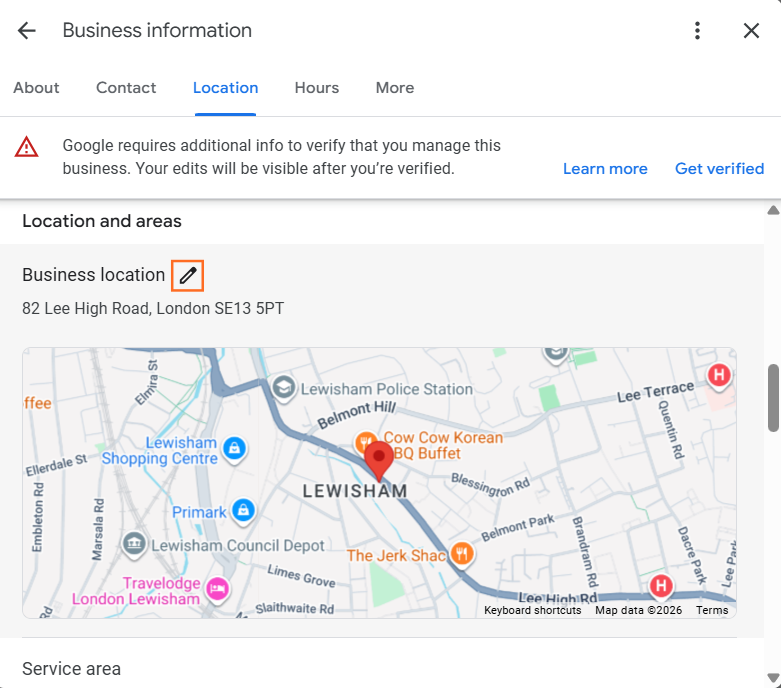
- Navigate to Location: Click on the “Location” tab.
- Click the pencil icon near Business Location
- Enter New Details: Type in your new street address.
- Adjust the Map Pin: A map will appear. It is critical that you drag the pin to the exact entrance of your building. If you are in a large industrial estate or business centre, a misplaced pin can send delivery drivers (and customers) to the loading bay instead of the front door.
- Save: Click save.
3. Handle the Re-Verification
Once you click save, your status will likely change to “Pending” or “Verification Required”.
- If requested: You may need to record a video showing your street sign, your unlocking of the door, and your workspace.
- Wait: It typically takes Google 24–48 hours to review the change. Do not edit other fields (like your hours or description) during this time, as it can reset the review clock.
4. Special Case: Service Area Businesses (SABs)
If you are a plumber, electrician, or consultant who works from home and visits clients, do not display your home address.
- The Rule: If you do not have permanent signage and a reception for customers, you must clear the address field and instead set a “Service Area” (e.g., “London”, “Manchester”).
- The Risk: Displaying a residential address violates Google’s guidelines and will eventually lead to a suspension.
The Re-Verification Trigger
It is vital to understand that Google views an address change as a potential security threat (hijackers often try to move businesses to fake addresses).
Tip: Do not change your address on a Friday afternoon. If you trigger a re-verification, your listing might disappear from Maps for a few days while you sort it out. Do it on a Monday morning when you have time to handle support tickets.

 Salesforce

