


Google separates “what you do” (Services) from “what you sell” (Products). Understanding the difference is critical because they appear in different parts of search results and serve different goals.
- Services: Text-based lists. These help Google understand your relevance for specific keywords (e.g., “Emergency Boiler Repair”).
- Products: Visual cards with photos and prices. These grab user attention and drive clicks (e.g., a photo of a specific boiler model or a “Winter Service Package”).
1. Access the Dashboard
Google has retired the old “Google My Business” app. You now manage everything directly on Google Search.
- Search: Go to Google and search for “my business” (or your specific business name).
- Verify: Ensure you are logged into the correct Google account. You will see a dashboard of buttons above the search results (this is called the New Merchant Experience, or NMX).
2. How to Add Services
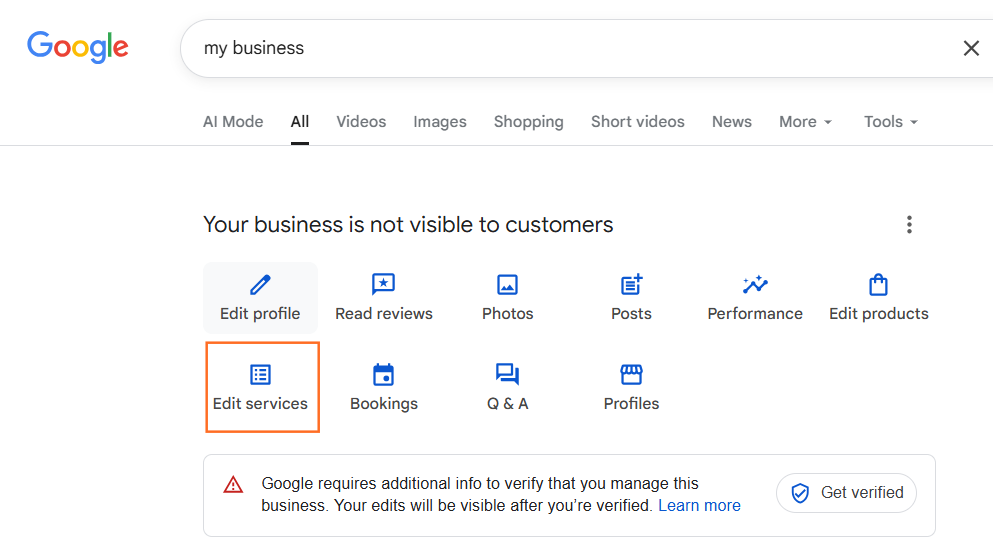
This section tells Google exactly what you do, helping you rank for specific queries.
- Click: Select “Edit services” from the dashboard.
- Choose a Category: You will see your primary business category (e.g., “Plumber”). Click it to expand.
- Select or Add: Google will suggest common services (e.g., “Leak detection”). Click the + icon to accept them.
- Add Custom Services: If your specific service isn’t listed, scroll to the bottom of the category and click “Add custom service”. Type your service name manually.
- Add Descriptions: Click on a service you have added to input a price (optional) and a description.
- Tip: Use this space to mention key details like “Same-day service” or “Gas Safe registered”.
- Tip: Use this space to mention key details like “Same-day service” or “Gas Safe registered”.
3. How to Add Products
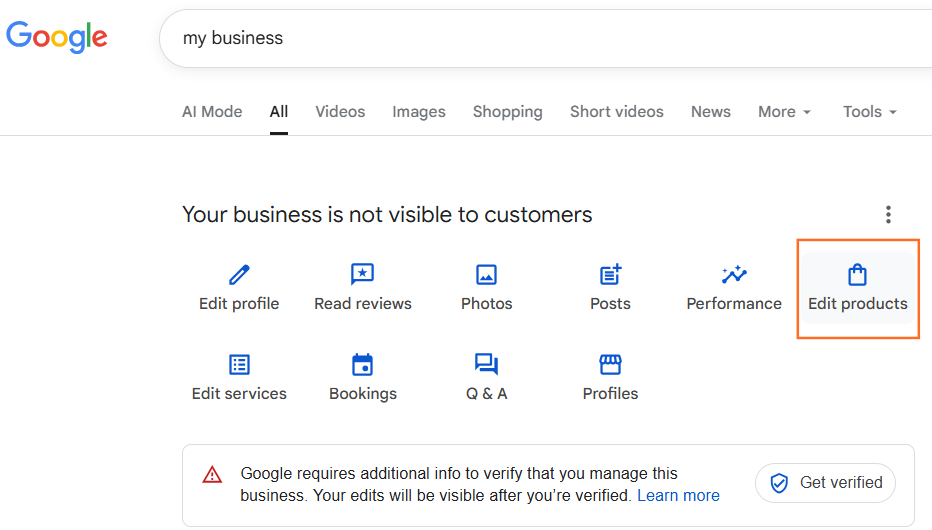
This section creates a visual “carousel” on your profile that users can swipe through. It is highly effective for both retail items and service packages.
- Click: Select “Edit products” from the dashboard.
- Add Product: Click “Add product”.
- Fill in Details:
- Product Name: Keep it short (e.g., “Worcester Bosch 4000”).
- Category: Create a new category if needed (e.g., “Boilers”).
- Price: You can leave this empty or set a “From” price.
- Description: Briefly explain the benefits (max 1,000 characters).
- Photo: This is mandatory. Use a high-quality square image (1200x1200px is ideal).
- Button: Select “Get Offer” or “Order Online” and link it to the specific page on your website.
The "Justification" Factor
Adding services does more than just fill out your profile; it can trigger a powerful feature called “Local Justifications”.
According to BrightLocal (a leading UK/US local SEO authority), when you list a service explicitly:
“Google often displays a ‘justification’ snippet in the map results that says ‘Provides: [Service Name]’.”
If a user searches for “radiator flushing” and your competitor doesn’t list it, but you do, Google may display your listing with a small tick icon and the text “Provides: Radiator flushing”. This significantly increases the chance of the user clicking on you.

 Salesforce

