


In Flow Builder, Formula Conditions allow you to build logic that is more complex than simple “equals” or “contains” filters. You use these when you need to perform math, manipulate text, or check multiple related conditions at once before the Flow moves to the next step.
Step 1: Create a Formula Resource
Before you can use a formula in a condition, you must define it as a Resource in your Flow.
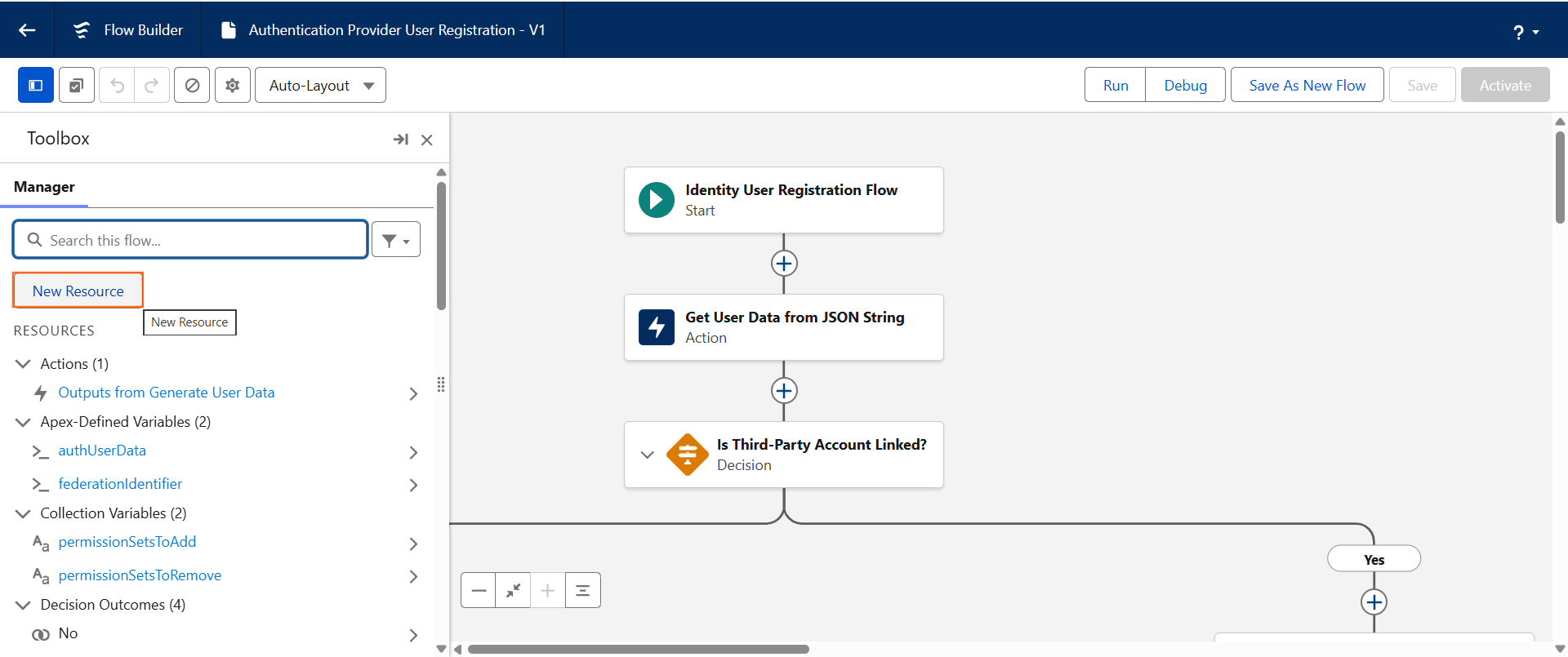
- Open your Flow and click the New Resource button in the left-hand manager sidebar.
- Resource Type: Select Formula.
- API Name: Give it a clear name (e.g., Is_High_Priority_Renewal).
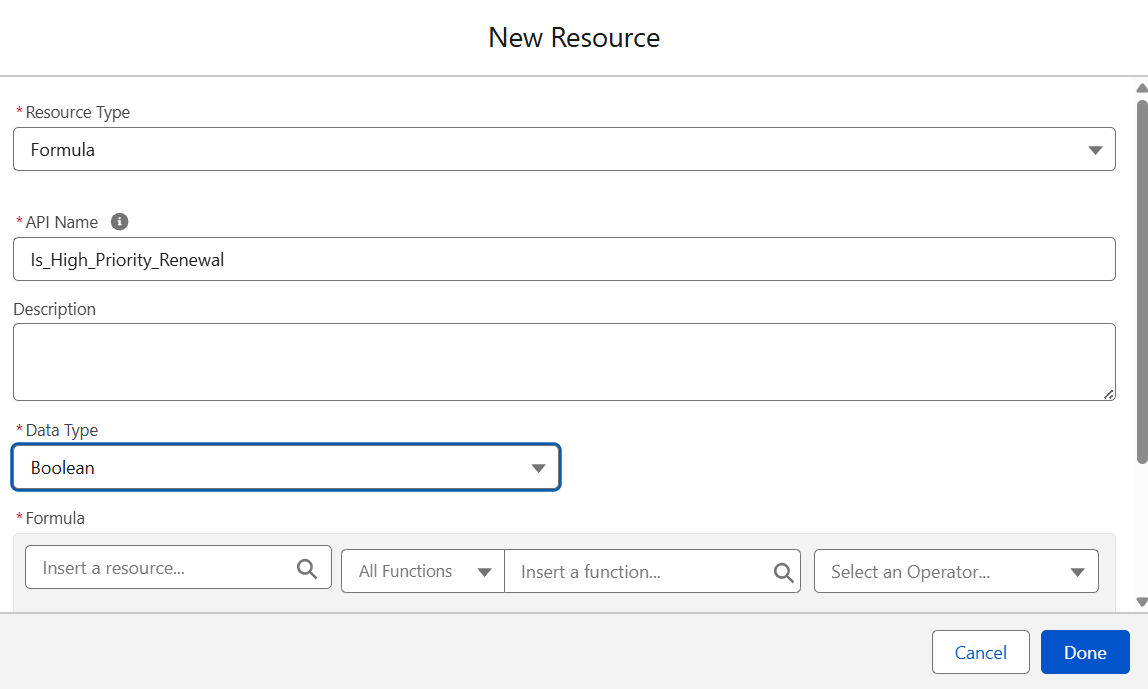
- Data Type: Choose the type of result the formula will produce (usually Boolean for true/false conditions, or Currency/Number for math).
Step 2: Write the Formula Logic
Inside the formula editor, you can combine record fields, global variables, and functions.
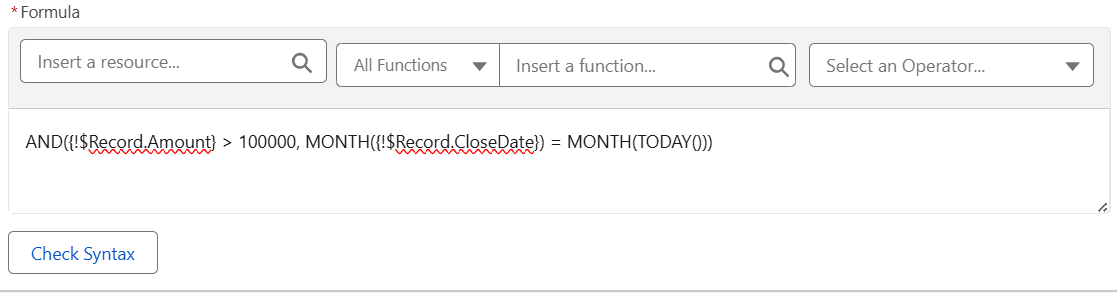
- Example 1 (Boolean): To check if a deal is over $100k AND closing this month:
AND({!$Record.Amount} > 100000, MONTH({!$Record.CloseDate}) = MONTH(TODAY())) - Example 2 (Text): To check if an Account name contains “Urgent”:
CONTAINS({!$Record.Account.Name}, “Urgent”)
Step 3: Use the Formula in a Decision Element
Once the resource is created, you apply it to a Decision or Filter.
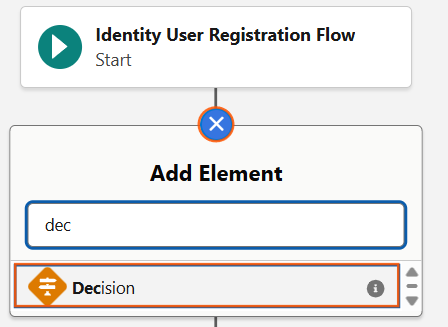
- Add a Decision element to your Flow canvas.
- In the Resource box for your outcome, search for and select the formula you just created (e.g., {!Is_High_Priority_Renewal}).
- Operator: Select Equals.
- Value: Select $GlobalConstant.True.
Step 4: Direct Formulas in Elements (Newer Feature)
In recent Salesforce updates, you can sometimes write simple formulas directly inside the element without creating a resource first.
- When setting a field value or a filter, look for the “New Formula” option in the dropdown list. This keeps your Flow Manager cleaner by not having dozens of saved resources.
Step 5: Troubleshooting "Invalid Formula"
- Data Type Mismatch: If your Decision is looking for a Boolean (True/False), ensure your Formula resource is also set to the Boolean data type.
- Null Checks: If your formula references a field that might be empty, the Flow might fail. Use the ISBLANK() function to protect your logic.
- Syntax: Always click Check Syntax before saving to catch missing parentheses or commas.

 Salesforce

