


Testing and debugging are the most critical steps in Flow development. Salesforce provides a built-in Debug tool that allows you to simulate how your Flow will run without actually changing data (using “Rollback”) or by seeing exactly where a path fails.
Step 1: The Debug Tool
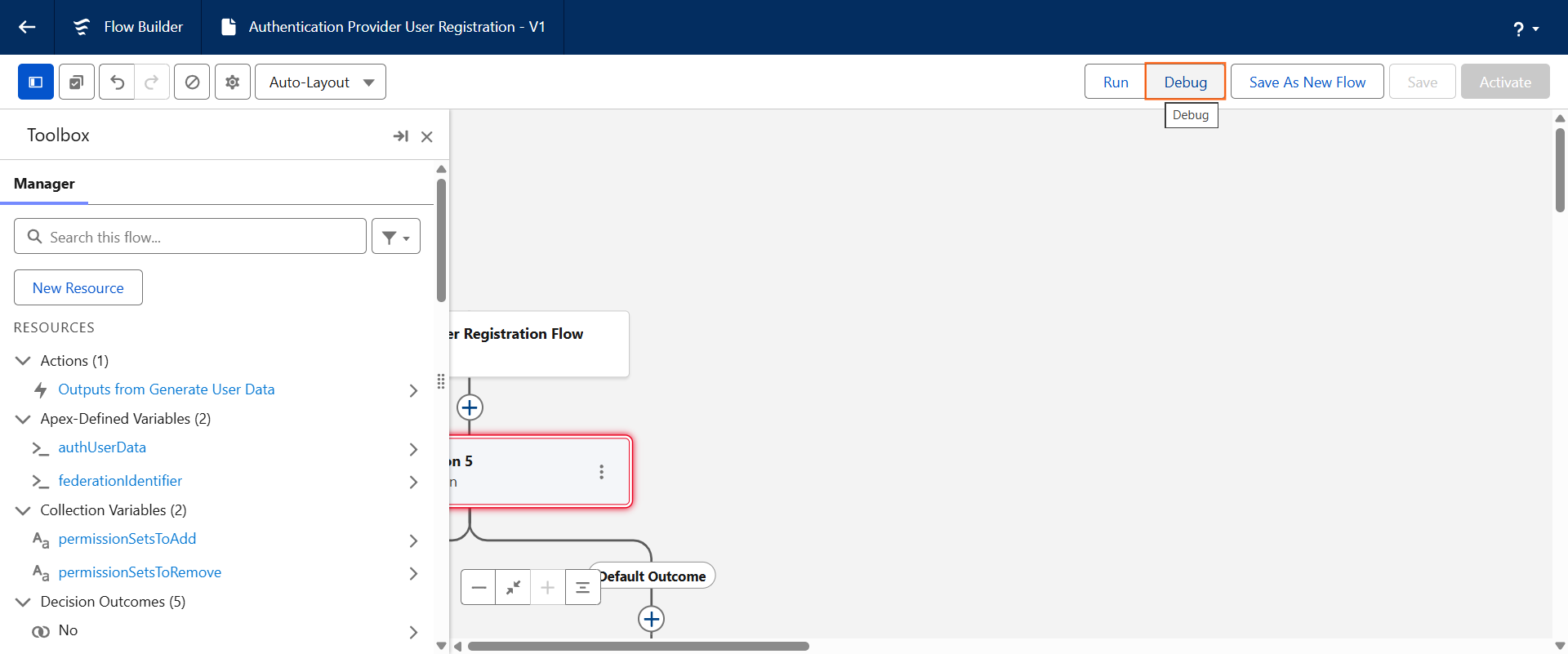
- Open your Flow in the Flow Builder.
- Click the Debug button in the top-right corner.
- Configure Debug Options:
- Run flow in rollback mode: Keep this checked to ensure that any record changes made during the test are reversed when the debug finishes.
- Run as another user: (Optional) Useful for testing if permissions or sharing rules affect the Flow.
- Input Variables: If your Flow is “Record-Triggered,” you must select a specific record to test against.
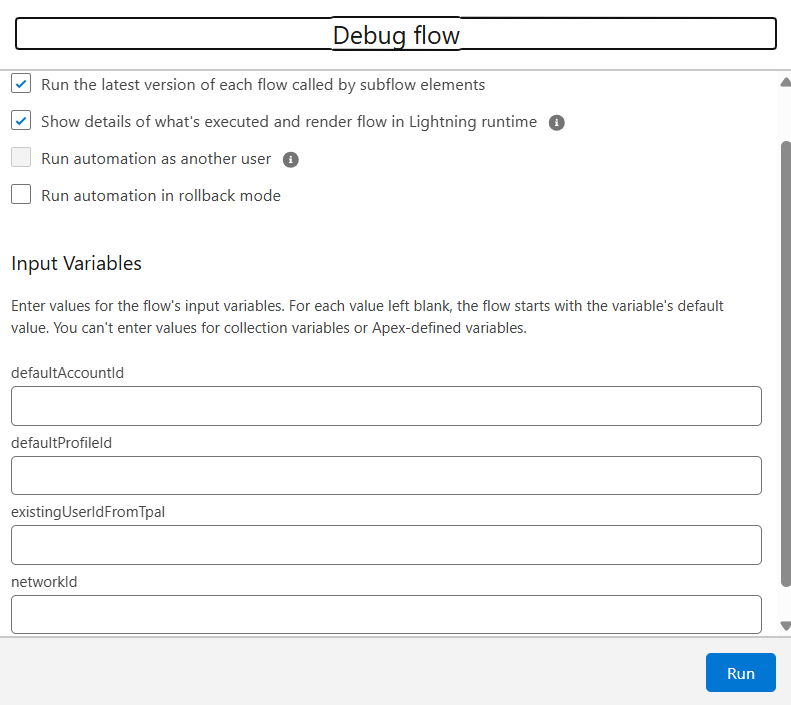
- Click Run.
Step 2: Reading the Debug Details
Once the Flow runs, a side panel appears on the right labeled Debug Details. This is your map to what happened.
- Blue Path: Look at the canvas; a blue line shows the exact path the Flow took.
- Step-by-Step Breakdown: In the side panel, click into each element to see:
- Inputs: What data entered the element.
- Result: Whether it passed or failed.
- Outputs: What data the element produced (e.g., “Successfully updated 1 record”).
Step 3: Common Error Types
When a Flow fails, the debug log will show a red error message. Here is how to interpret them:
Step 4: Using "Pause" and "Fault Paths"
For complex Flows, you can build safety nets directly into the design.
- Fault Paths: If a “Create” or “Update” element might fail, you can click the element and select Add Fault Path. This allows the Flow to fail gracefully (e.g., by sending an email to the Admin) instead of showing the user a generic “Unhandled Exception” error.
Step 5: Best Practices for Instructional Designers
- Always Debug First: Never activate a Flow without running it through the Debugger at least twice once for a “Success” scenario and once for a “Failure” scenario.
- Check the Email: If a Flow fails in the “Live” environment, Salesforce automatically sends a Flow Error Email to the administrator. This email contains the full debug log, which is invaluable for fixing bugs reported by users.

 Salesforce

