


In Salesforce, sending an email from a Flow is a two-step process. While you can type a manual message inside the Flow, the professional standard is to link the Flow to a pre-defined Email Alert. This allows you to manage the email content and the recipient list in one central place.
Step 1: Create the Email Alert (The "Envelope")
Before you touch the Flow, you must create the alert itself in Setup.
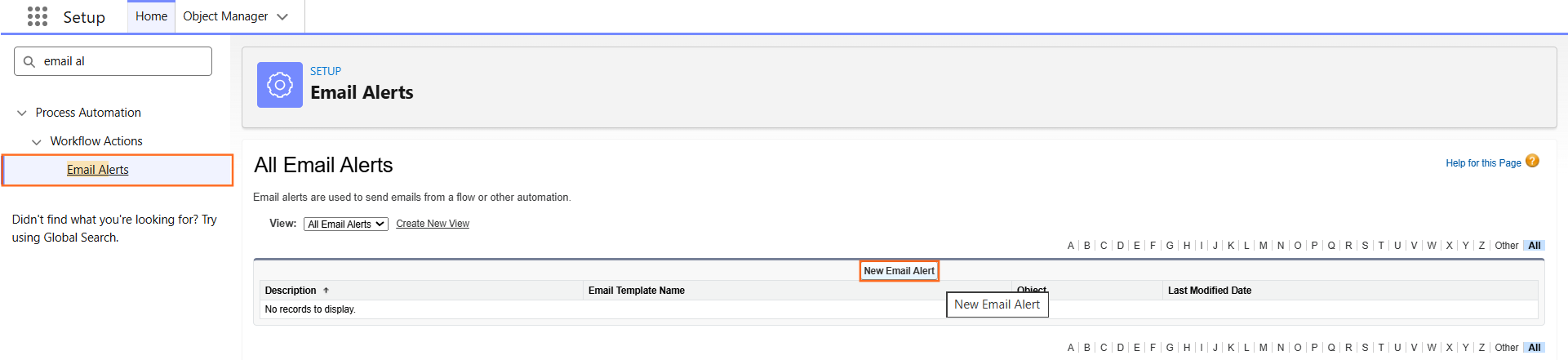
- Navigate to Setup and search for Email Alerts.
- Click New Email Alert.
- Description: Something clear like Opportunity High Discount Alert.
- Object: Select the object your Flow starts from (e.g., Opportunity).
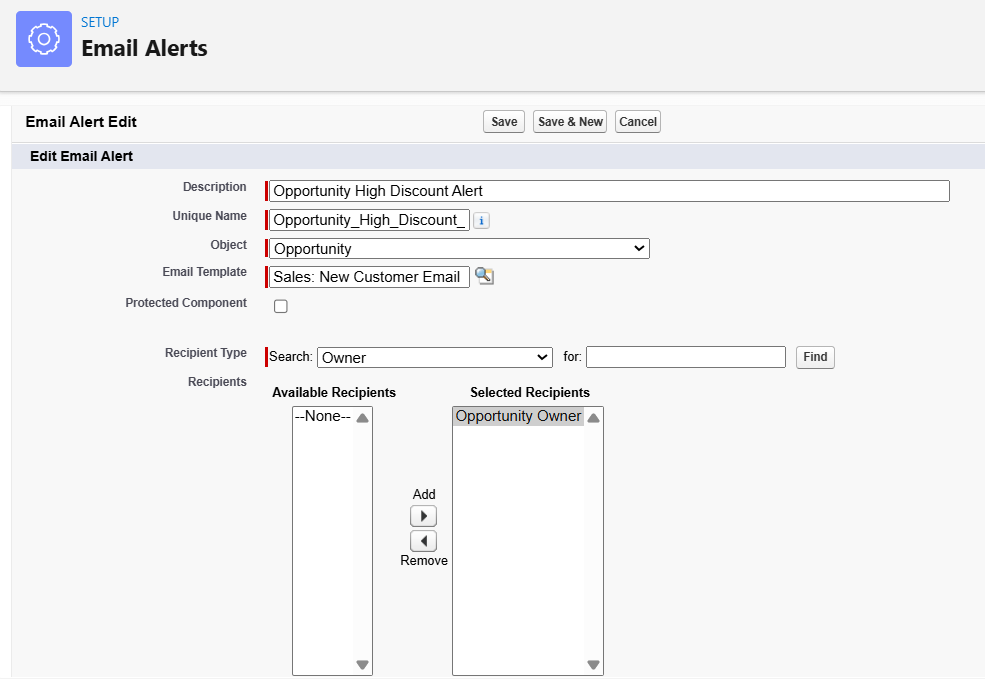
- Email Template: Choose the template you want to send.
- Recipient: Choose who gets the email (e.g., the Record Owner, a specific User, or a Related User like the Manager).
- Click Save.
Step 2: Add the Action to your Flow
Now, you tell the Flow when to “fire” that alert.
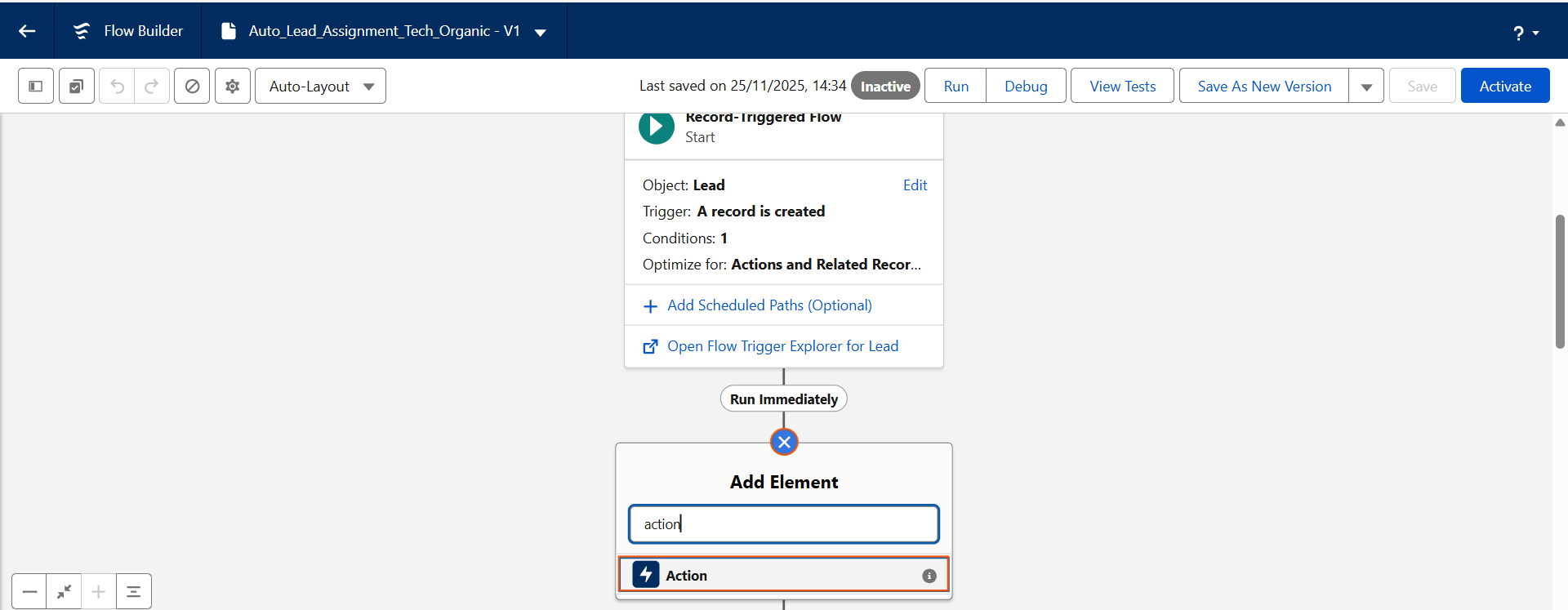
- Open your Flow in the Flow Builder.
- Click the (+) icon where you want the email to be sent.
- Select Action from the menu.
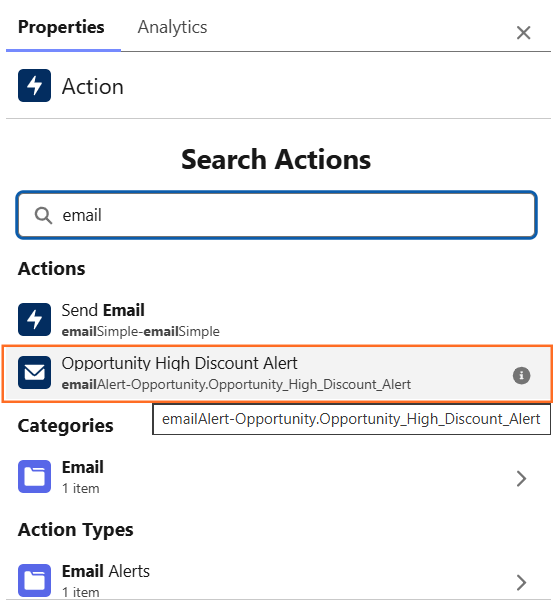
- In the search box, type the name of the Email Alert you created in Step 1.
- Label: Give it a name like Send Discount Alert.
- Record ID: This is the most important part. You must tell Salesforce which record to pull data from for the email merge fields.
- Type {!$Record.Id}.
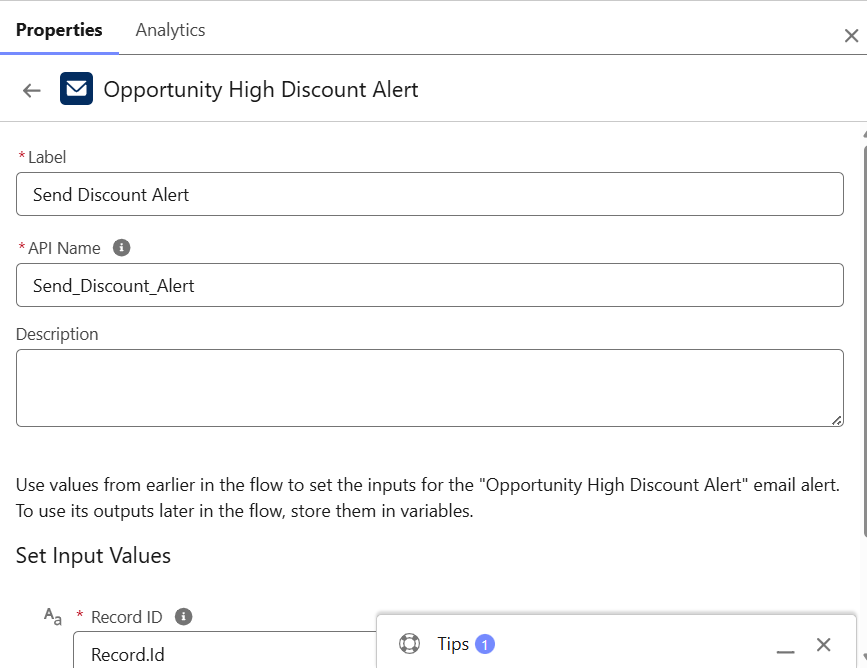
- Click Done.
Step 3: Alternative: Using "Send Email" (Manual)
If you don’t want to use a formal Email Alert, you can use the standard “Send Email” action to type a quick message.
- Pro: Faster to set up for one-off notifications.
- Con: Harder to maintain if you have dozens of emails, as the text is “hidden” inside the Flow.
- How: Follow the same steps as above, but search for the action named Send Email. You will then see boxes for Body, Subject, and Recipient Address List.
Step 4: Troubleshooting: Why didn't the email send?
- Deliverability: Go to Setup > Deliverability and ensure the “Access level” is set to All Email.
- Record ID: If you forgot to pass the {!$Record.Id} into the action, Salesforce won’t know which record to use, and the email will fail.
- Automation Bypass: Check if the user triggering the Flow has “Send Email” permissions.

 Salesforce

