


In Salesforce, you can subscribe to a report to have it automatically run and delivered to yourself or other users via email on a regular schedule (daily, weekly, or monthly). This is the standard and most efficient way to share regular data updates without manually running and exporting reports.
Step 1: Open and Subscribe to the Report
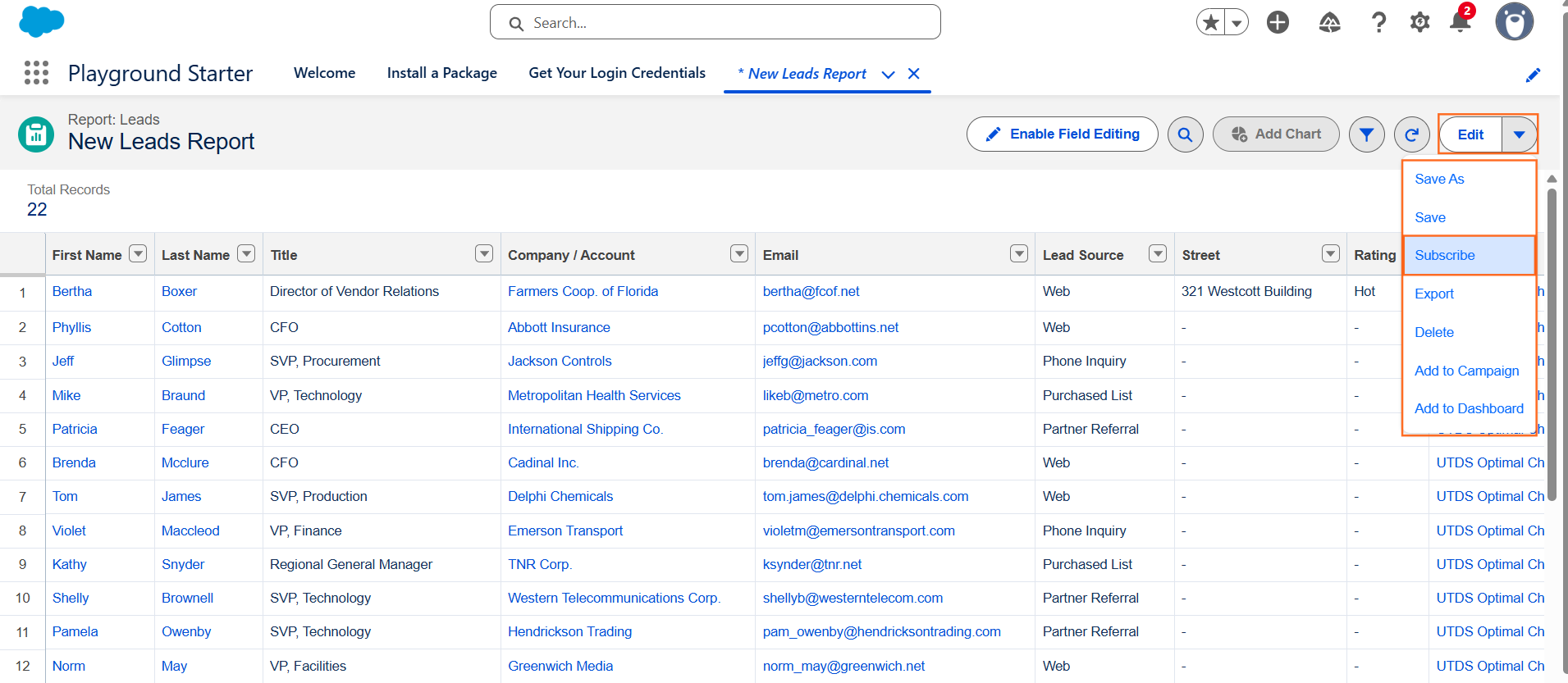
- Navigate to Reports: Go to the App Launcher , Search Reports and click it.
- Run the Report: Find and click on the name of the report you want to schedule. The report must be saved in a folder that the subscribed users have access to.
- Start Subscription: Click the “Subscribe” button, which is typically found near the top-right corner of the run report page.
Step 2: Configure the Schedule
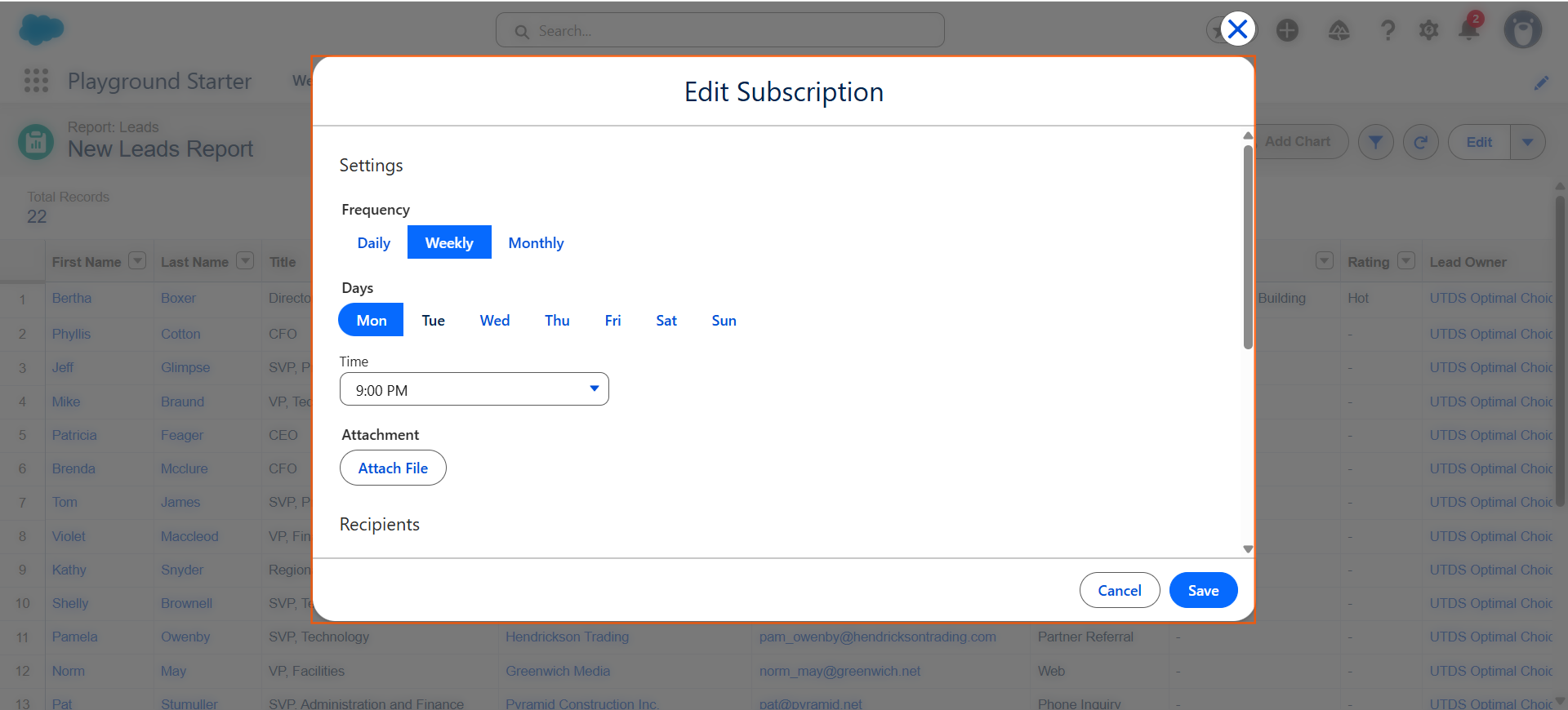
The Subscription setup window will appear, allowing you to define the delivery timing.
- Set Frequency: Choose your desired schedule:
- Daily: Select the exact time (e.g., 8:00 AM) and specify which days (e.g., Weekdays only).
- Weekly: Select the time and the day of the week (e.g., Monday at 9:00 AM).
- Monthly: Select the time and either the day of the month (e.g., the 1st) or a specific day of the week (e.g., the first Monday).
- Set Delivery Time: Select the Time the report should run.
- Set Delivery Day/Date: Specify the day(s) or date(s) based on your frequency choice.
Step 3: Define Recipients and Delivery Options
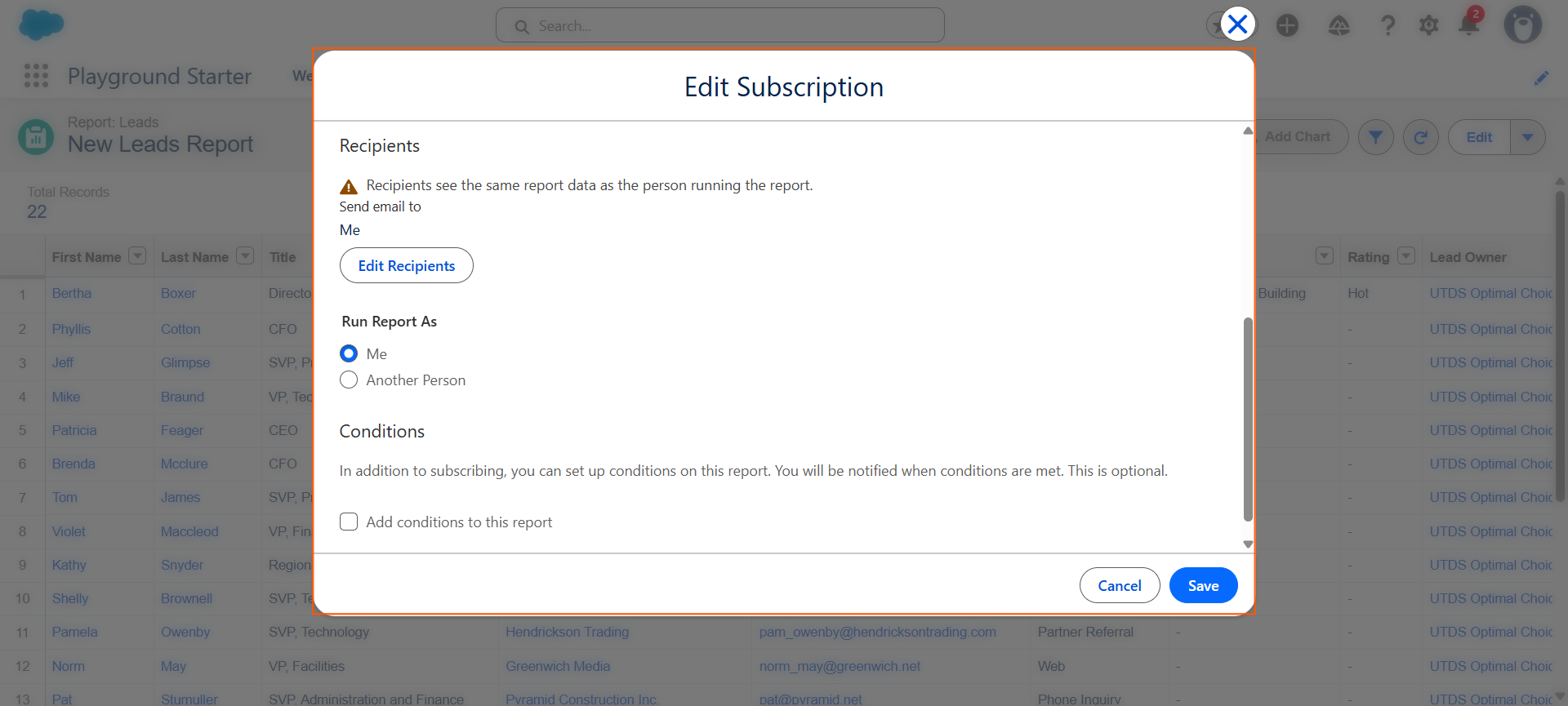
This section determines who gets the report and what format it arrives in.
- Recipients:
- Yourself: You are automatically added as the first recipient.
- Other Users/Groups: Click “Add Recipients” and search for other Salesforce Users, Roles, or Public Groups who need the report.
- Note: Recipients must be active Salesforce Users in your organization to receive the report.
- Attachment Format: Choose how the report data will be attached to the email:
- Formatted Report: Sends a PDF or similar file containing the report visualization (best for summary reports).
- Details Only: Sends a CSV or XLSX file containing the raw data (best for detailed analysis or large datasets).
- Conditional Delivery (Optional): You can set a condition (e.g., “Only send if the report row count is greater than 0”). This prevents spamming recipients with empty reports.
- Save Subscription: Click “Save” to activate the schedule.
The report will now run automatically on the set schedule and deliver the data to all specified recipients.
Optimal Tip: Report Viewing Limitations
- Email Content: The email itself will include a summary of the report (or a notification of the criteria being met), along with a link to the report inside Salesforce.
- Access: When a recipient clicks the link, they will only see the data they are permitted to view based on their Salesforce security settings. The report runs as the user who subscribed to it, so the data included in the attachment reflects that subscriber’s permissions.

 Salesforce

