


To run a Flow automatically at a specific time and interval (like every day), you must use a Scheduled-Triggered Flow. This Flow type does not rely on a record change; it starts based purely on time.
Scheduled Flows are perfect for bulk data cleanup, nightly maintenance, or sending daily summary reports.
Step 1: Initiate a Scheduled-Triggered Flow
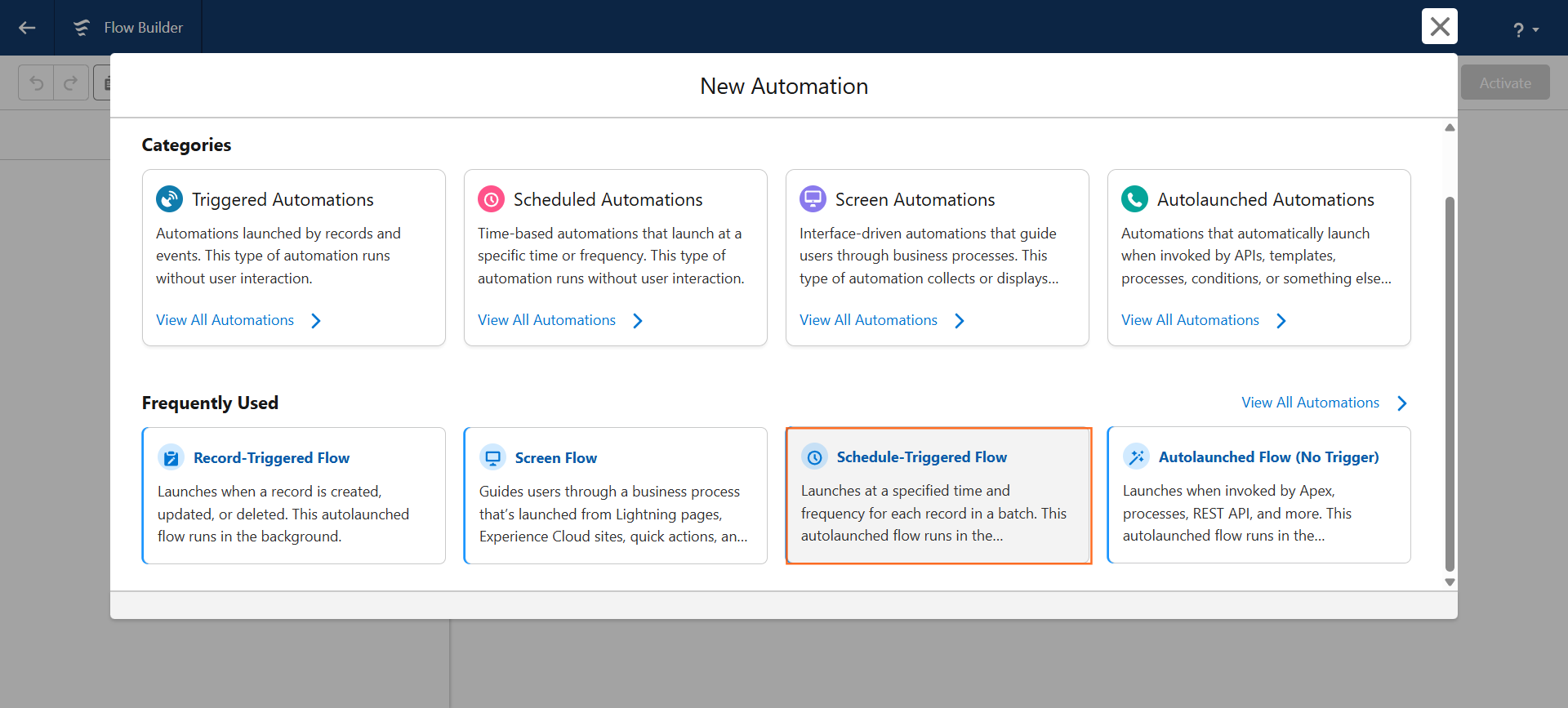
- Navigate to Flow Builder: Go to Setup to Flows to New Flow.
- Select Flow Type: Choose “Scheduled-Triggered Flow” and click “Create.”
Step 2: Define the Schedule (The Start Element)
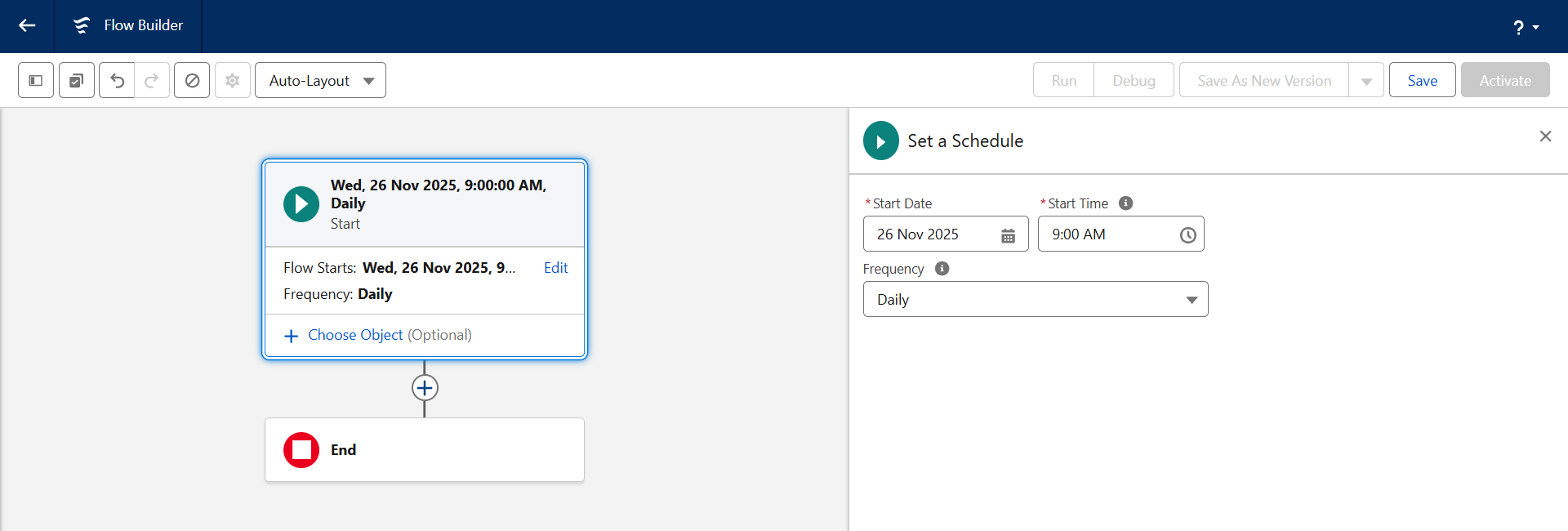
The Flow Builder will open, and you must click on the Start element (or Set Schedule) to define the recurring time.
- Start Date: Select the date you want the flow to first run.
- Start Time: Select the exact time of day you want the flow to execute (e.g., 2:00 AM for nightly maintenance).
- Frequency: Choose “Daily.”
Step 3: Define the Records to Process (Optional but Recommended)
For most Scheduled Flows, you need to tell the system which records to process during the run.
- Click Choose Object: Select the object you want to run the flow against in the canvas (e.g., Opportunity).
- Set Filter Conditions (The Scope): Define the criteria to limit which records the flow processes. This is crucial for performance and prevents the flow from processing your entire database.
Step 4: Build the Logic and Actions
Use the elements to perform the maintenance or action you need.
- Scenario: Clean up old, inactive Leads.
- Start Element: Scheduled-Triggered Flow, Daily, Object: Lead, Filter: IsConverted Equals False AND LastModifiedDate Less Than Formula: TODAY() – 365 (Inactive for 1 year).
- Action: Click the (+) icon and select “Delete Records.”
- Records to Delete: Choose “Use the IDs and all field values from a record or record collection.”
- Record or Record Collection: Select the record variable created by the Start element: {!$Record}.
Step 5: Save and Activate
- Save: Give the flow a clear name (e.g., Scheduled_Nightly_Lead_Cleanup).
- Activate: Click “Activate” to turn the scheduler on.
The flow will now run on the date and time specified in the Start element and repeat daily.

 Salesforce

