


As a Salesforce administrator, resetting a user’s password is a common task, often necessary when a user forgets their password or when onboarding requires a fresh login. Salesforce allows you to perform a manual reset which immediately sends a password reset link to the user’s registered email address.
Step 1: Navigate to the User Management Section
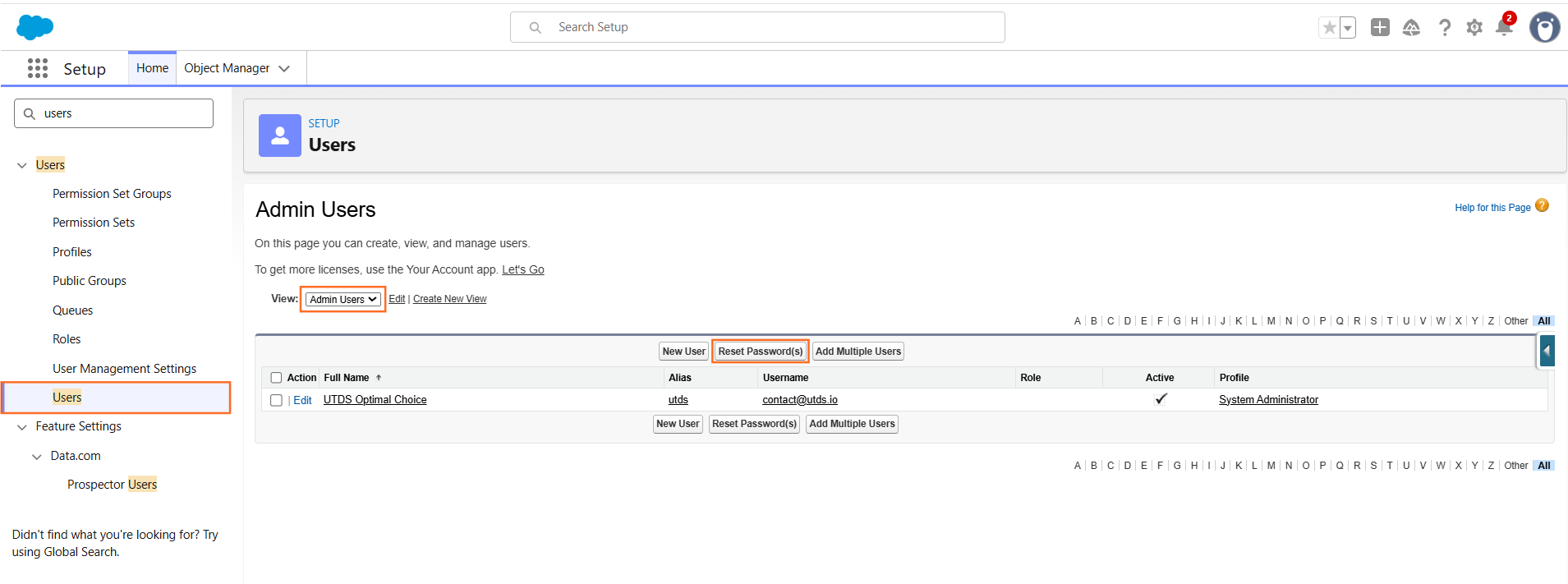
- Navigate to Setup: Click the gear icon (⚙️) to Setup.
- Find Users: In the Quick Find box, type Users and select Users under the Administration section.
- Locate the User: Find and click on the name of the user whose password you need to reset. This opens their detail page.
Step 2: Perform the Password Reset
There are two primary ways to initiate the password reset from the user’s detail page:
The Quick Reset (Optimal Choice)
- On the user’s detail page, locate the row of buttons near the top (e.g., Edit, Delete, Login).
- Click the “Reset Password” button.
The Bulk Reset (For Multiple Users)
If you need to reset multiple user passwords simultaneously:
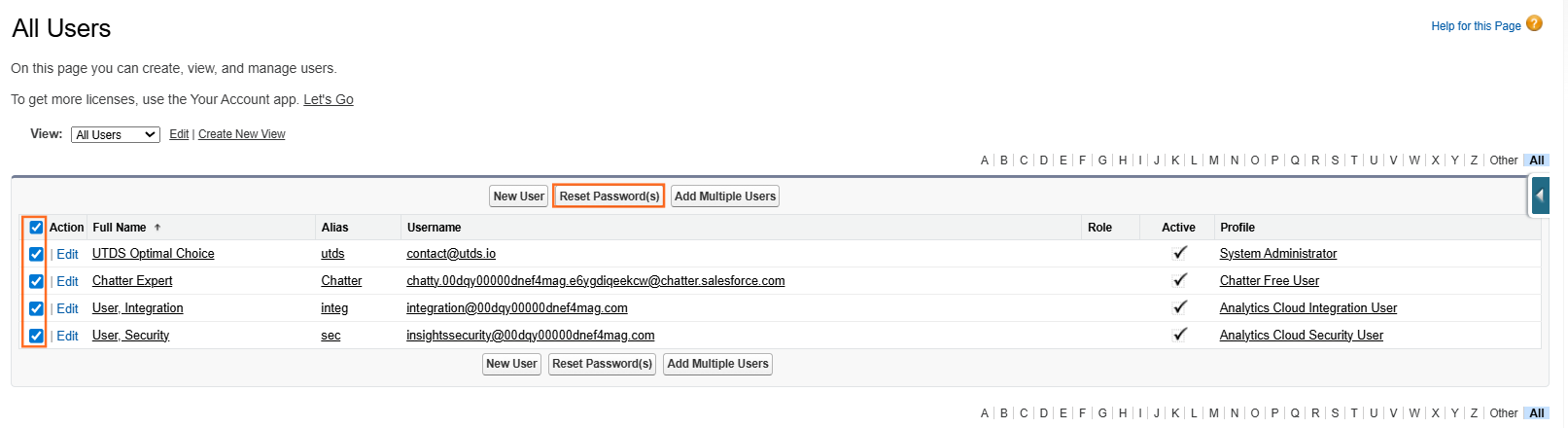
- Return to the main Users list view (Setup to Users).
- Select Users: Check the box next to each user whose password needs to be reset.
- Click the “Reset Passwords” button located near the top or bottom of the list.
Step 3: User Action and Final Login
- System Notification: Salesforce immediately sends an email to the user’s registered email address (the one listed on their user record) with a temporary password reset link.
- User Receives Link: The user clicks the link in the email.
- Set New Password: The link directs the user to a page where they must enter a new, permanent password that meets your organization’s security requirements (e.g., minimum length, complexity).
- Security Question: The user may also be prompted to answer their security question.
- Access Granted: Once the new password is set, the user can log in to Salesforce.
Optimal Tip: Inform the user immediately after clicking the reset button so they can watch for the email. Remind them to check their spam or junk folder, as the email may sometimes be misclassified.

 Salesforce

