


To export contacts for an external list (such as for a marketing tool, a physical mailing, or a different CRM), you can use the Salesforce Report Builder. This is the most user-friendly method because it allows you to filter and clean your data before it leaves the system.
Step 1: Create a Contact Report
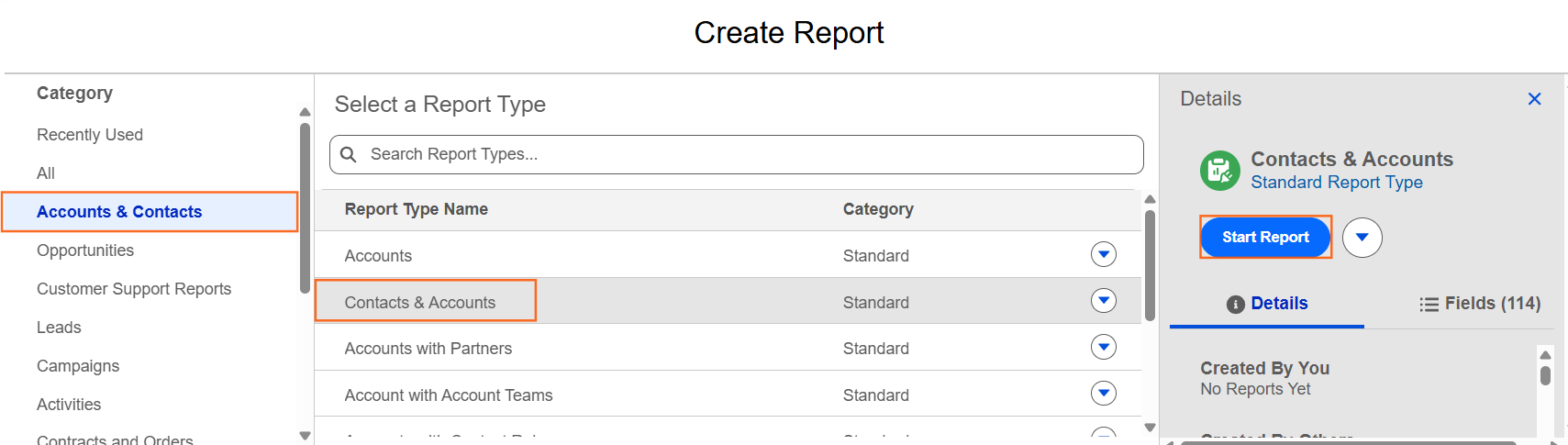
- Navigate to the Reports tab and click New Report.
- Search for and select the Contacts & Accounts report type.
- Click Start Report.
Step 2: Filter for your "External List"
You likely don’t want to export every contact in your database. Use filters to narrow the list down.
- Go to the Filters tab.
- Set Show Me to “All Contacts.”
- Add custom filters based on your needs:
- Email Opt-Out: Set to False (especially important for external marketing lists to ensure GDPR/CAN-SPAM compliance).
- Mailing Country: Filter by specific regions.
- Lead Source: Filter by where the contacts came from.
Step 3: Choose the Necessary Columns
External tools usually require specific headers.
- Go to the Outline tab.
- Remove unnecessary columns (like “Last Modified Date”) to keep the file small.
- Ensure you have the “Big Four” fields: First Name, Last Name, Email, and Account Name.
- (Optional) Add the Contact ID if you plan to import changes back into Salesforce later.
Step 4: Run and Export
- Click Save & Run.
- Give the report a name like External Marketing List – March 2026.
- Once the report displays the results, click the dropdown arrow next to the “Edit” button in the top-right corner.
- Select Export.
Step 5: Select Export Format
You will be presented with two choices:
- Formatted Report: This includes the Salesforce branding, colors, and headers. Do not use this for external lists.
- Details Only: This exports raw data in a clean grid. Select this option.
- Format: Choose Comma Separated Values (.csv). CSV is the “universal language” for data and is accepted by almost every external platform.
Step 6: Privacy and Security Warning
As a Senior Instructional Designer, it is important to remind your team of data security:
- GDPR Compliance: Ensure you have the legal right to export this data, especially if it includes personal email addresses.
- Encryption: If the list contains sensitive info, password-protect the file before sending it to a third party.
- File Cleanup: Delete the CSV from your “Downloads” folder once the task is complete.

 Salesforce

