


Deactivating a user account in Salesforce is the standard procedure for removing a user’s access to the platform without permanently deleting their record or the data they created. User accounts can never be fully deleted in Salesforce because their record is linked to all the data they own, created, or modified (e.g., Leads, Accounts, historical Activity data).
Deactivation is the crucial security step when an employee leaves the company or no longer requires access.
Step 1: Prepare the User Record (Optimal Data Transfer)
Before deactivating, it is a critical best practice to transfer ownership of all records belonging to the departing user.
- Navigate to User Record: Click the gear icon (⚙️) to Setup to Users. Click the name of the user you are deactivating.
- Review Ownership: Scroll down and review the Related Lists to see how much data the user owns (e.g., Accounts, Opportunities, Custom Records).
- Transfer Ownership: Use the built-in Mass Transfer tools in Salesforce to move all records owned by the user to their manager or another active user (e.g., a generic “System Owner” account).
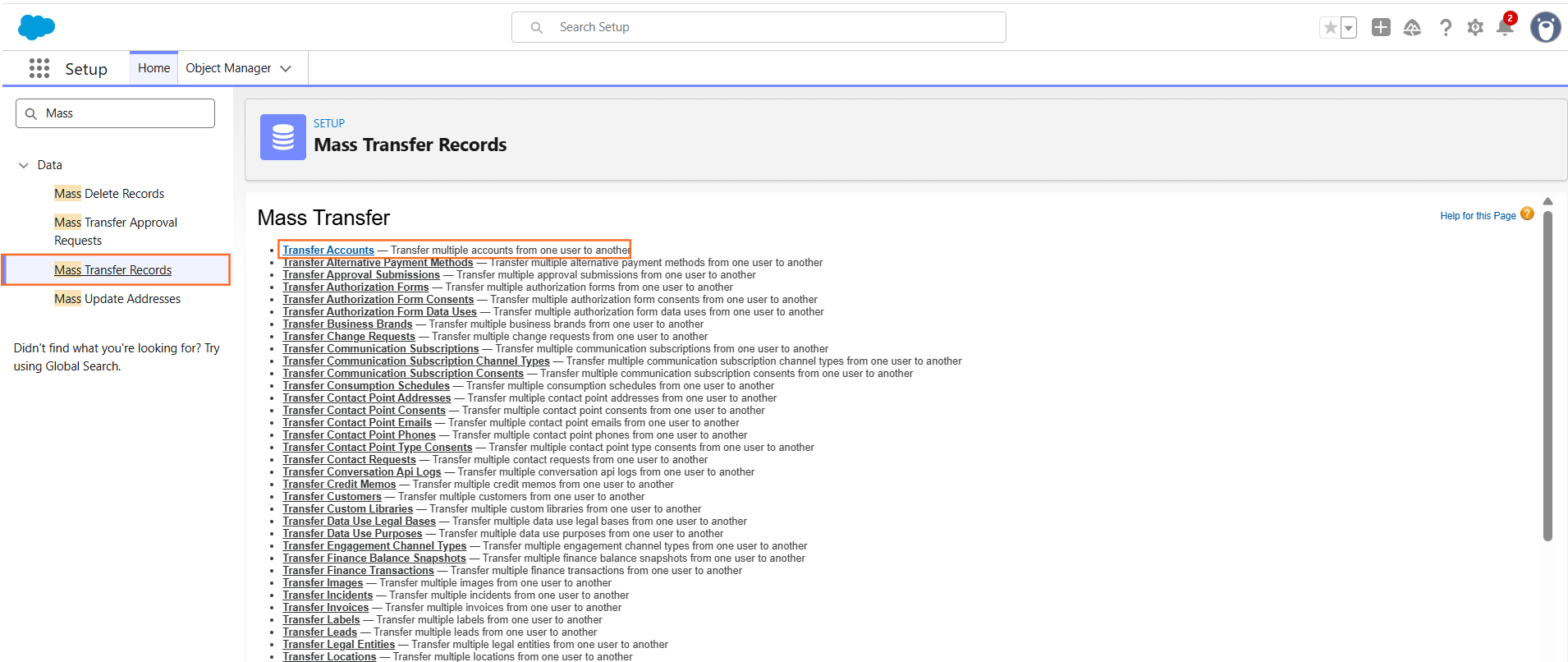
In Quick Find, type Mass Transfer Records and select the object (e.g., Transfer Accounts).
Step 2: Perform the Deactivation
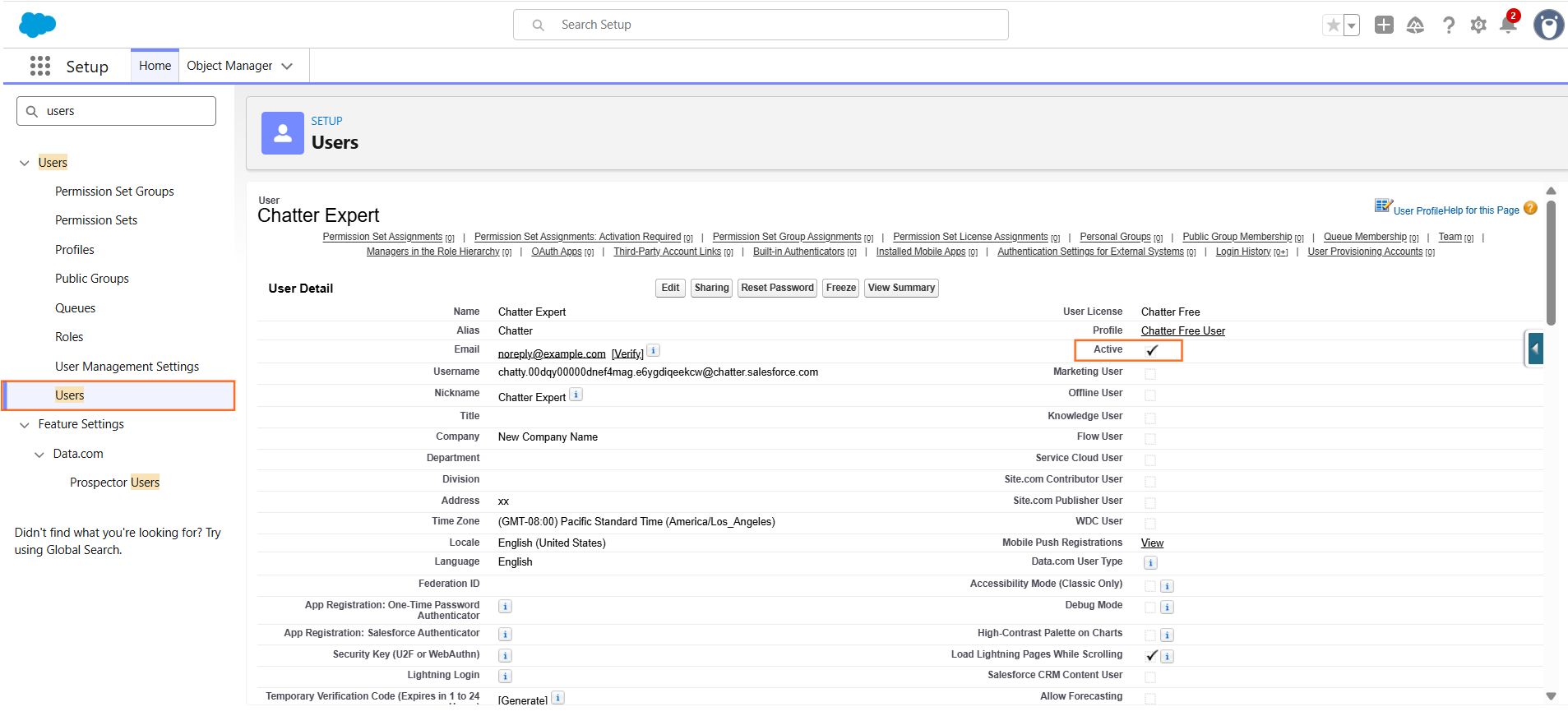
- Open User Record: Go back to the user’s detail page (Setup to Users).
- Edit User: Click the “Edit” button at the top of the page.
- Deactivate: Locate the “Active” checkbox near the top of the user detail section.
- Uncheck the “Active” box.
- Save: Click “Save.”
Important Results of Deactivation
Action | Result/Impact | Why It’s Optimal |
Login Access | The user immediately loses the ability to log in to Salesforce or any connected applications. | This is the primary security goal. |
Licenses | The Salesforce User License becomes immediately available to assign to a new user. | Saves cost and allows you to quickly onboard a replacement. |
Data Integrity | The user’s record remains in the system, and their name appears in all Created By and Last Modified By fields. | Preserves data history and system integrity. |
Sharing Rules | If the user was part of a Role used for sharing data, this may affect data visibility for others. | You must review the Role Hierarchy and either remove the user from the role or replace them with a new user. |
Tip: If a user owns a Workflow Rule or Scheduled Flow that is currently active, you must change the owner of that automation to an active admin or system user before deactivation. If the automation runs under a deactivated user, it will fail.

 Salesforce

