


Deactivating a flow is more than just clicking a button; as a Senior Instructional Designer, you should treat it as a “controlled shutdown.” Doing it incorrectly can lead to partial data updates or broken business processes.
Step 1: The Deactivation Step
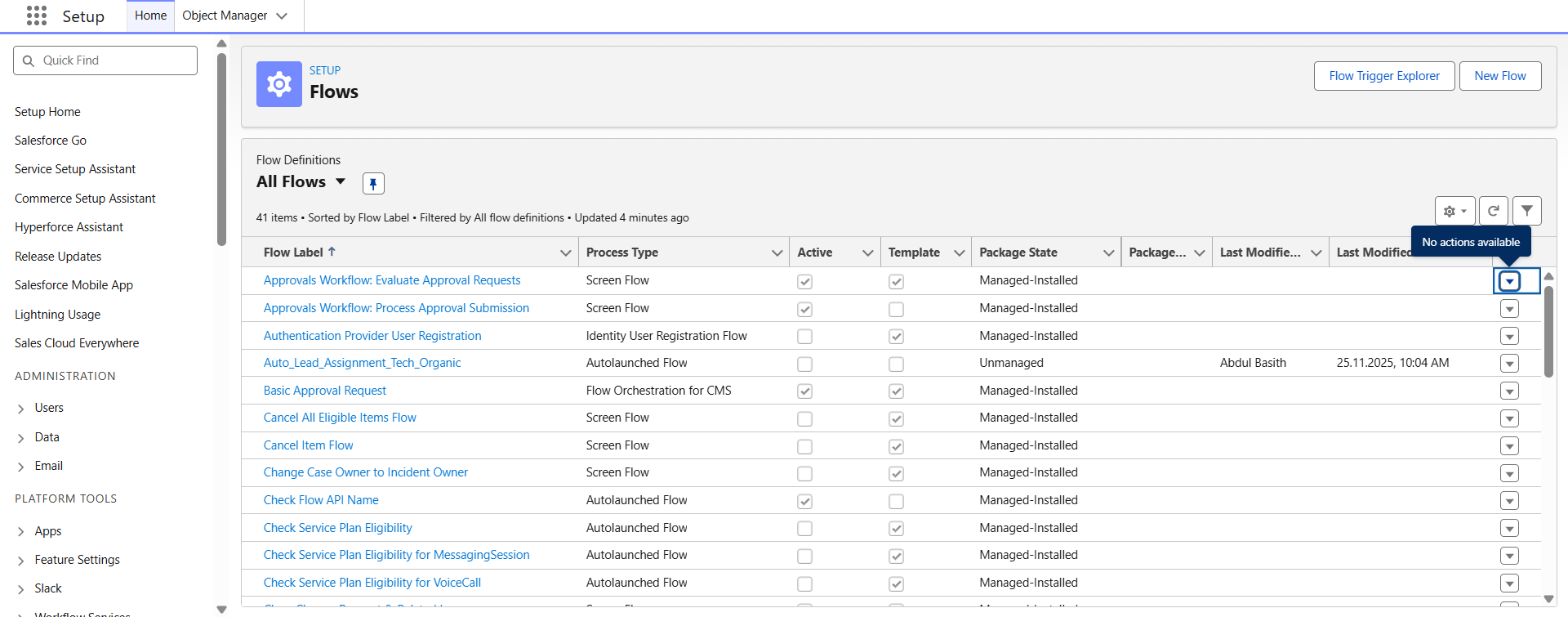
- Navigate to Setup > Flows.
- Find the flow you wish to stop.
- Click the View Details and Versions link (or click the flow name).
- Find the Active Version (indicated by a checkmark).
- Click Deactivate.
Step 2: The "Safety Check" List
Before you click deactivate, perform these three checks to ensure no users are negatively impacted:
- Check “Paused” Interviews: If you are deactivating a Screen Flow or a Scheduled Flow, check the Paused Flow Interviews section in Setup. Deactivating the flow does not delete current “in-progress” sessions; those users might hit errors when they try to finish.
- Dependency Audit: Use the Where is this used? button on fields. If other automations or Apex codes rely on the results of this flow, deactivating it could cause a “domino effect” of failures.
- Identify the Replacement: If you are deactivating a flow to replace it with a new version, ensure the new version is Activated immediately after. There should be no “gap” in time where neither automation is running.
Step 3: Handling Errors During Deactivation
Sometimes Salesforce will prevent you from deactivating a flow if it is currently being used by another process.
Step 4: Version Control Best Practices
Instead of deleting an old flow, keep the deactivated versions for a short period.
- Rename for Clarity: If you deactivate a flow because it’s obsolete, consider editing the description to say: DEACTIVATED on [Date] – Replaced by [New Flow Name].
- Keep the Last Known Good Version: If the new flow fails, you can quickly Re-activate the old version to restore service while you troubleshoot.
Step 5: Post-Deactivation Monitoring
After deactivating, monitor your Apex Exception Emails and the Flow Errors page for the next 24 hours. If a process was silently failing because it expected the flow to run, you will see “Unhandled Fault” reports appearing there.

 Salesforce

