


In Salesforce, identifying users with System Administrator access is a critical security audit task. This is primarily done through the Users list by filtering for the specific Profile or Permission Set that grants “Modify All Data” and “Customize Application” permissions.
Step 1: Using the Users List View
The quickest way to see all admins is to create a custom list view in the User setup.
- Navigate to Setup > Users > Users.

Click Create New View.
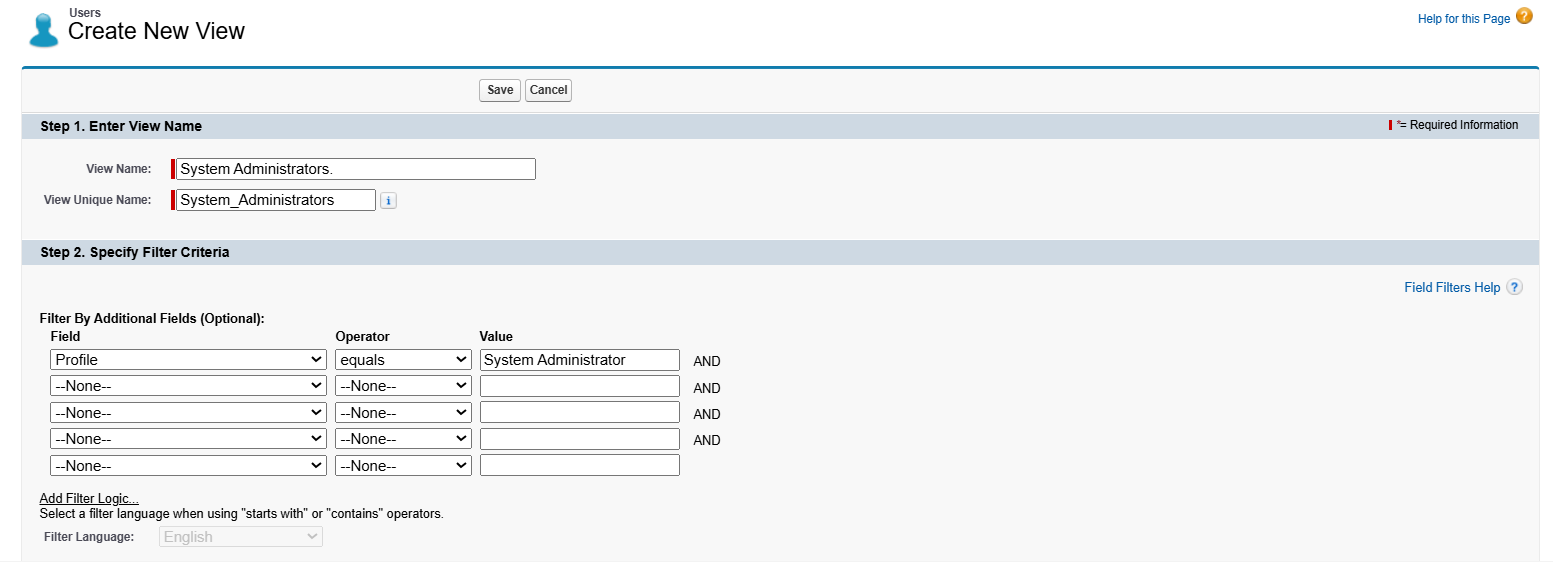
- View Name: System Administrators.
- Under Specify Filter Criteria, set:
- Field: Profile
- Operator: equals
- Value: System Administrator
- In the Select Fields to Display section, ensure Profile, Active, and Last Login are added.
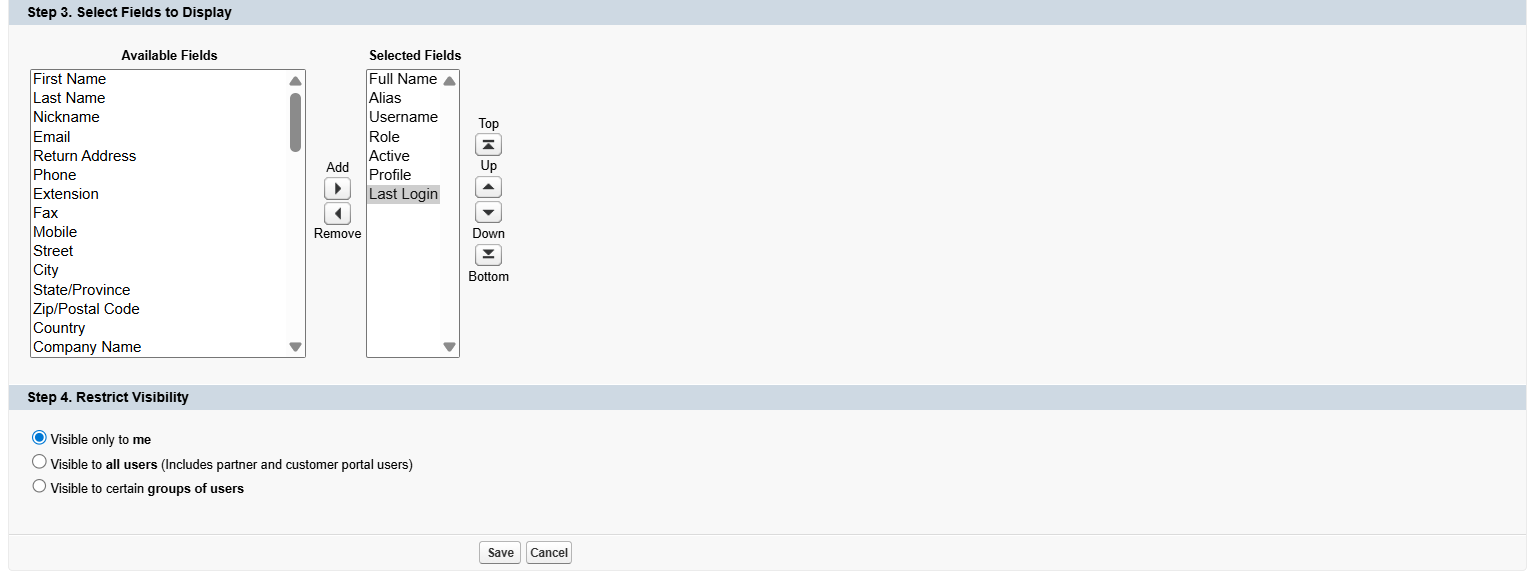
Click Save.
Step 2: Checking via the Profile Directly
If you want to see who is assigned to the actual System Admin profile:
- Navigate to Setup > Users > Profiles.
- Locate the System Administrator profile and click on its name.
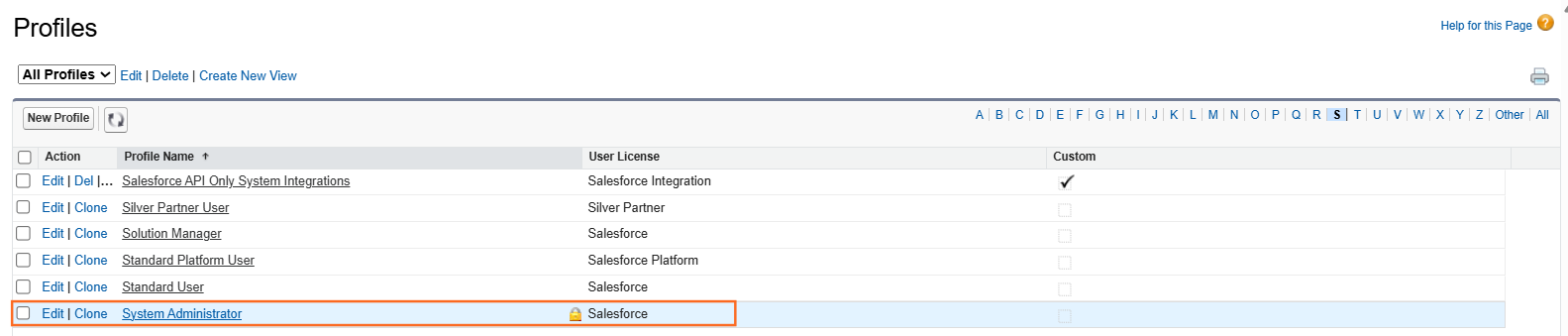
- Click the Assigned Users button at the top of the page.
- This generates a list of every user currently using that profile.
Step 3: Auditing Administrative Permissions (Permission Sets)
Sometimes users have “Admin-like” powers without having the System Administrator profile. To find these users, you must look for specific system permissions.
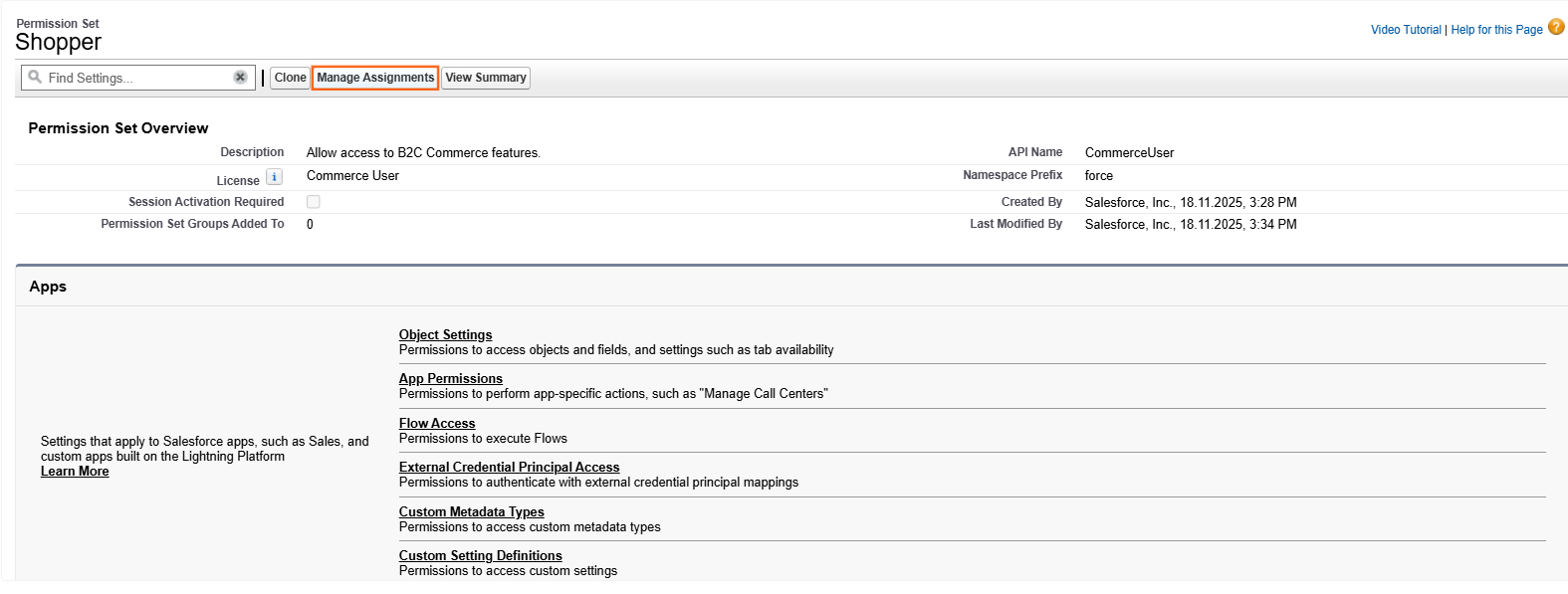
- Navigate to Setup > Users > Permission Sets.
- Review any custom permission sets (e.g., “Super User” or “Delegated Admin”).
- Click on the Permission Set Name > Manage Assignments to see the assigned users.
Step 4: Admin Access Audit Checklist
When documenting this for a technical guide, include these verification points:
Access Type | What to Check | Why it Matters |
Active Admins | Ensure the Active checkbox is checked. | Inactive users don’t count toward licenses but should still be audited. |
Profile Name | Check for “System Administrator.” | This is the standard “God Mode” profile in Salesforce. |
Modify All Data | Check for this permission in Permission Sets. | Users with this can see and edit every record in the org. |
Customize Application | Check for this permission in Permission Sets. | Users with this can change the setup and configuration of the org. |
Step 5: Security Best Practice
Always remind users of the Principle of Least Privilege:
- Limit the number of System Administrators to the absolute minimum (usually 2–5 depending on org size).
- Use Permission Sets for temporary elevated access rather than changing a user’s permanent profile

 Salesforce

