


Duplicate lead counting is a major issue because it makes your cost-per-lead (CPL) look better than it actually is and causes the AI to over-optimize for people who fill out forms multiple times.
There are three primary ways to stop this from happening.
Change the “Count” Setting (The Easiest Fix)
This is the most critical setting for lead generation. Unlike e-commerce (where you want to count every sale), you generally only want to count one lead per person.

- Go to Goals > Conversions > Summary.
- Click on your lead conversion action and click Edit settings.
- Find the Count section.
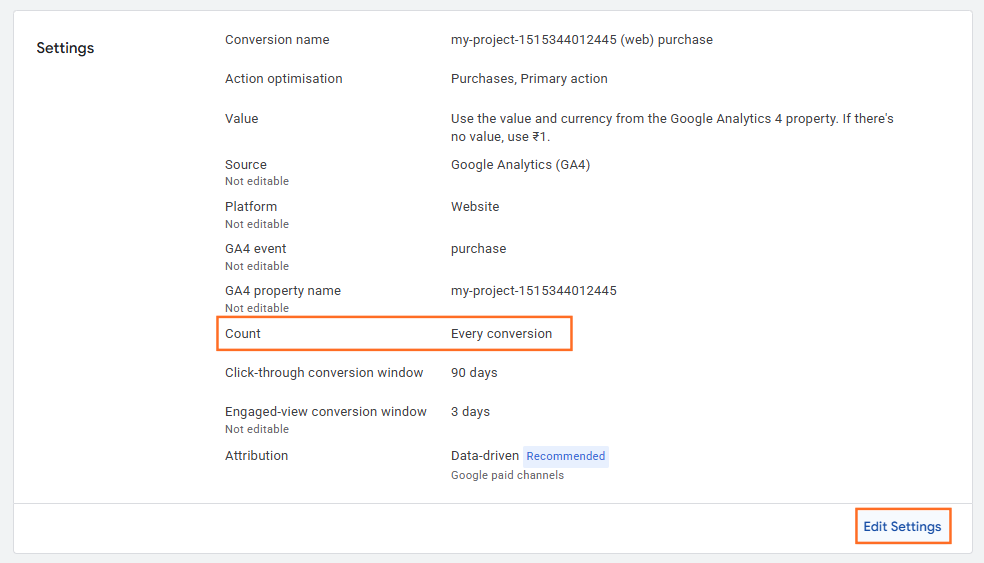
- Change the setting from “Every” to “One.”
- Result: If a user clicks your ad and fills out your form 5 times, Google will only record one conversion.
- Result: If a user clicks your ad and fills out your form 5 times, Google will only record one conversion.
Which method should you use?
Strategy | Best For… | Technical Effort |
“One” Count Setting | Preventing duplicates from a single ad click. | Very Low |
Transaction ID | Preventing duplicates from page refreshes/re-visits. | Medium (Requires Code) |
GTM Debouncing | Preventing “Double-Clicking” on the submit button. | Medium (GTM Logic) |
CRM Deduplication | Ensuring only unique leads reach Google Ads. | High (CRM Integration) |
The “Repeat Rate” Check
Regularly check your Repeat Rate column in the Conversions summary. If your count setting is “One” but your repeat rate is still significantly above 1.0, it means you likely have two different conversion actions tracking the same form. You should set one to “Primary” and the other to “Secondary.”

 Salesforce

