


Reducing waste in 2026 requires more than just adding “free” as a keyword. You must actively manage your Search Terms and Placements across all networks.
1. The “Negative Keyword” Layered Defense
You should manage negative keywords at three distinct levels to ensure no irrelevant traffic slips through.
- Account-Level Negatives: Use this for “Universal Junk.” These are terms that should never trigger any ad in your account (e.g., “jobs,” “internship,” “free,” “torrent”).
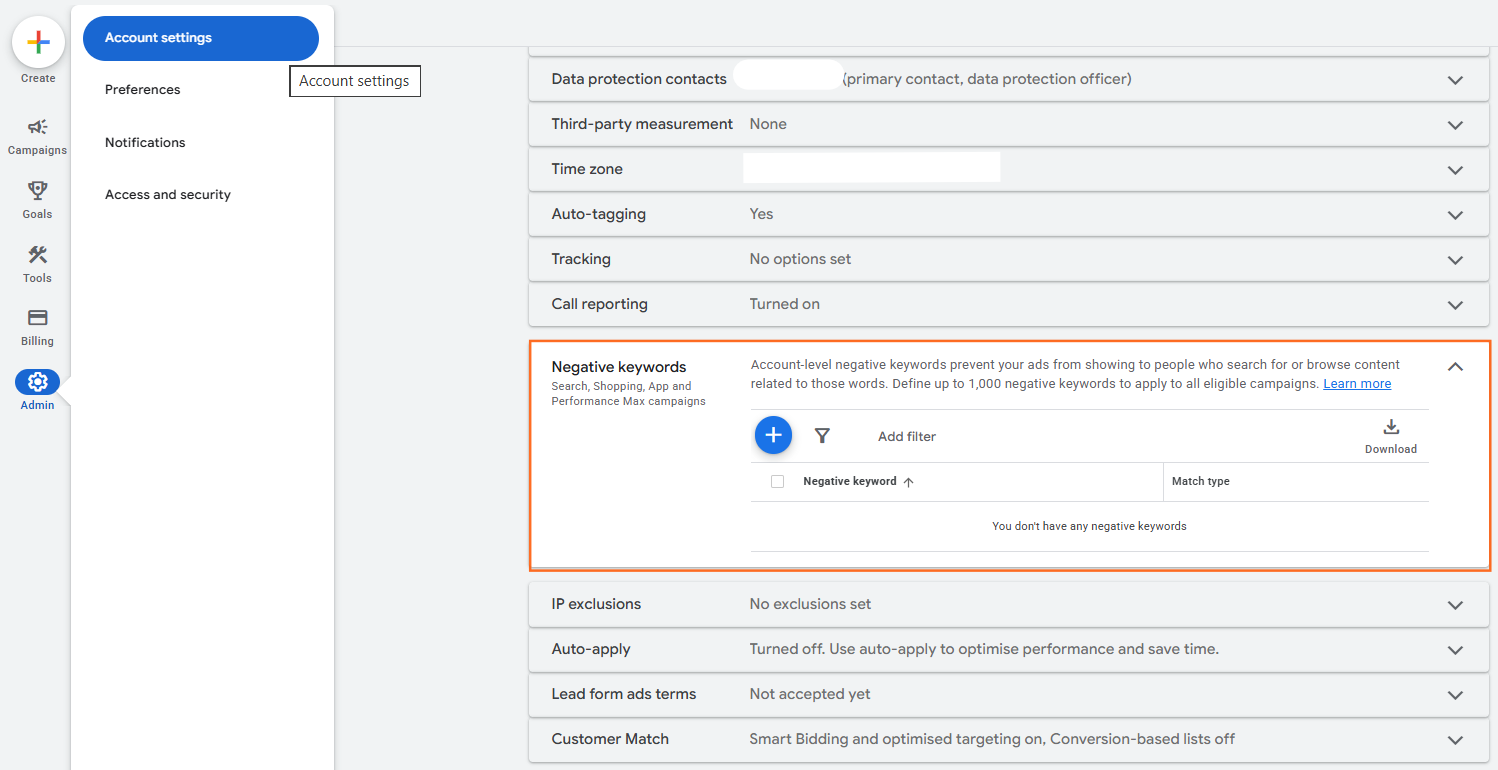
- Path: Admin > Account Settings > Negative keywords.
- Campaign-Level Negatives (PMax Support): In 2026, PMax finally supports native campaign-level negatives without needing a Google rep. Use this for terms that might be okay for one campaign but are irrelevant for this specific one.

- Path: Campaign > Audience, Keywords and Content > Keywords > Negative keywords.
- Negative Keyword Lists: Create themed lists (e.g., “Competitor List,” “Bargain Hunter List”) in your Shared Library and apply them to multiple Search campaigns at once for scalability.
2. Auditing the “Search Terms” Report
Don’t wait for Google to tell you there’s a problem. Look for high-spend, zero-conversion terms.
- Navigate to Campaigns > Insights and reports > Search terms.
- The 2026 Filter: Filter for terms with Conversions = 0 and Cost > [Your 2x Target CPA].
- Action: Select the checkbox next to irrelevant terms and click “Add as negative keyword.”
3. Cleaning Up PMax “Placements”
Performance Max often wastes budget on low-quality mobile apps or “junk” websites in the Display Network.
- Go to Campaigns > Insights and reports > Report editor.
- Select the “Performance Max placements” report.
- Analyze the List: Look for mobile apps (e.g., “com.game.cool”) or kids’ YouTube channels that are eating your budget without converting.
- The Fix: You cannot exclude these inside the PMax campaign. You must go to Tools > Suitability settings and add these as Placement Exclusions at the account level.
“Waste Reducer” Checklist
Control Type | Action to Take | Frequency |
Search Terms | Exclude non-converting, low-intent queries. | Weekly |
PMax Placements | Block mobile apps and irrelevant domains. | Monthly |
Location Exclusions | Exclude regions/cities with high spend but 0 sales. | Monthly |
URL Exclusions | (PMax) Block your blog or “Career” pages from being used. | Once per setup |
The “Brand Exclusion” Guardrail
In 2026, PMax has a habit of “stealing” your brand traffic (people searching for your business name) to make its ROAS look better.
If you already have a dedicated Brand Search campaign, use the “Brand Exclusions” setting in your PMax campaign. This forces PMax to find new customers rather than wasting budget on people who were already looking for you.
Warning: Avoid “Over-Negating”
If you add too many exact-match negatives, you might block “close variants” that actually convert. Focus on blocking the intent (e.g., “cheap”), not every single spelling variation of a word.

 Salesforce

