


In 2026, you can view violations at a high level for the entire account or drill down into specific assets.
The “Policy Manager” (Account-Wide View)
This is the best place to start if you have multiple campaigns and want to see every “disapproval” in one list.
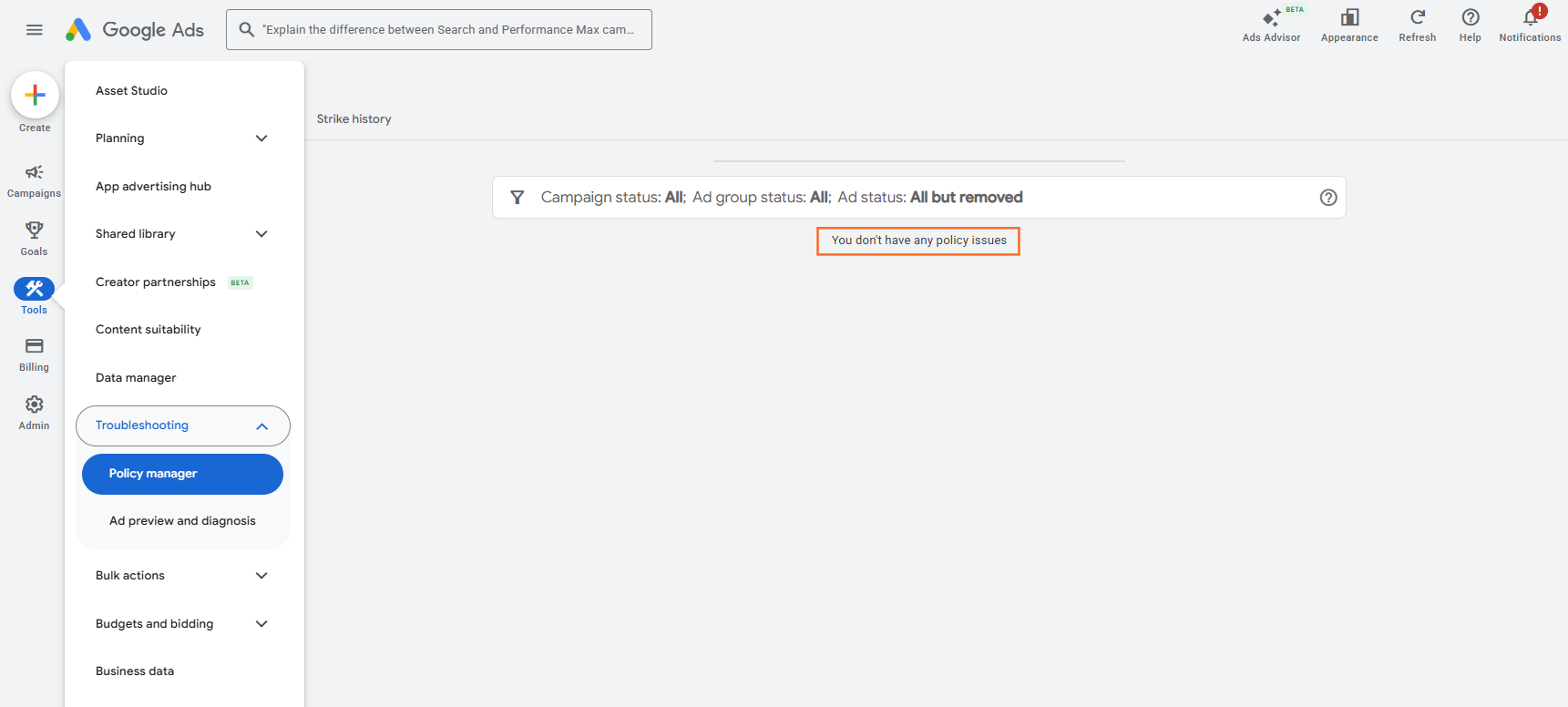
- Navigate to Tools: Click the Tools icon (four-dot square) in the left-hand panel.
- Select Policy Manager: Under the Troubleshooting section, select Policy manager.
- Review the “Policy issues” tab: Here, you will see a list of all current violations, which ads are affected, and the specific policy being triggered (e.g., “Destinations requirements” or “Trademarks”).
Adding the “Policy Details” Column
We recommend that you add this hidden column to your dashboard for better long-term monitoring.
- Path: Columns > Modify columns > Attributes > Policy details.
- Benefit: This adds a permanent column that explicitly names the violation next to every ad, so you don’t have to hover over the status every time.
Policy Violations & Fixes
Violation | Likely Cause | 2026 Fix |
Destination Mismatch | Final URL in the ad doesn’t match the landing page domain. | Update the Final URL to match exactly. |
Malicious Software | Google’s scanner found a suspicious script on your site. | Scan your site for malware and request a re-review. |
Capitalization | EXCESSIVE use of all-caps (e.g., “FREE SHIPPING”). | Change to Title Case (e.g., “Free Shipping”). |
Trademarks | Using a brand name you don’t own in your ad copy. | Remove the brand name or submit an authorization form. |
How to Appeal a Decision
If you believe Google’s AI has made a mistake (which happens frequently in 2026), you can appeal:
- In the Policy Manager or the Ads tab, select the checkbox next to the affected ad.
- Click Edit and select Appeal policy decision.
- Choose your reason: “Dispute decision” (if you didn’t change anything) or “Made changes to comply” (if you edited the ad).
- Track Progress: Check the “Appeal history” tab in the Policy Manager to see the status of your review.
Note: In 2026, most appeals are reviewed within 24–48 hours, but “Sensitive” categories like Healthcare or Finance may take up to 5 business days for a manual human review.

 Salesforce

