


Changing a WordPress theme can change your website’s design, layout and available features. Before switching, check how the new theme will affect your existing content and settings.
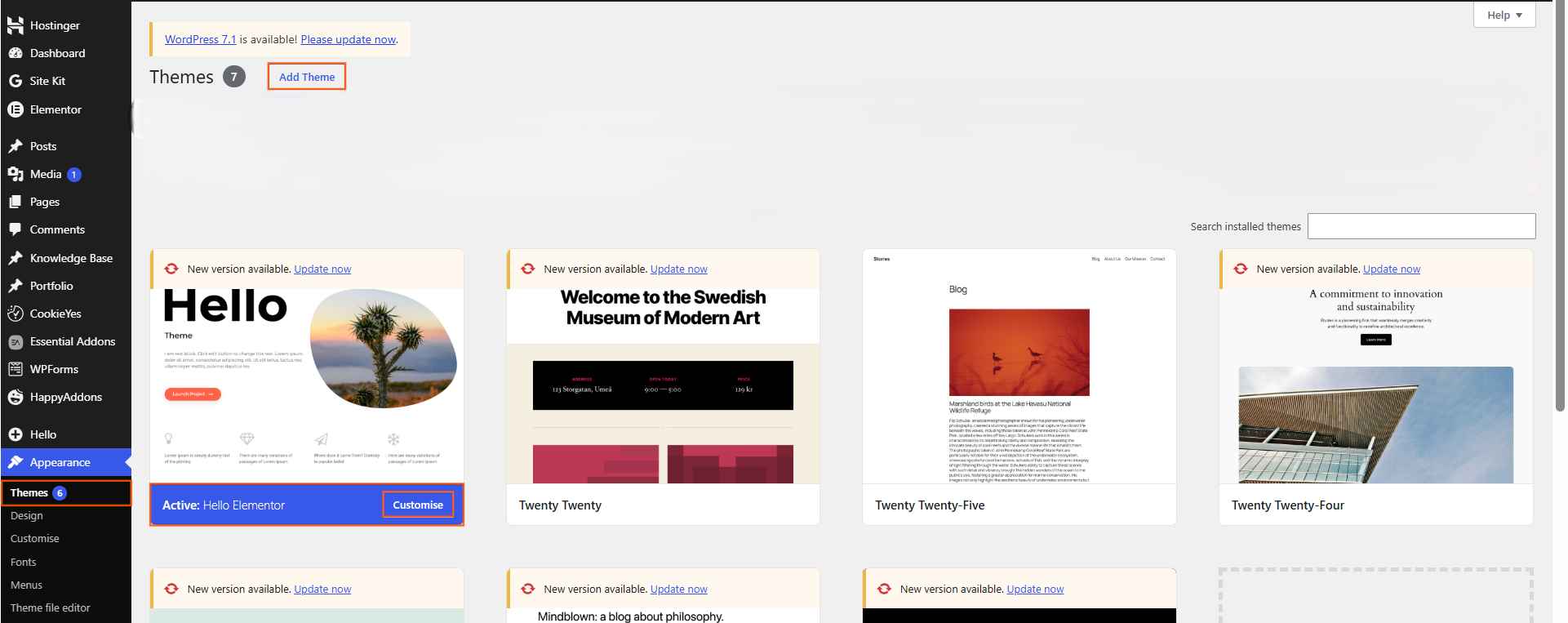
1. Back up your website
Create a recent backup of your website before changing the theme. This gives you a recovery option if something does not work as expected.
2. Review your current theme
Make a note of important customisations, widgets, menus, homepage settings and other theme-specific features.
Some settings or features may not transfer automatically to a different theme.
3. Choose a new theme
From your WordPress dashboard, go to Appearance → Themes → Add New Theme if your WordPress setup provides this option.
Review the theme’s features, compatibility, update history and requirements before installing it.
You can also upload a theme when you have a theme package from a trusted source.
4. Install and activate the theme
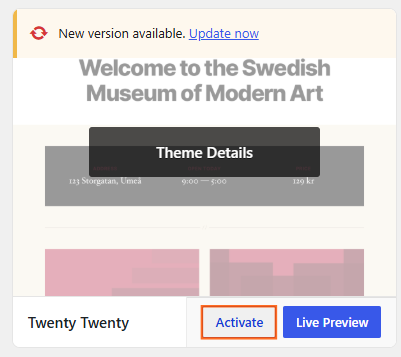
Install the theme and select Activate when you are ready to use it.
Installing a theme does not normally remove your existing theme. You can keep installed themes available for later use, provided they remain appropriate and supported.
5. Reconfigure your website
After activation, review your website carefully. Check the:
- Header and footer
- Navigation
- Homepage
- Page layouts
- Widgets or blocks
- Logo and site identity
- Colours and typography
- Custom CSS or other customisations
Theme-specific settings may need to be configured again.
6. Test the entire website
Visit the important pages and test links, menus, forms and other features. Check the website on both desktop and mobile.
If the new theme causes a problem, investigate the affected theme settings, plugins or customisations before continuing to use it.

 Salesforce

