


Scheduling automated reports is a key workflow for maintaining consistent communication with stakeholders and ensuring you never miss critical account shifts. In the latest Google Ads interface, you can automate these deliveries directly from the Report Editor.
Automated reports can be sent daily, weekly, or monthly in various formats like PDF, CSV, or Excel.
1. Create Your Report Template
Before scheduling, you must build the report structure you want to share.
- Click the Campaigns icon in the left-hand menu.
- Select Insights and reports > Report editor.
- Click the + Create Report button to start a new report (Table or Chart).
- Drag and drop your desired metrics (e.g., Conversions, Cost, CTR) into the workspace.
- Click Save and give your report a clear, descriptive name (e.g., “Weekly Performance Summary”).
2. Set the Delivery Schedule
Once your report is saved, you can authorize the automated email sequence.
- Inside the Report Editor, locate the Schedule (clock icon) inside the report you have created in the top menu.
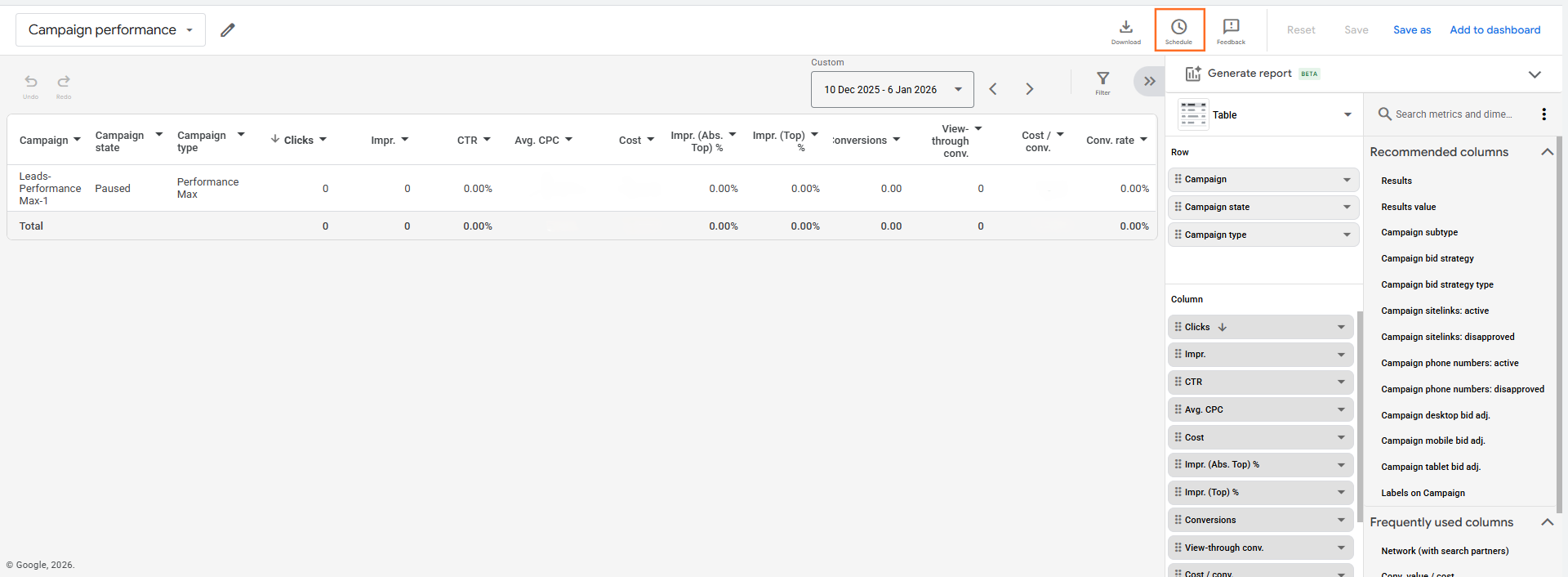
- Frequency: Select how often you want the report sent (Daily, Weekly, or Monthly).
- Day & Time: For weekly reports, choose the specific day (e.g., every Monday at 8:00 AM).
- Format: Choose between PDF, Excel (.csv), or CSV. PDF is generally best for visual summaries, while CSV is better for data analysis.
- Recipients: Enter the email addresses of the people who should receive the report. You can include yourself and external stakeholders.
- Save: Click Save to activate the schedule.
Scheduling via Looker Studio
If you use Looker Studio for your reporting (as discussed in the previous topic), the scheduling process is slightly different but offers more visual control.

- Open your report in Looker Studio.
- Click the Share button in the top right and select Schedule delivery.
- Set your recipients, date/time, and repeat frequency.
- Pro Tip: Looker Studio allows you to send a preview of the first page directly in the body of the email along with the PDF attachment.
2026 Reporting Best Practices
Report Type | Recommended Frequency | Key Metrics to Include |
PMax Overview | Weekly | Spend, Conv. Value, ROAS by Channel. |
Search Terms Audit | Bi-Weekly | Non-converting terms with high spend. |
Executive Summary | Monthly | High-level ROI, month-over-month growth. |
Budget Tracker | Daily | Current spend vs. daily limits (for high-budget accounts). |
Troubleshooting Scheduled Reports
- Missing Data: If a report arrives “empty,” check if your Filters are too restrictive (e.g., filtering for a specific campaign that has since been deleted).
- Delivery Failures: Ensure all recipients have at least “Read-only” access to the Google Ads account, or that your “Customer Data Terms” allow for external sharing of reporting data.
- Timing: Data processing in Google Ads can have a 3–24 hour delay. To ensure you are sending “Complete” data for the previous period, schedule your reports for later in the morning (e.g., 9:00 AM) rather than midnight.

 Salesforce

