


1. Use Google Business Profile “Performance” (The Native Data)
Google has deprecated the old “Insights” dashboard and moved all tracking data to the Performance tab directly on Google Search.
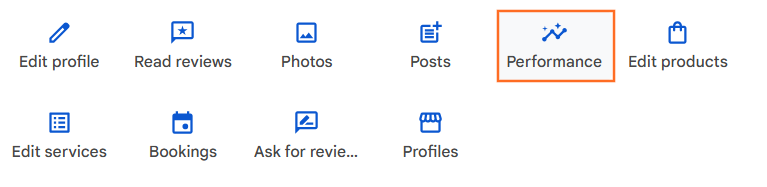
- Search: Go to Google and search for “My Business” (or your exact business name) while logged in.
- Click: Select the Performance icon in the dashboard that appears above the search results.
- Review Metrics:
- Calls: Tracks users who clicked the “Call” button on mobile. Note: It fails to track desktop users who read the number and dial manually.
- Directions: Tracks users who clicked “Get Directions.” It filters out “spam” clicks (e.g., users who cancelled the navigation instantly).
- Website Clicks: Tracks clicks to your link.
2. Implement UTM Tracking (The “Source of Truth”)
By default, Google Analytics 4 (GA4) groups your Maps traffic into generic “Organic Search,” making it impossible to separate a “Map Click” from a normal “Web Link Click.” You must “tag” your link to separate them.
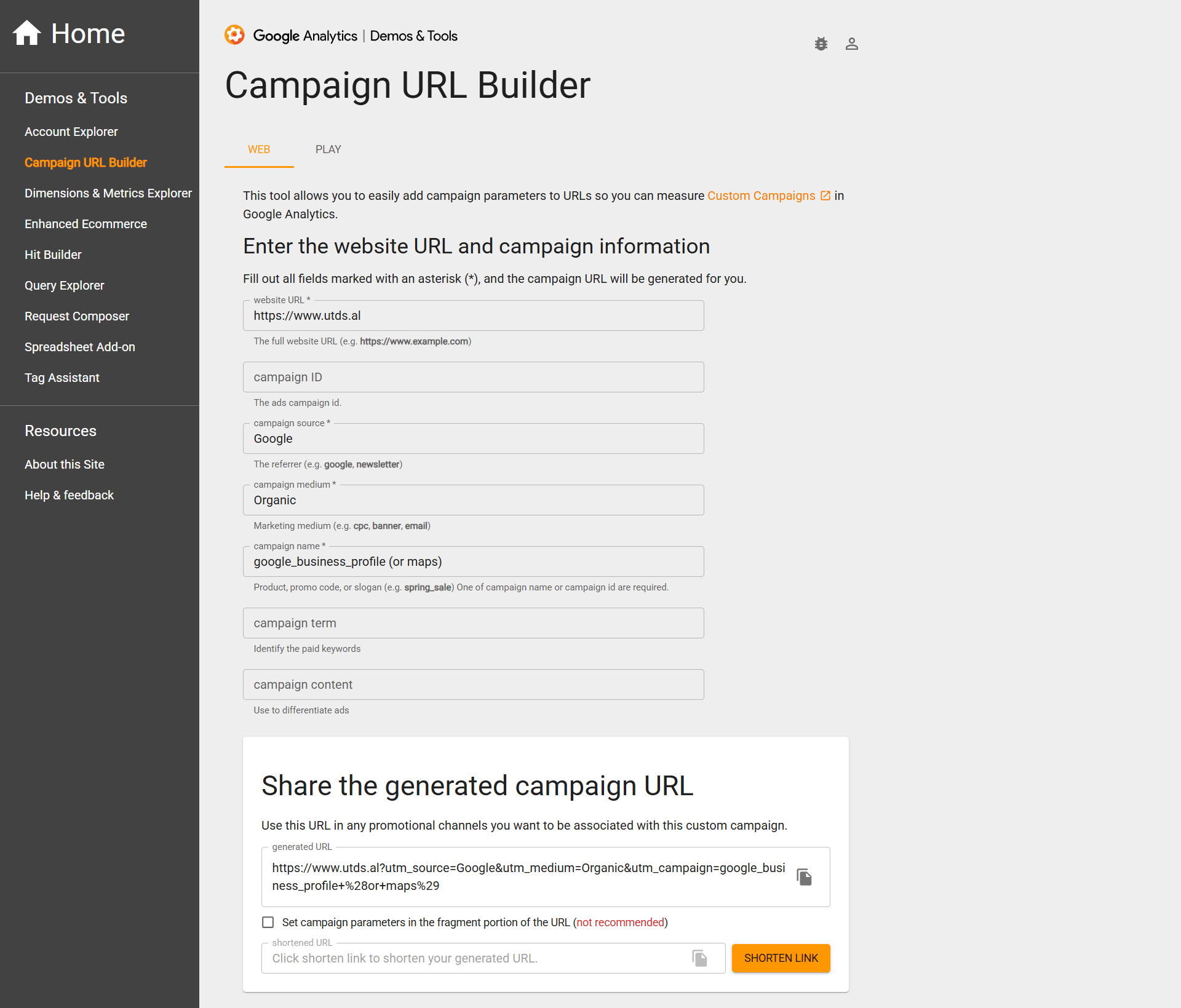
- Create Link: Use Google’s Campaign URL Builder.
- Enter Details:
- Source: google
- Medium: organic
- Campaign: google_business_profile (or maps)
- Update Profile: Copy the generated URL (e.g., website.com?utm_source=google&utm_campaign=maps) and paste it as your Website link in your Google Business Profile.
- Track: In GA4, go to Reports > Acquisition > Traffic acquisition and look for the session campaign google_business_profile.
3. Advanced Call Tracking (Dynamic Numbers)
Since Google’s native tracking misses desktop callers, professional SEOs use Call Tracking Software (like CallRail or Mediahawk) to capture 100% of leads.
- Get a Number: Buy a “tracking number” (with your local area code) from the software provider.
- Update Profile: Set this tracking number as your Primary Phone in Google Business Profile.
- The “NAP” Safe-Guard: You must move your original real phone number to the “Additional Phone” field. This tells Google’s algorithm that your original number is still valid, protecting your NAP (Name, Address, Phone) consistency for SEO.
4. Analyzing “Direction Requests” Heatmaps
Google business profile provides data on where your customers are driving from. This is often overlooked but vital for ad targeting.
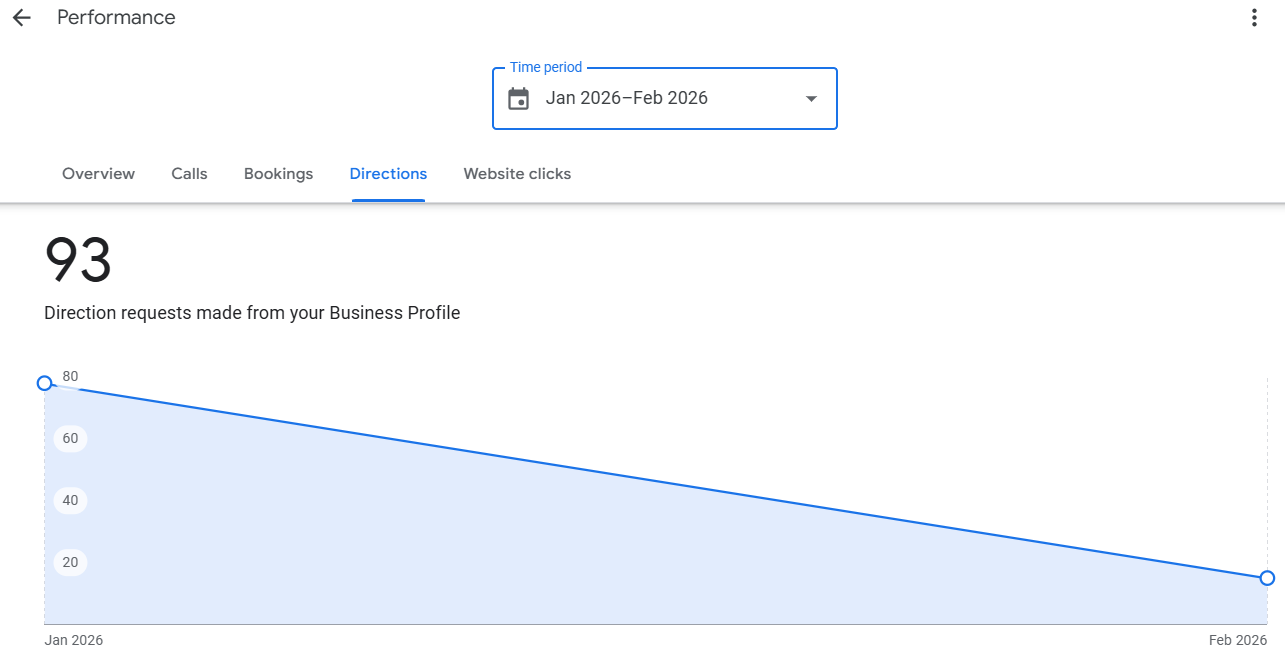
- Open Performance: Go to the Performance tab > Directions.
- View Map: Google generates a heatmap showing the postcodes where direction requests originated.
- Action: If you see a cluster of customers coming from a specific suburb (e.g., “North Leeds”), target your next Facebook Ad campaign or Leaflet Drop specifically to that postcode, as you already have brand affinity there.

 Salesforce

