


Since Salesforce has officially retired Workflow Rules, migrating them to Flow Builder is a critical task for maintaining your org. Salesforce provides a built-in tool called the Migrate to Flow tool to make this process easier, though complex logic may still require manual rebuilding.
Step 1: Access the Migration Tool
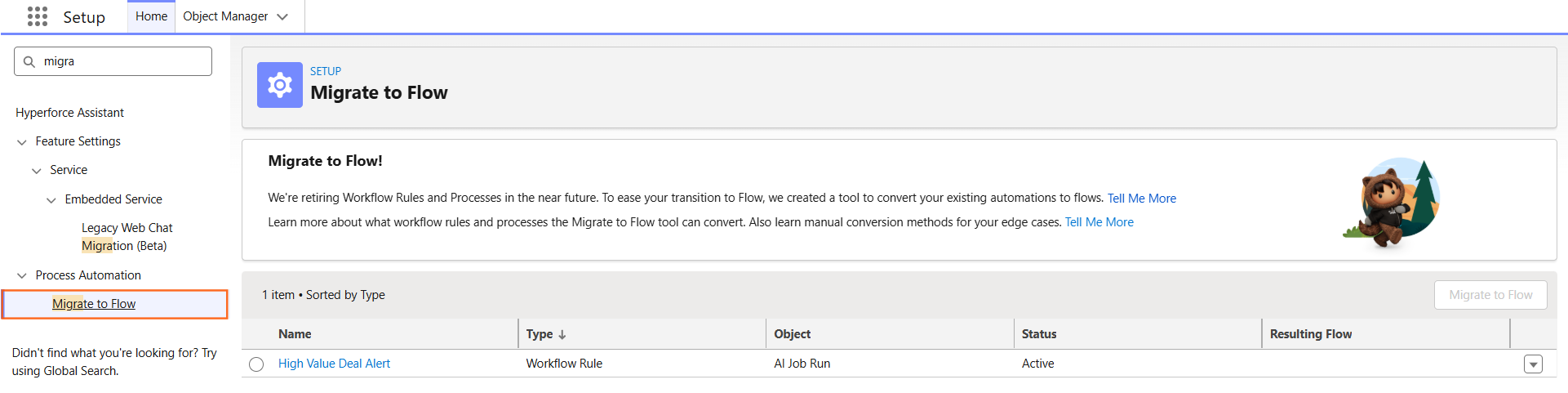
- Navigate to Setup.
- In the Quick Find box, type Migrate to Flow.
- Select Migrate to Flow from the results.
Step 2: Select the Workflow Rule
The tool will display a list of all active and inactive Workflow Rules in your system.
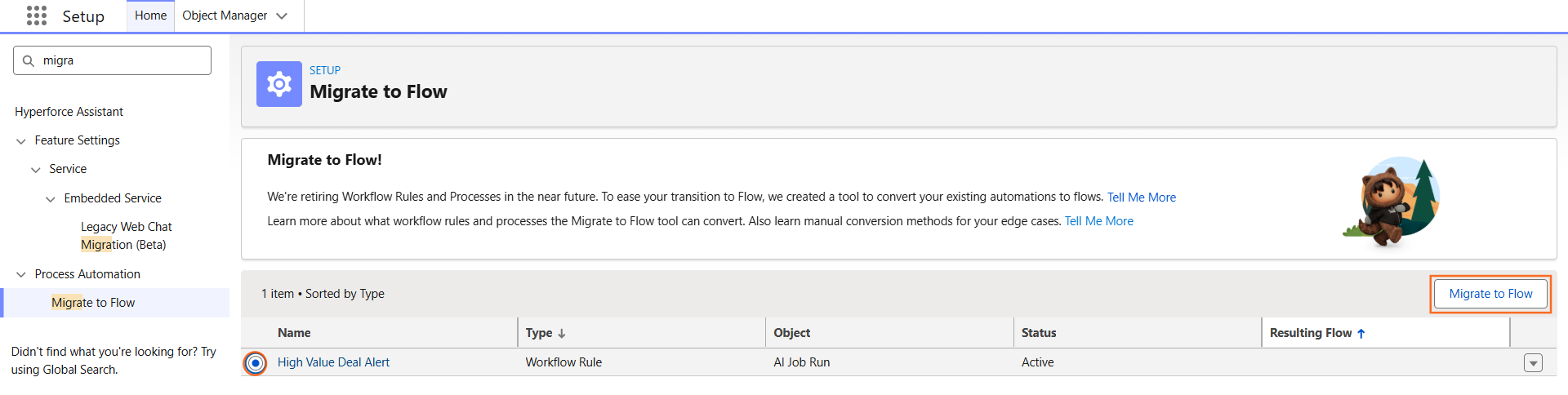
- Find the Workflow Rule you want to migrate.
- Check the box next to the rule name.
- Click the Migrate to Flow button in the top-right corner.
Step 3: Review and Map Criteria
- Select the Criteria you want to migrate (usually there is only one).
- Click Migrate to Flow.
- Salesforce will generate a new Record-Triggered Flow that mimics the logic of your old rule.
- Click Test in Flow Builder to open the new flow and verify the elements.
Step 4: Test and Deactivate the Old Rule
Crucial Step: You must not have both the Workflow Rule and the Flow active at the same time, or the action (like sending an email) will happen twice.
- In Flow Builder, click Activate on your new flow.
- Go back to Setup > Workflow Rules.
- Find the old rule and click Deactivate.
- Test a record to ensure the Flow triggers correctly.
Step 5: Manual Migration (When the tool fails)
The migration tool cannot handle everything. You will need to manually rebuild the flow if your Workflow Rule contains:
- Complex Formulas: Some advanced logic doesn’t translate perfectly.
- Outbound Messages: While supported now, older versions required manual setup.
- Multiple Actions: If a rule has a mix of immediate and time-dependent actions, review the “Scheduled Paths” in Flow carefully.
Step 6: Technical Comparison for your Guide
When explaining this to your team, use this table to show how Workflow elements translate to Flow elements:
Step 7: Why Move to Flow?
- Performance: Flows are more efficient and execute faster than Workflow Rules.
- Execution Order: You have more control over which automation runs first.
- Debugging: Flow Builder has a “Debug” button that lets you test logic without actually changing data.
- Capabilities: Flows can do much more, such as deleting records or updating unrelated records, which Workflows could never do.

 Salesforce

