


Updating records related to the one that triggered the flow is a very common automation requirement. This involves using the After Save optimization and two key Flow elements: Get Records and Update Records.
Use an “After Save” Flow
You must use an “After Save” Record-Triggered Flow when updating related records.
- Why? When the initial record (e.g., an Account) is saved, its new ID and field values are immediately available in the database. The “After Save” timing allows the Flow to look up other records (e.g., Contacts) based on that newly saved ID.
Step 1: Start the After Save Flow
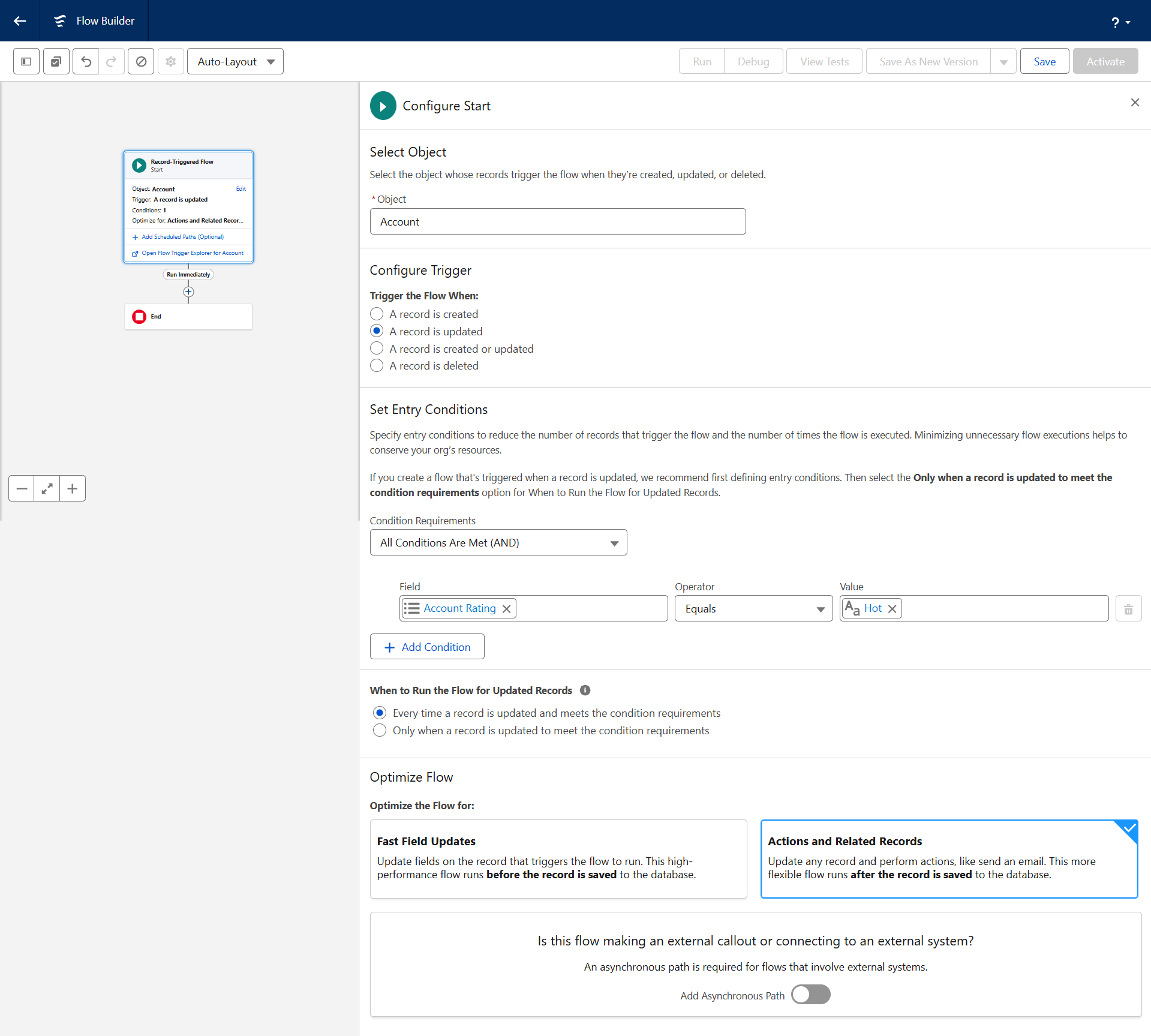
- Select Flow Type: Choose Record-Triggered Flow.
- Object: Select the object that is being updated (e.g., Account).
- Trigger: Select A record is updated (or “created or updated”).
- Set Entry Conditions: Define the criteria that must be met to trigger the flow.
- Example: Only run when the Account Rating field changes from anything else to Hot.
- Optimization: Select Actions and Related Records (After Save).
Step 2: Use "Get Records" to Identify the Related Records
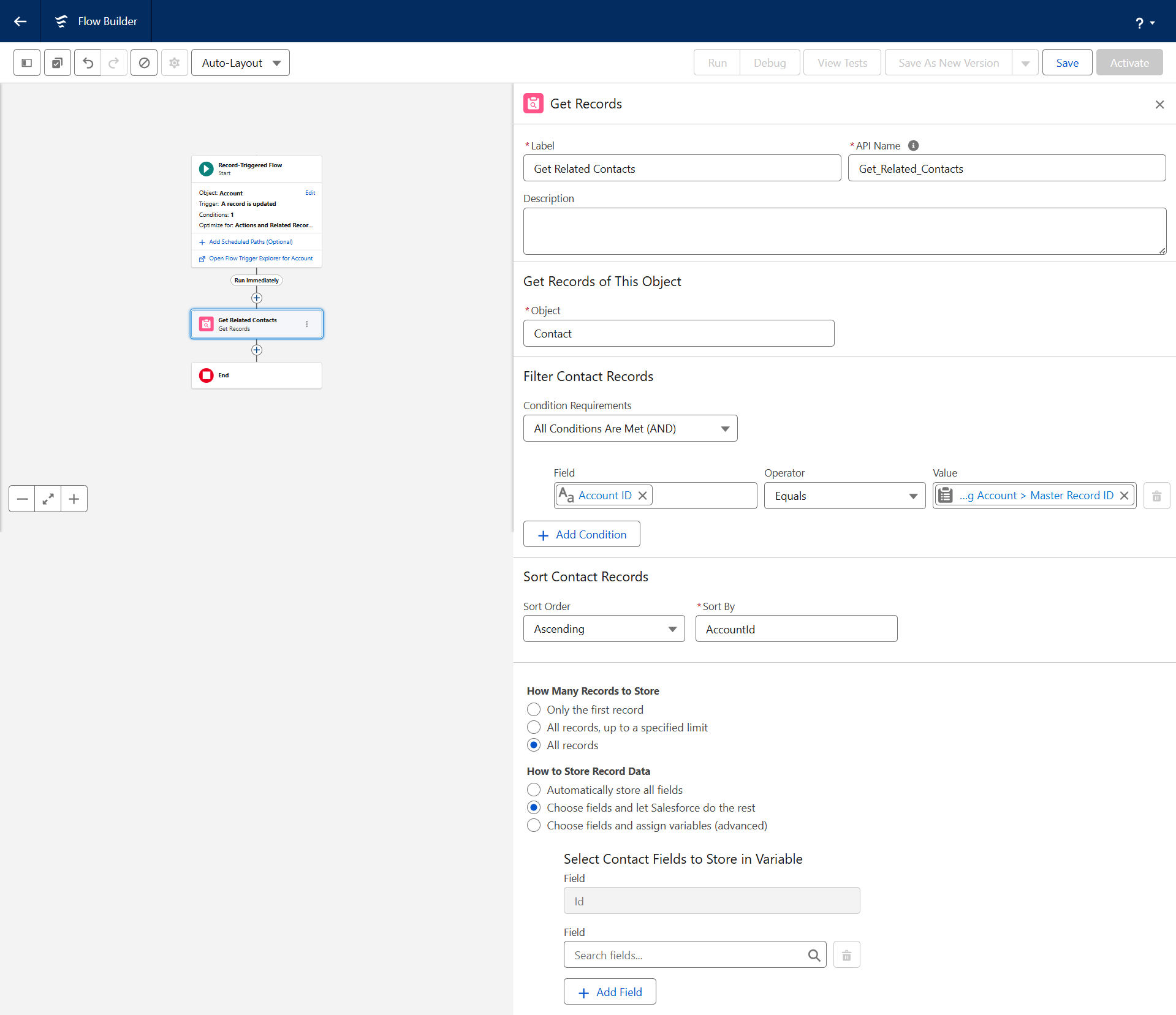
You need to tell the Flow which related records to update. In the Canvas;
- Click the (+) icon and select the “Get Records” element (under the Data category).
- Label: Get Related Contacts
- Object: Select the related object (e.g., Contact).
- Filter: Define the relationship criteria (this is what links the Contact to the Account):
- AccountId (on the Contact record) Equals {!$Record.Id} (the ID of the Account record that triggered the flow).
- How Many Records: Select “All records” (since you want to update all related contacts).
- Store Data: Ensure you select “Choose fields and let Salesforce handle everything else.” This stores the list of Contacts in a variable automatically.
Step 3: Use "Update Records" to Apply the Changes
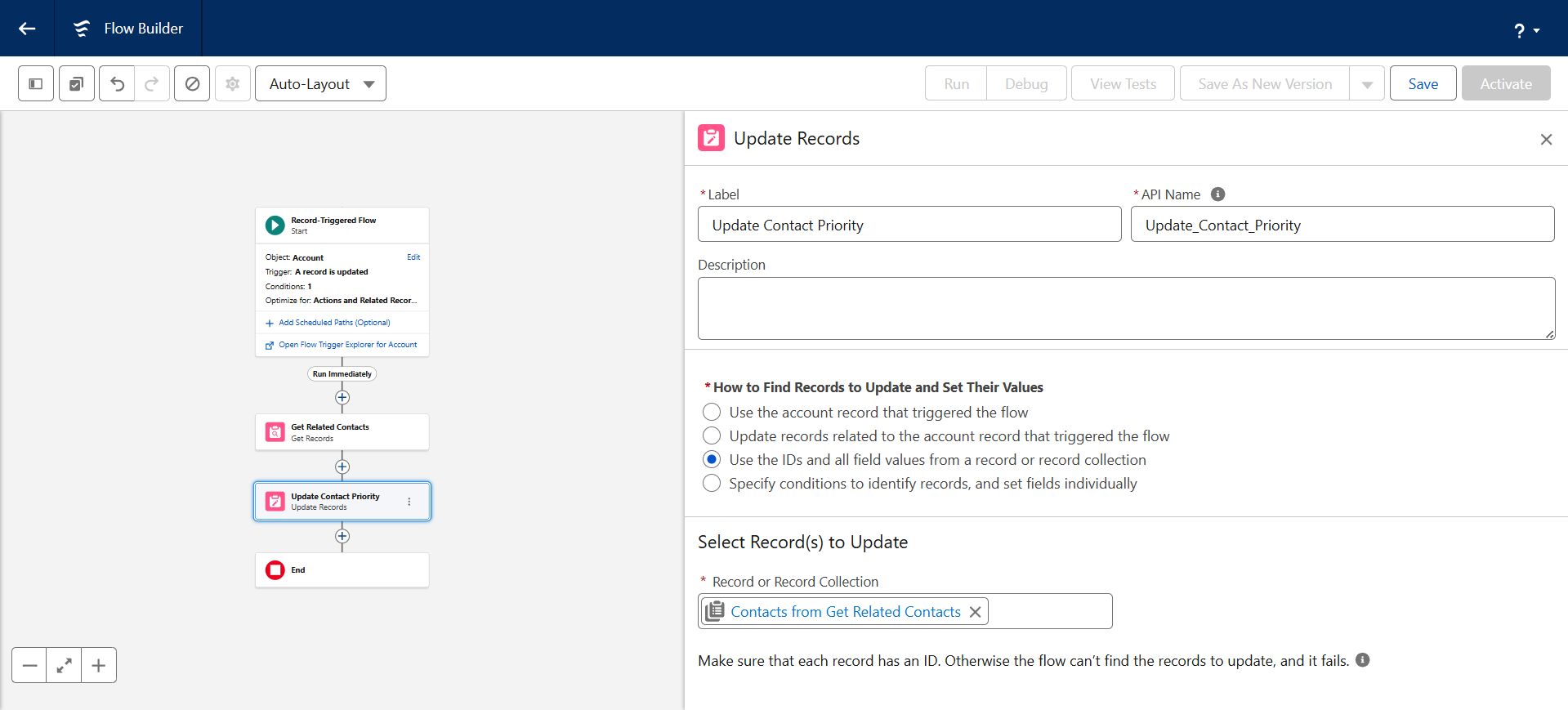
Once you have the list of related records (the Contacts from Step 3), you can update their fields.
- Click the next (+) icon and select the “Update Records” element (under the Data category).
- Label: Update Contact Priority
- How to Find Records: Choose “Use the IDs and all field values from a record or record collection.”
- Record or Record Collection: Select the record collection variable created by your Get Records element.
- Set Field Values: Specify the fields you want to update on the related records:
- Field: Priority_Level__c Value: High (or whatever value the change on the Account should propagate).

 Salesforce

