


In Salesforce, a Funnel Report is a specialized visualization of your sales pipeline. It shows the “drop-off” between different stages, helping you identify where deals are getting stuck.
To create one, your report must be grouped by Stage and displayed as a Funnel Chart.
Step 1: Create the Source Report
- Use App Launcher, Navigate to the Reports tab and click New Report.
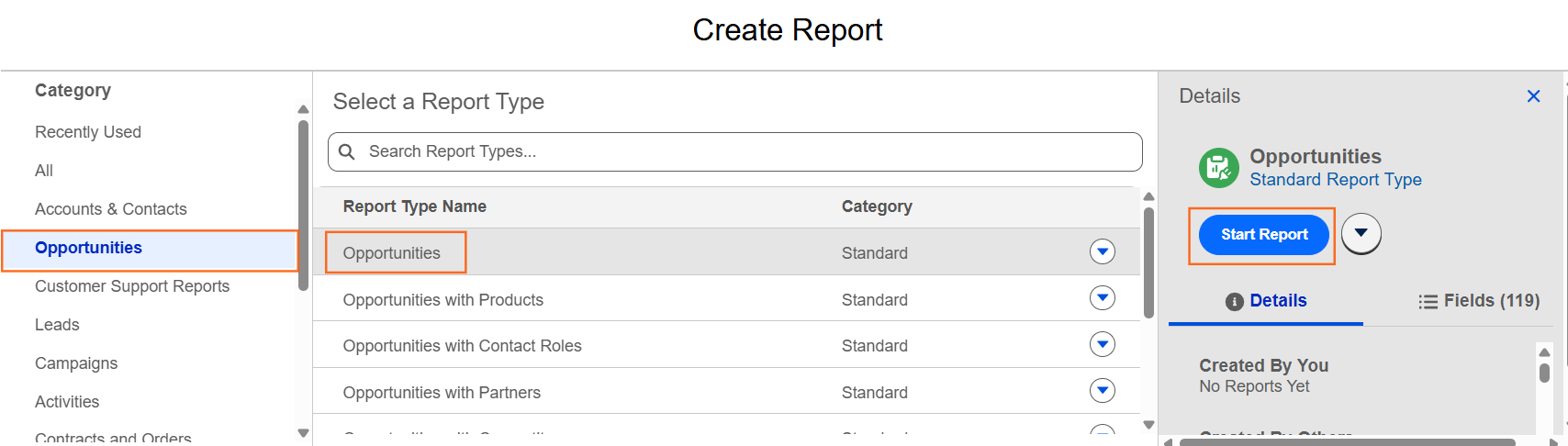
- Select the Opportunities report type and click Start Report.
- Go to the Filters tab in the left sidebar:
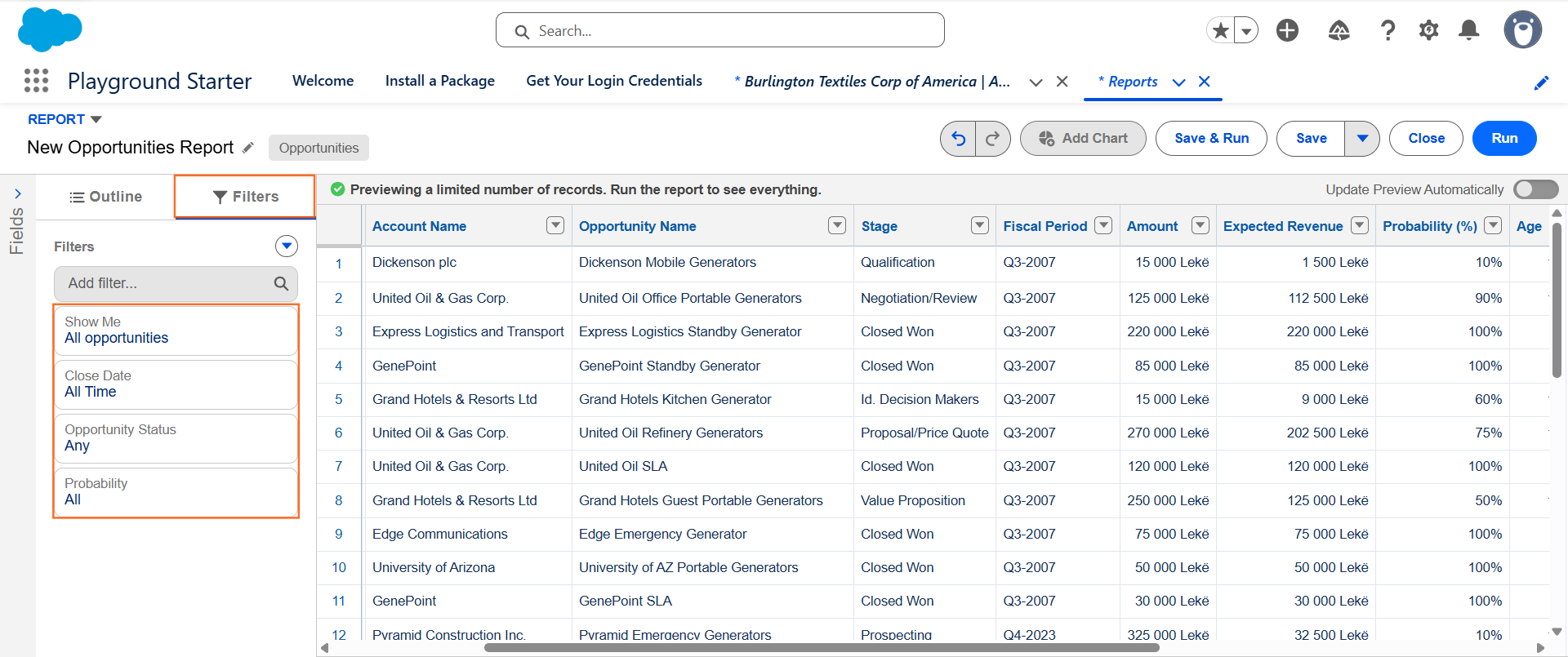
- Set Show Me to “All Opportunities.”
- Set Close Date to “All Time” (or your preferred fiscal period).
- Set Opportunity Status to “Any.”
Step 2: Group the Data
A funnel chart requires grouped data to create the different “sections” of the funnel.
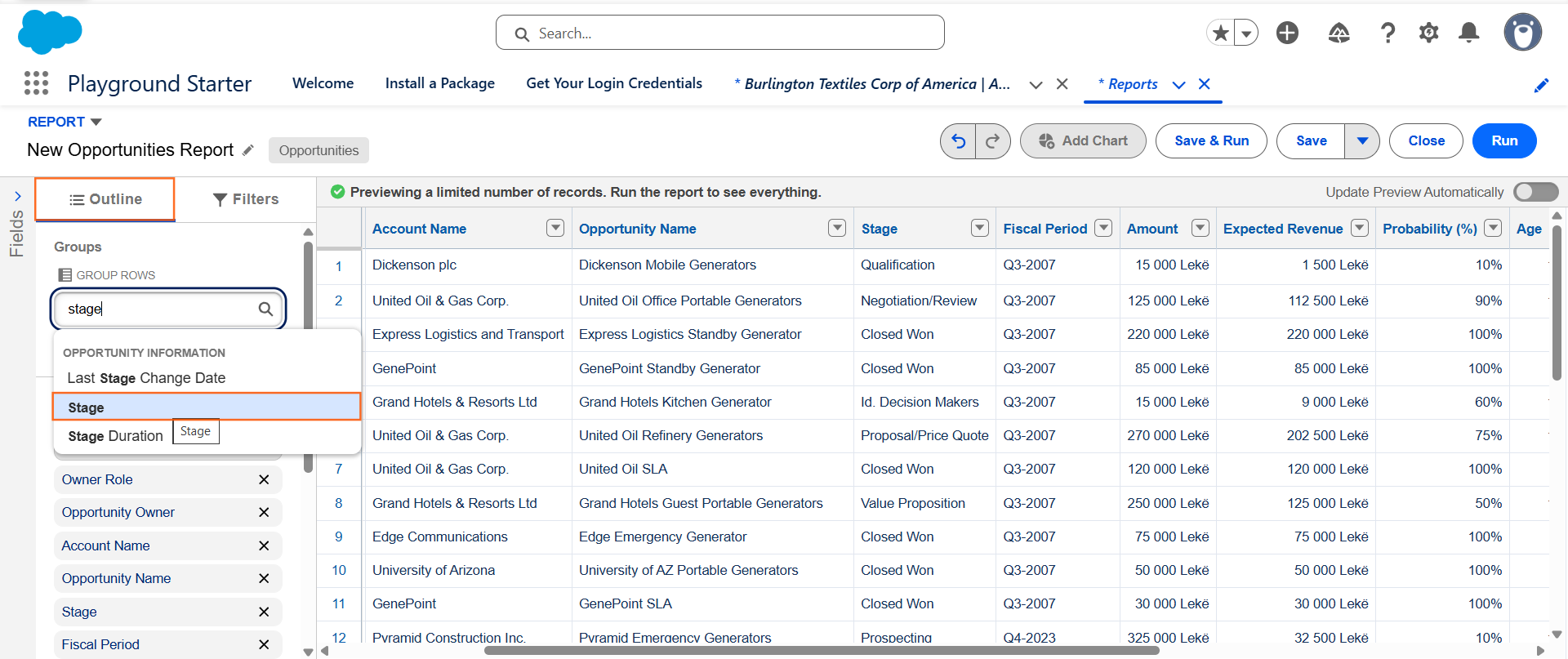
- Click the Outline tab in the left sidebar.
- In the Group Columns box, search for and select Stage.
- (Optional) Ensure the Amount field is in the “Columns” section so the funnel represents money rather than just the number of deals.
Step 3: Add the Funnel Chart

- Click the Add Chart button at the top of the report builder.
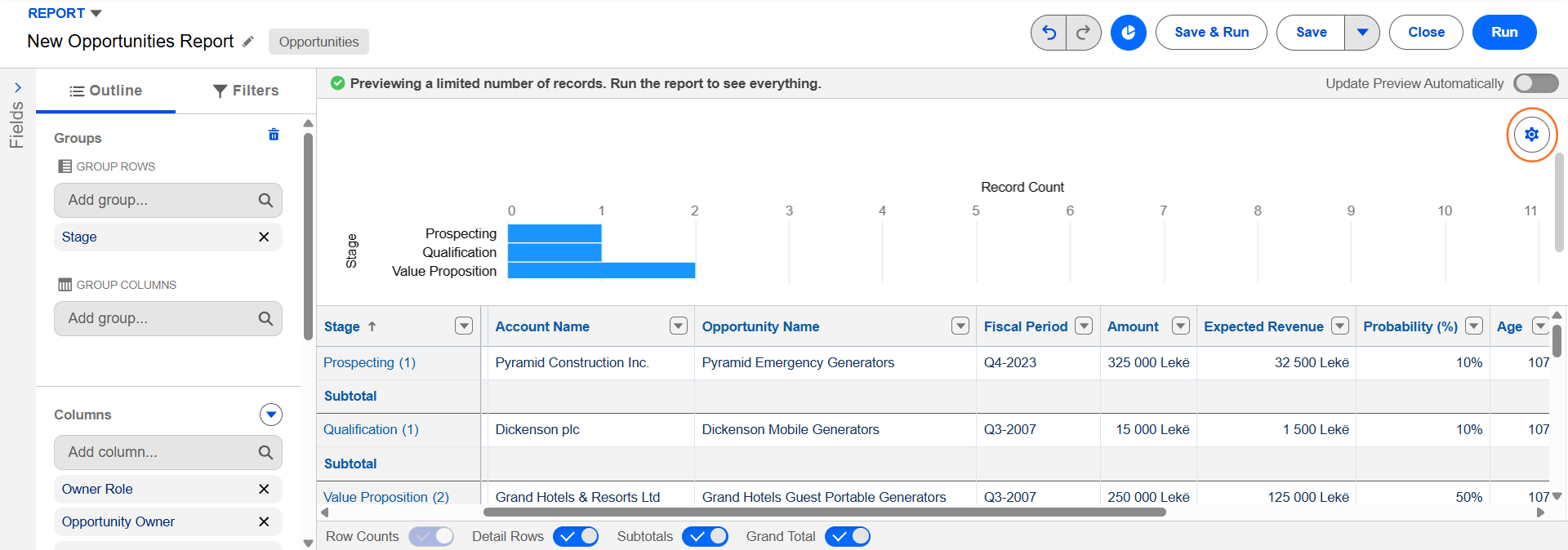
- Click the Chart Properties (gear icon) on the chart itself.
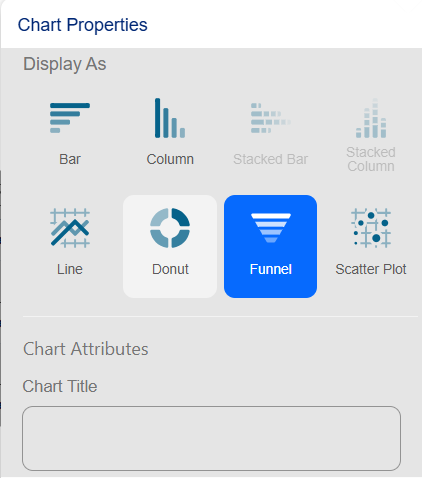
- Select the Funnel icon.
- Configure the Chart:
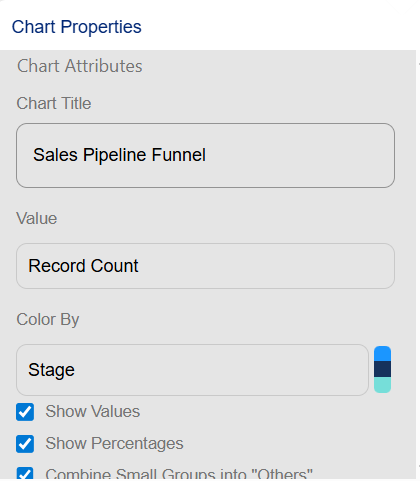
- Chart Title: Give it a name like Sales Pipeline Funnel.
- Value: Choose Sum of Amount (to see revenue) or Record Count (to see the number of deals).
- Show Values: Check this to see the numbers inside the funnel segments.
- Show Percentages: Check this to see how much each stage contributes to the total.
Step 4: Save and Run

- Click Save & Run.
- Enter a Report Name (e.g., Current Quarter Pipeline Funnel).
- Select a Folder. Remember to save it in a “Public” or “Shared” folder if you want to add it to a dashboard later.
- Click Save.
Step 5: Technical Tips for Your Guide
- The Order Matters: The funnel segments follow the order of your Stage Picklist. If the funnel looks “broken” (e.g., Closed Won is at the top), you need to reorder the stages in the Object Manager.
- Filtering Lost Deals: Often, managers want to see only active deals in a funnel. You can add a filter where Closed equals False to hide “Closed Won” and “Closed Lost” from the visualization.
- Dashboard Integration: Once saved, you can add this funnel to any dashboard as a component to give leadership an at-a-glance view of the pipeline health.

 Salesforce

