


In Salesforce, you do not control dashboard visibility on the dashboard itself. Instead, access is determined by the Folder where the dashboard is stored. If a user has access to the folder, they can see the dashboard.
Step 1: The "Private" vs. "Shared" Rule
When you create a dashboard, it is often saved in your Private Dashboards folder by default.
- Private Folders: Only you can see the contents. Even System Administrators cannot see into your private folders unless they have specific “View All Data” permissions.
- Shared/Public Folders: To let others see your dashboard, you must move it to a folder that has been shared with them.
Step 2: How to Share a Dashboard Folder
- Navigate to the Dashboards tab.
- In the left sidebar, click All Folders.
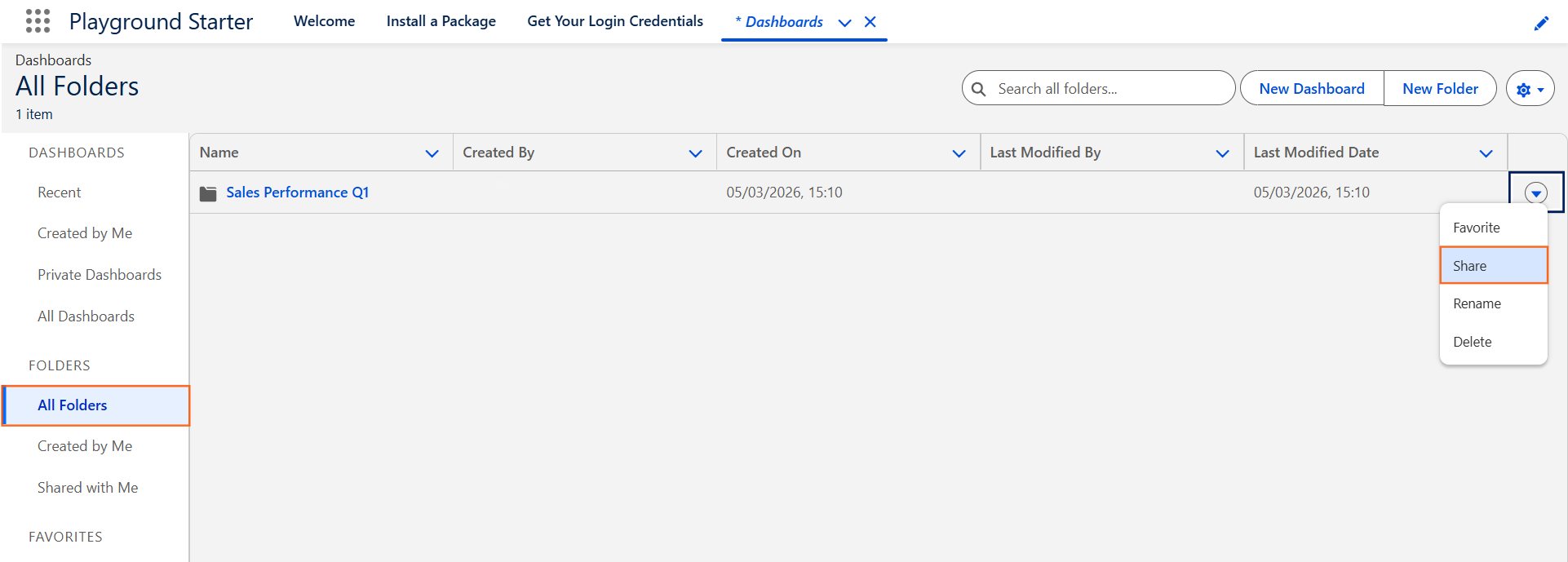
- Find the folder containing your dashboard. Click the arrow icon on the far right of the folder row and select Share.
- In the “Share With” dropdown, choose who to grant access to:
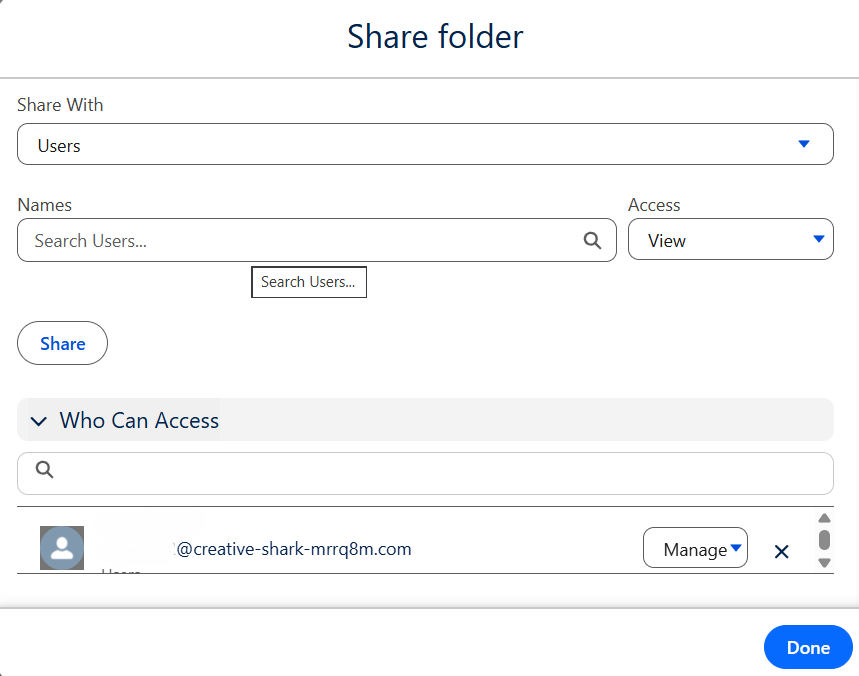
- Users: Specific individuals.
- Roles: Everyone in a certain position.
- Public Groups: A pre-defined team (e.g., Marketing Team).
- Select the Access Level:
- View: Can see and refresh the dashboard.
- Edit: Can change the charts and layout.
- Manage: Can delete the folder or change who it is shared with.
- Click Share and then Done.
Step 3: The "Running User" (The Security "Lens")
Even if someone can see the dashboard, the data they see inside the charts depends on the Running User setting.
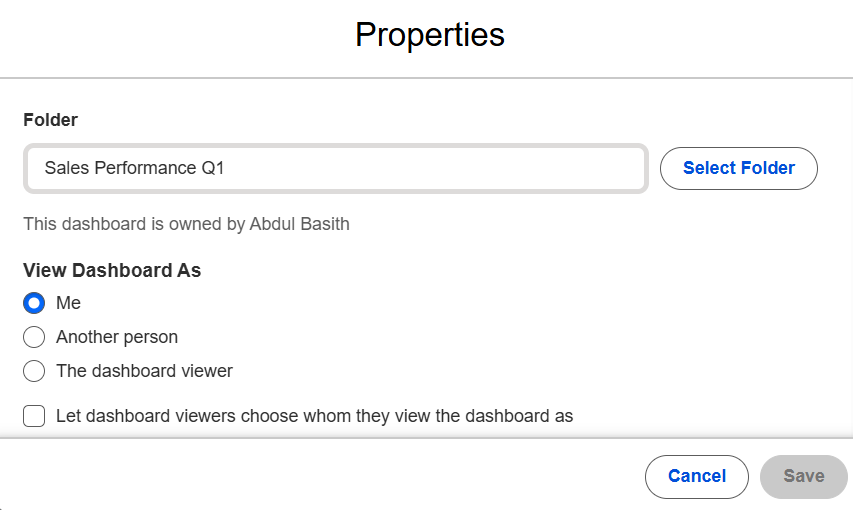
- Open your dashboard and click Edit.
- Click the Gear Icon (Settings) in the top right.
- Under View Dashboard As, choose one of these options:
- Me (The Creator): Everyone sees exactly what you see. This is useful for “Big Picture” leadership dashboards.
- Another Person: Everyone sees data through that specific person’s security permissions.
- The Dashboard Viewer: This turns it into a Dynamic Dashboard. Each person sees only the records they own or have access to.
Step 4: Important: Source Report Access
A common “Instructional Designer” troubleshooting tip: If a user can see the dashboard but the charts say “Error: Insufficient Privileges,” they do not have access to the Source Report folder.
- You must share the Report Folder with the same users/groups you shared the Dashboard Folder with.

 Salesforce

