


To forecast revenue in Salesforce, you must use the Collaborative Forecasting tool. This feature translates your Opportunity stages into specific “buckets” (categories) that allow sales leaders to predict future revenue with accuracy.
Step 1: Enable Forecasting
Before you can see a forecast, an administrator must turn the feature on and configure the settings.
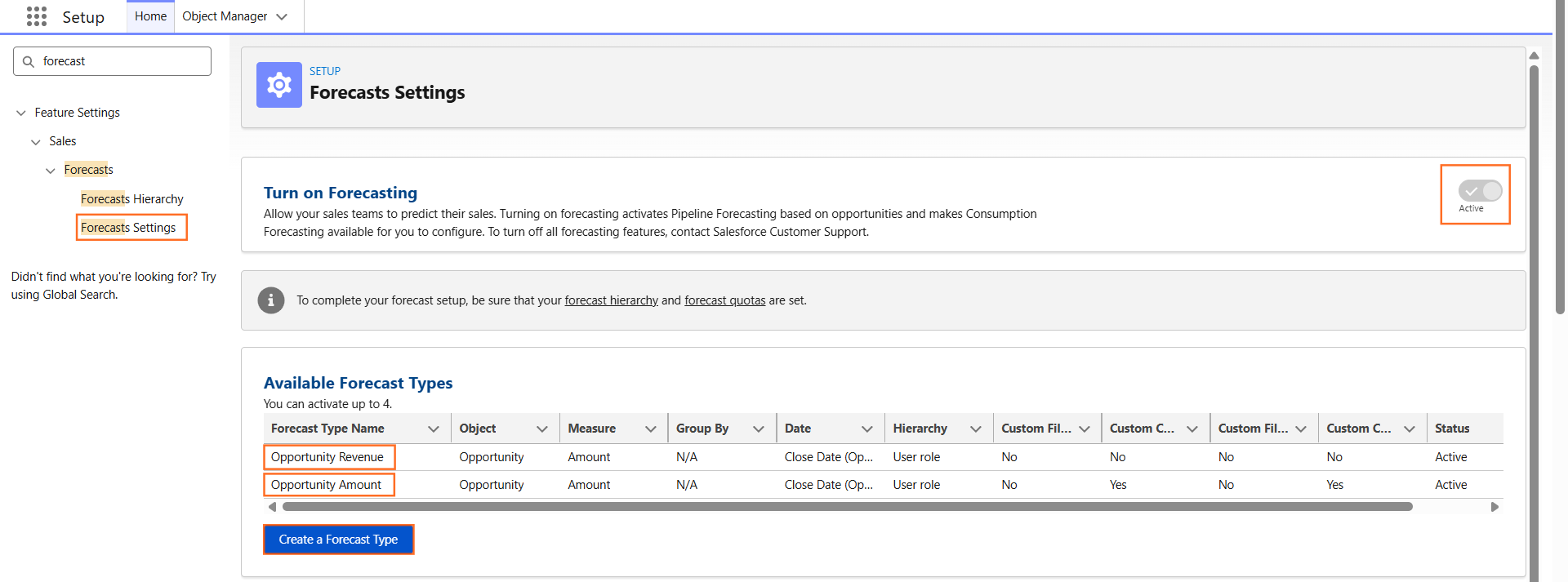
- Navigate to Setup.
- In the Quick Find box, type Forecasts Settings.
- Click Enable Forecasts.
- Click Add Forecast Type (usually “Opportunity Revenue” by “Close Date”).
- Select the Forecast Rollup Method (e.g., “Single Category” or “Cumulative”).
- Click Save.
Step 2: Map Stages to Forecast Categories
Each Opportunity Stage must be mapped to a Forecast Category. This tells Salesforce which bucket the money should fall into.
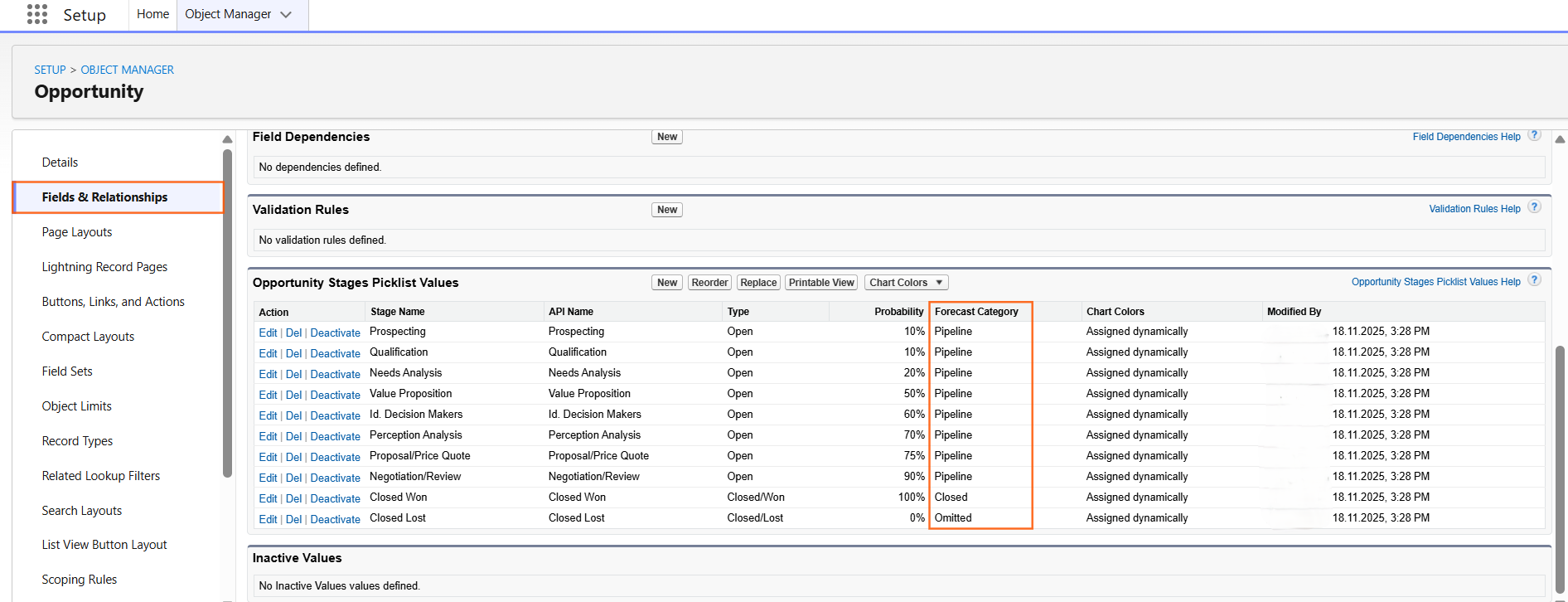
- Go to Object Manager > Opportunity.
- Click Fields & Relationships > Stage.
- Scroll to Opportunity Stage Picklist Values.
- Ensure each stage has a Forecast Category assigned:
Stage | Forecast Category | Meaning |
Prospecting/Qualification | Pipeline | Early stage; not yet counted toward the goal. |
Value Proposition | Best Case | Possible to close, but not guaranteed. |
Negotiation/Review | Commit | Highly confident this will close this period. |
Closed Won | Closed | Revenue is finalized and “booked.” |
Closed Lost | Omitted | This deal is ignored for forecasting. |
Step 3: Set Up the Forecast Hierarchy
Just like the Role Hierarchy, the Forecast Hierarchy determines who rolls up to whom for revenue reporting.
- In Setup, search for Forecasts Hierarchy.
- Assign a Forecast Manager for each role. (A manager is required to see the combined totals of their subordinates).
- Check the Allow Forecasting box for every user who needs to contribute to the pipeline.
Step 4: Viewing the Forecast
Once configured, users can access the forecast via the navigation bar.
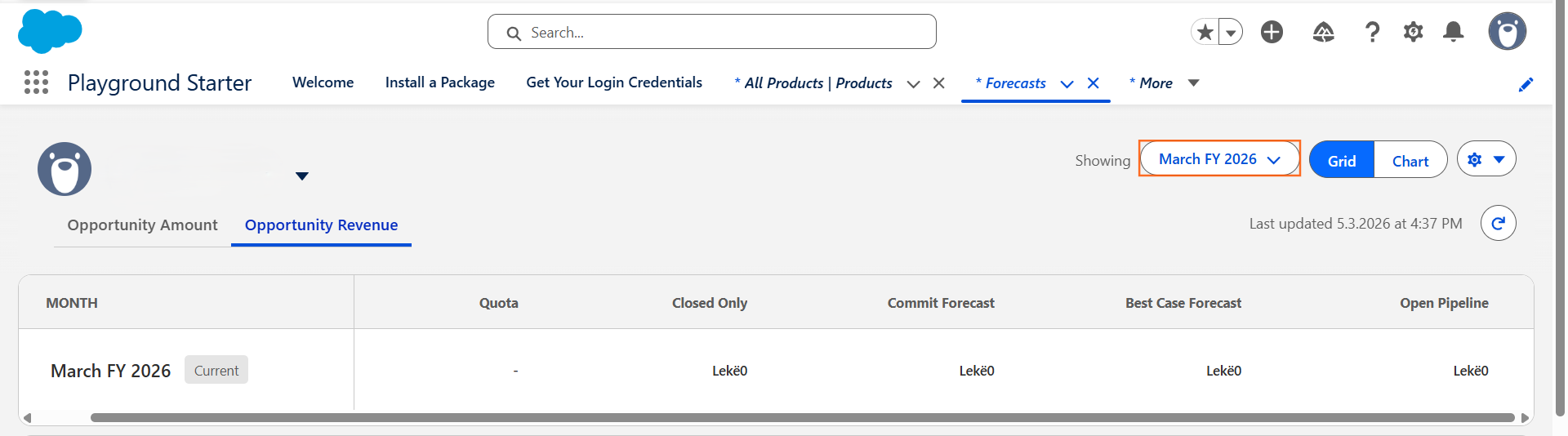
- Click the Forecasts tab in App Launcher.
- Select the Forecast Period (e.g., Monthly or Quarterly).
- You will see a grid showing totals for Pipeline, Best Case, Commit, and Closed.
- Manager View: Managers can click on a subordinate’s name to see their individual pipeline and even “adjust” the number if they think a deal is unlikely to close.
Step 5: Best Practices for Technical Writing
- Quota Management: Mention that admins can upload Quotas (Sales Targets) so the forecast shows a “Percent of Quota Attained” bar.
- Real-time Updates: Emphasize that as soon as a sales rep changes an Opportunity’s Stage, Amount, or Close Date, the Forecast tab updates instantly.
- Adjustments: Note that managers can adjust the forecast total without changing the actual data on the individual Opportunity records.

 Salesforce

