


To share records between teams in Salesforce, you primarily use Sharing Rules. These rules allow you to grant additional access to specific groups of users that the baseline Organization-Wide Defaults (OWD) would otherwise restrict.
Step 1: Prerequisite: Setting the Baseline
Sharing rules only work to open access. They cannot be used to restrict it. For these rules to be meaningful, your Organization-Wide Defaults (OWD) for the object (e.g., Account or Opportunity) should be set to Private or Public Read-Only.
Step 2: Creating a Sharing Rule
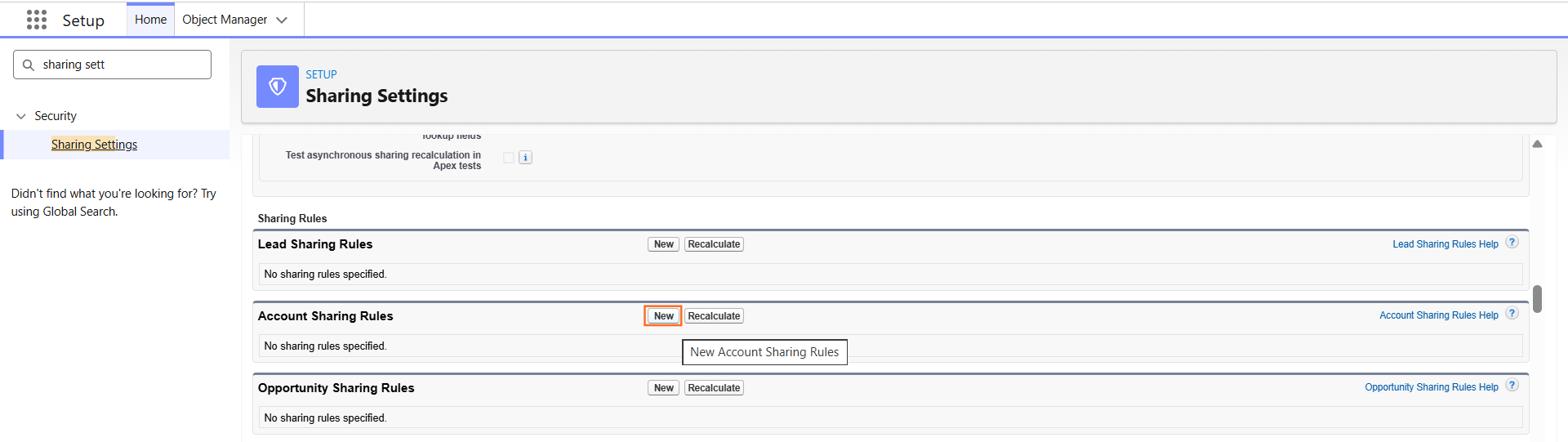
- Navigate to Setup.
- In the Quick Find box, type Sharing Settings.
- Select Sharing Settings.
- Scroll down to the Sharing Rules related list for the specific object you want to share (e.g., Account Sharing Rules).
- Click New.
Step 3: Configuring the Rule Logic
A sharing rule consists of three main parts: identifying which records to share, who to share them with, and what level of access to give.
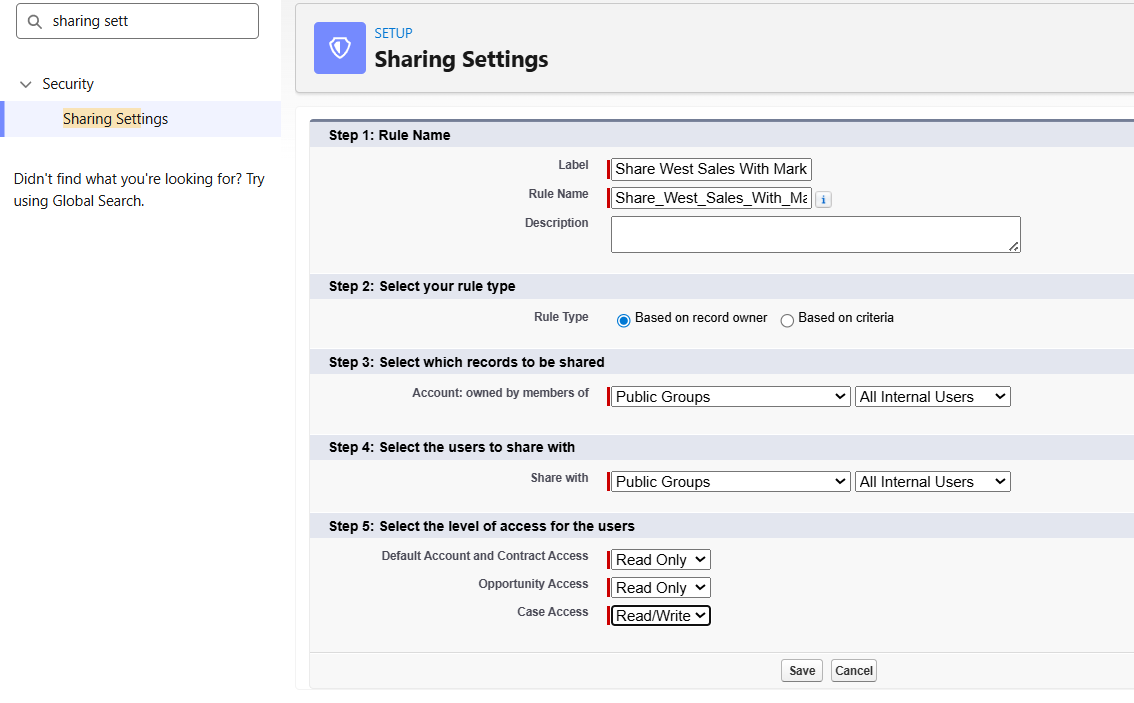
- Step 1: Rule Name: Give the rule a label (e.g., Share_West_Sales_with_Marketing).
- Step 2: Select Rule Type:
- Based on record owner: Shares records owned by members of a specific Role or Public Group.
- Based on criteria: Shares records that meet specific field values (e.g., Industry equals “Technology”).
- Step 3: Select records to be shared: Choose the “Source” (e.g., Public Group: West Coast Sales).
- Step 4: Select users to share with: Choose the “Target” (e.g., Public Group: Marketing Team).
- Step 5: Select Contact/Account/Opportunity Access: Choose Read Only or Read/Write.
Step 4: Methods for Team-to-Team Sharing
Depending on your organizational structure, you can choose the best “Target” for the share:
Method | Best Used When… |
Public Groups | You want to share between specific, hand-picked teams (e.g., Marketing and Product). |
Roles | You want to share with everyone at a specific level in the hierarchy. |
Roles and Subordinates | You want to share with a manager and their entire department. |
Step 5: Other Ways to Share Records
While Sharing Rules are the standard for automation, other methods exist for different scenarios:
- Manual Sharing: Use the “Sharing” button on a single record to give a specific user one-time access.
- Account/Opportunity Teams: Use the “Teams” related list to add multiple people to a specific high-value record. This is best for collaborative selling.
- Role Hierarchy: Access is automatically shared vertically (Managers see what their subordinates own).
Step 6: Technical Impact
- Recalculation: When you save a new sharing rule, Salesforce must recalculate access for all affected records. In large organizations, this may take a few minutes, and you will receive an email once the process is complete.
- Maximum Rules: There is a limit of 300 sharing rules per object, including up to 50 criteria-based rules.

 Salesforce

