


Assigning a Permission Set to a user is the optimal and most flexible way to grant them extra permissions (e.g., access to a specific Custom Object, field, or app) without changing their Profile. Profiles should define the minimum access, while Permission Sets layer on additional, specific access for certain tasks.
Step 1: Navigate to the User's Detail Page
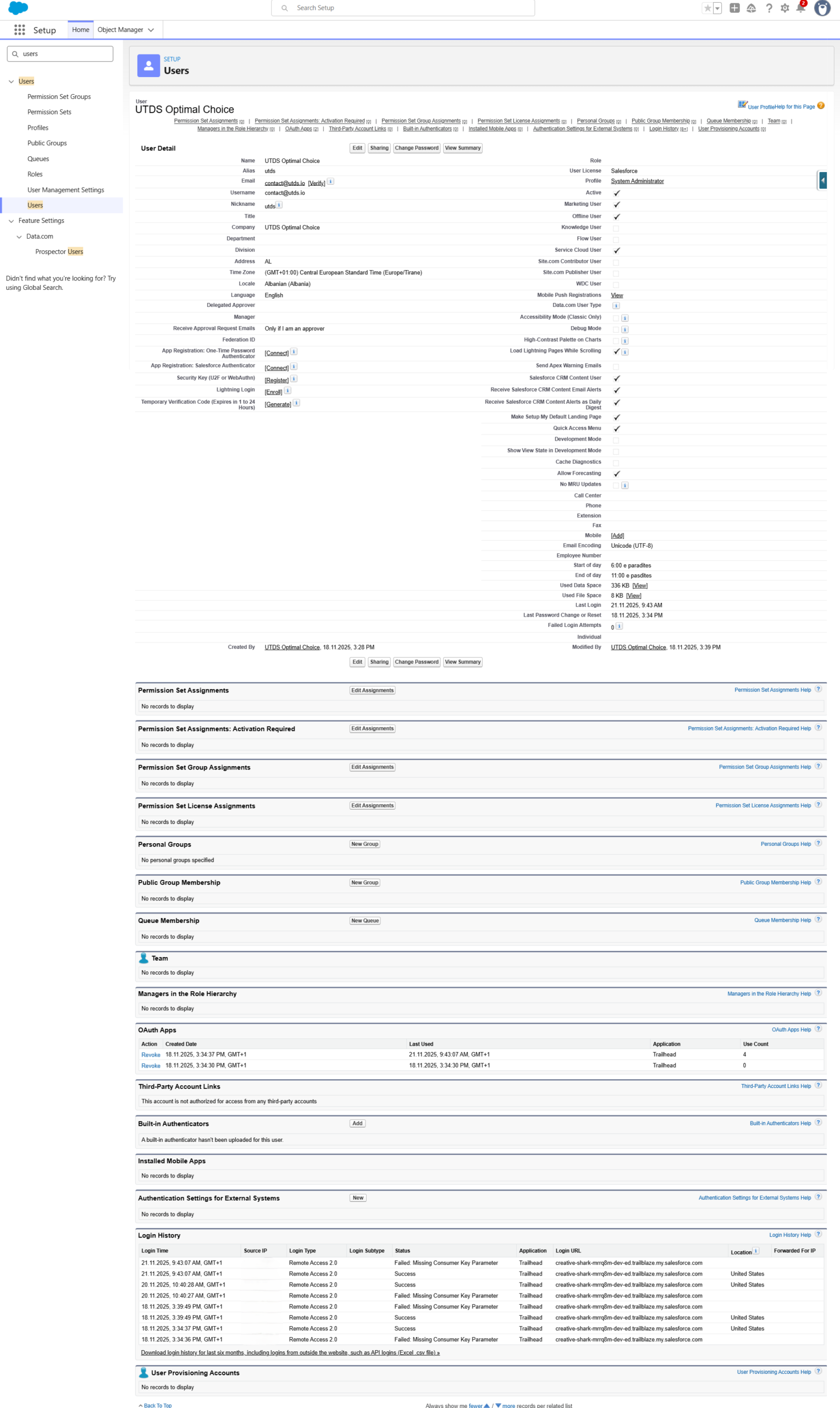
- Navigate to Setup: Click the gear icon (⚙️) to Setup.
- Find Users: In the Quick Find box, type Users and select Users under the Administration section.
- Locate the User: Find and click on the name of the user you wish to grant permissions to. This opens their detail page.
Step 2: Access Permission Set Assignments

- Find Related List: Scroll down the user’s detail page to the Related Lists section.
- Locate the list titled “Permission Set Assignments”.
- Initiate Assignment: Click the “Edit Assignments” button located at the top of this list.
Step 3: Assign the Permission Set
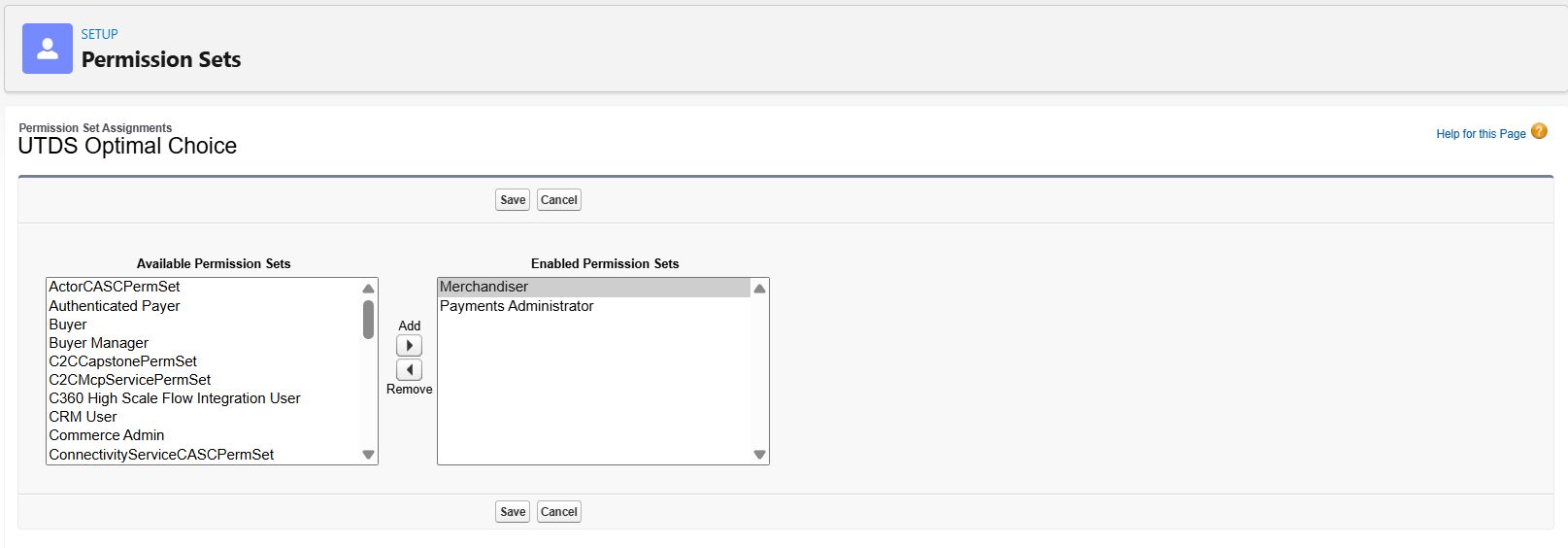
- View Available Sets: You will see two columns:
- Available Permission Sets: On the left (all unassigned sets).
- Enabled Permission Sets: On the right (all currently assigned sets).
- Select the Set: In the Available Permission Sets column on the left, click on the name of the Permission Set you want to assign (e.g.,Payment Administrator or Merchandiser).
- Move to Enabled: Click the right arrow button to move the selected Permission Set from the Available column to the Enabled Permission Sets column.
- Save: Click the “Save” button at the top or bottom of the page.
The user immediately inherits all the extra permissions defined within that specific Permission Set.
Optimal Practice: Using Permission Set Groups
For complex organizations, UTDS Optimal Choice recommends assigning Permission Set Groups instead of individual Permission Sets.
- A Permission Set Group bundles multiple related Permission Sets into a single unit.
- By assigning the group, you ensure the user gets all necessary permissions with one click, simplifying administration and reducing the chance of missing a required access point.

 Salesforce

