Formula fields in Salesforce are read-only fields that automatically calculate values based on other fields or expressions. To combine data, you typically use the Concatenation operator.
Step 1: Creating a Formula Field
Navigate to Setup > Object Manager.
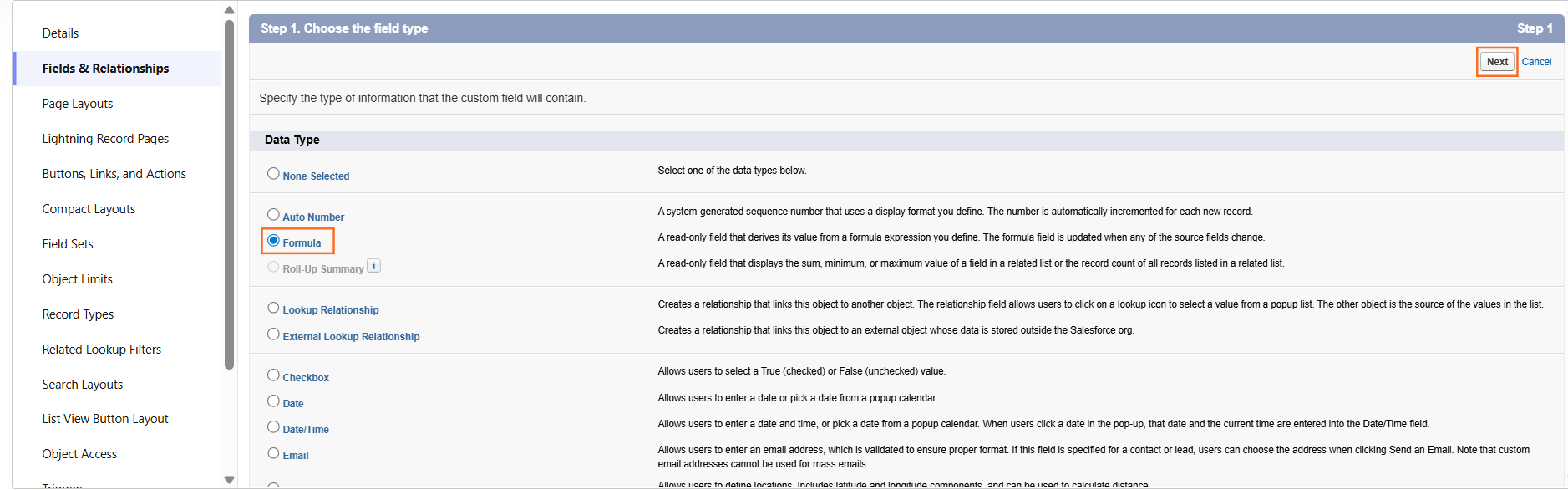
Select your Object and click Fields & Relationships.
Click New.
Select Formula as the Data Type and click Next.
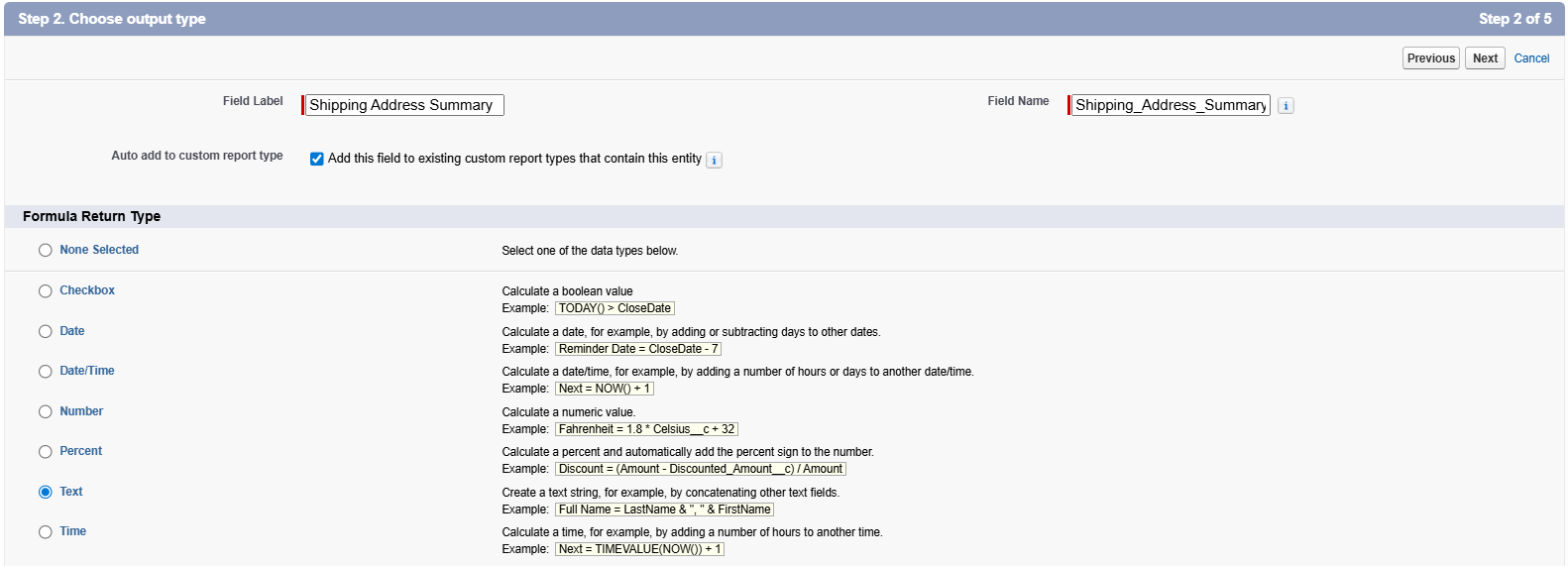
Enter a Field Label (e.g., Full Name or Shipping Address Summary).
Select the Formula Return Type. For combining text, choose Text.
Step 2: Combining Text Fields (Concatenation)
The ampersand symbol (&) is used to join different pieces of data together.
Basic Syntax:
Field_1__c & ” ” & Field_2__c
Example: Creating a “Full Name” from First and Last Name
To ensure there is a space between the names, you must include a space within quotation marks:
FirstName & ” ” & LastName
Step 3: Handling Different Data Types
If you are combining a text field with a non-text field (like a Date or a Number), you must convert the non-text field first using functions.
Goal
Formula Function
Example
Date to Text
TEXT()
“Created on: ” & TEXT(CreatedDate)
Number to Text
TEXT()
“Serial #” & TEXT(Unit_Number__c)
Picklist to Text
TEXT()
“Status: ” & TEXT(Status)
Step 4: Advanced Combining: Using BR() for Line Breaks
If you want to combine data into a block (like an address), use the BR() function to force a new line.
Check for Nulls: If one field in a formula is empty, the entire formula might appear blank depending on your settings. Use BLANKVALUE() to provide a fallback:
BLANKVALUE(MiddleName, “”) & ” ” & LastName
Character Limits: Formula fields have a limit of 3,900 characters for the compiled logic.
Cross-Object Formulas: Remind users they can pull data from a “Parent” record into a “Child” record (e.g., showing the Account’s Industry on a Contact record).
We appreciate you taking the time to let us know this article was helpful.
We're sorry this article didn't answer your question.
Please let us know what was missing or contact us using the form below.
Quick notice about our knowledge base
We publish our Knowledge Base to help individuals and businesses resolve common issues across websites, advertising platforms, Salesforce and other digital systems.
We regularly review and update our guides, but the platforms, software and services covered can change without notice. As a result, screenshots, settings, features or recommended processes may differ from those available when an article was last reviewed.
The information provided is general guidance and should not be treated as advice specific to your systems or circumstances. UTDS Optimal Choice cannot accept responsibility for errors, data loss, service disruption or other issues resulting from changes made by following these guides.
If you are unsure about any of the steps, particularly where a change could affect live systems, data, tracking or business processes, we recommend speaking to us before making the change. Our team can review your specific setup and provide advice based on the current platform and configuration.
Time for some professional support?
Our team are ready to help. As one of the few digital agencies that is both a registered Salesforce Consulting Partner and Google Partner Agency, UTDS Optimal Choice is expertly positioned to support you across your entire digital landscape.



 Salesforce

