


In Salesforce, making a field required for all users across the entire organization is best achieved at the Data Model level rather than the UI level. This ensures data integrity regardless of how the record is created (via the interface, API, or data imports).
Step 1: Universally Required Fields (Database Level)
This is the most robust method. When a field is marked as “Required” in the field definition, it is mandatory across all Page Layouts and for all API calls.
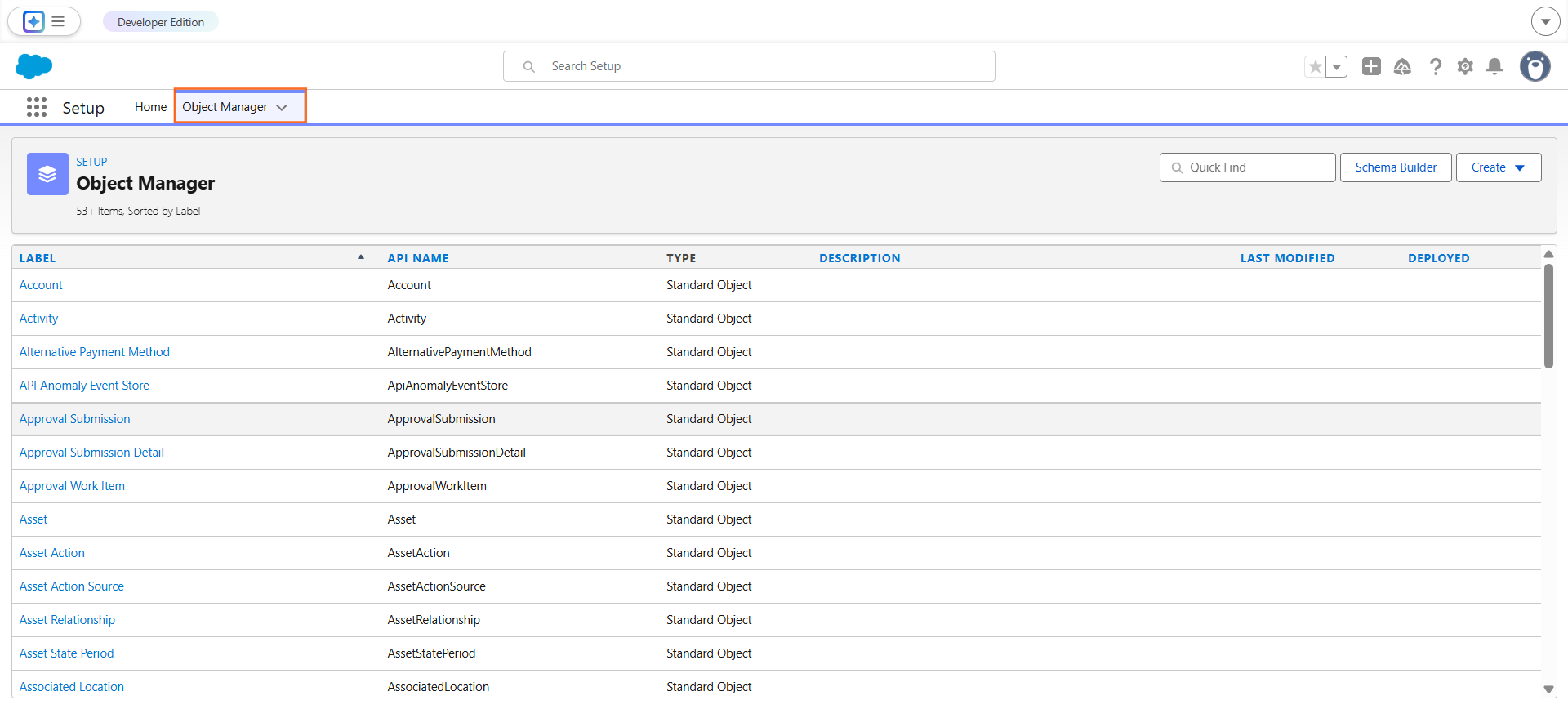
- Navigate to Setup (the gear icon).
- Open the Object Manager and select the specific Object (e.g., Account, Contact, or a Custom Object).
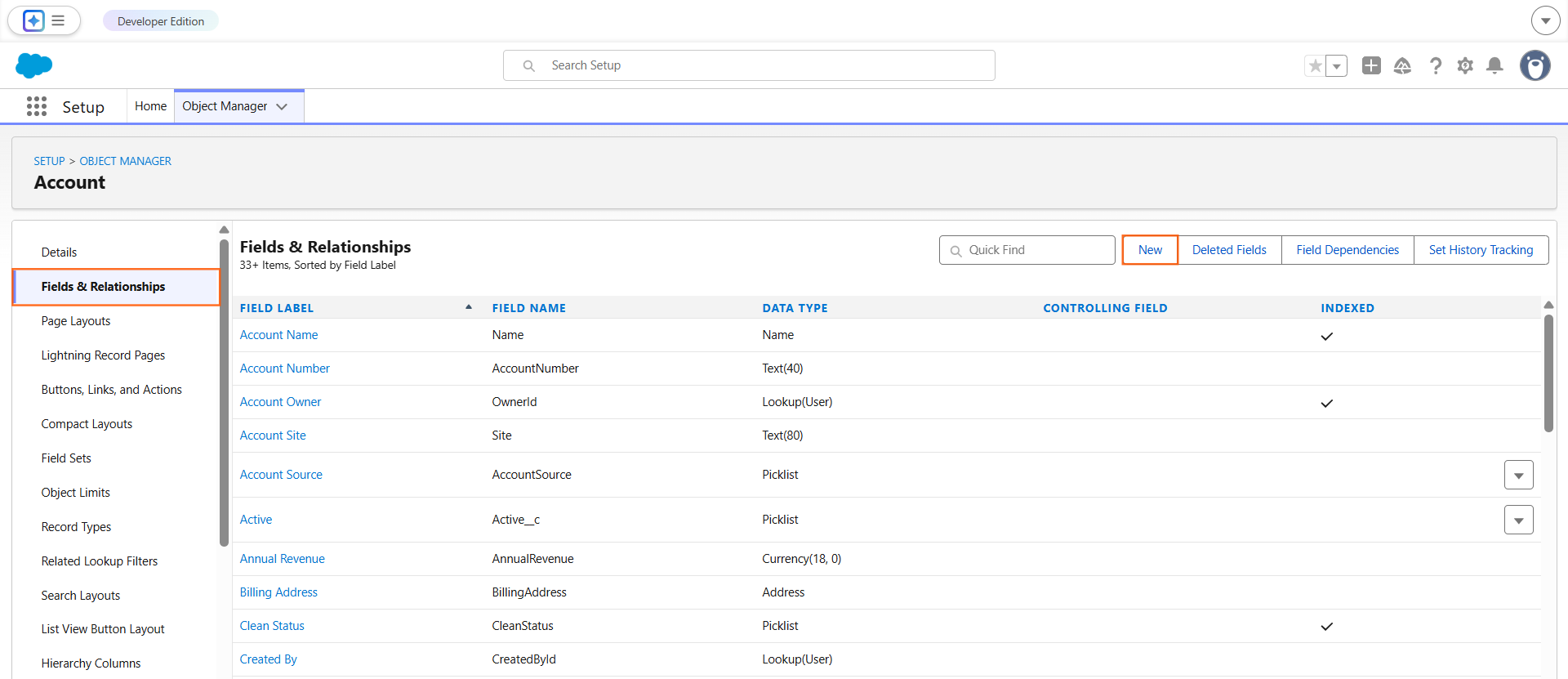
- Select Fields & Relationships.
- Click New (for a new field) or Edit on an existing custom field.
Scroll to the Lookup Options section and check the box labeled Required
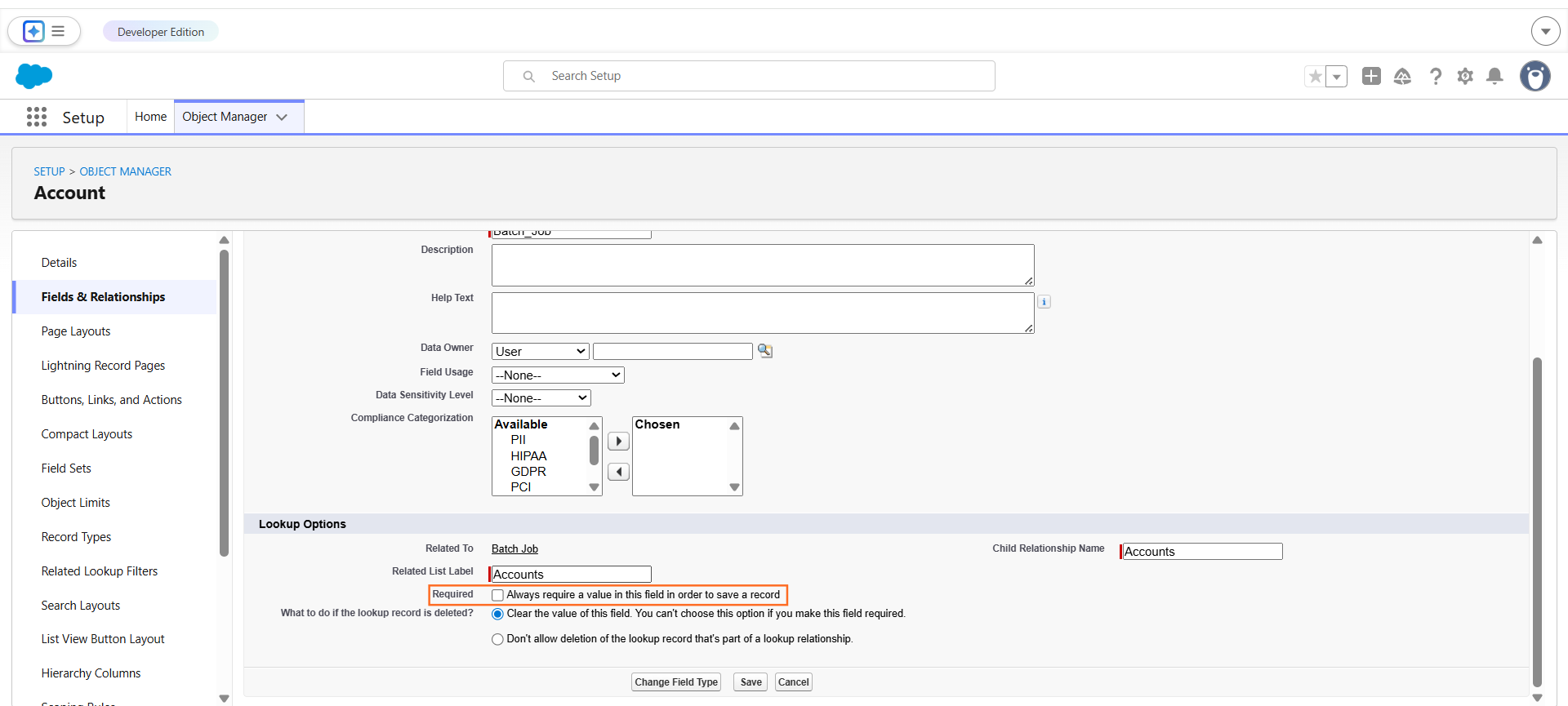
- Click Save.
Note: You cannot make standard fields (like Description or Website) universally required via this checkbox. For standard fields, you must use Page Layouts or Validation Rules.
Step 2: Comparison of Enforcement Methods
Method | Level of Enforcement | Impact |
Field Definition | Database | Required for everyone, everywhere (UI & API). |
Page Layout | UI Only | Only required when using that specific layout; API bypasses this. |
Validation Rule | Logic/Process | Can be conditional (e.g., “Required only if Status is Closed”). |
Step 3: Handling Standard Fields (Validation Rules)
Since you cannot edit the field definition of many standard Salesforce fields, you should use a Validation Rule to enforce a “Required” state for all users.
The Formula Logic: To ensure a field is not blank, use the ISBLANK() or ISNULL() functions. For a standard text field like Account.Phone, the formula would be:
ISBLANK(Phone)
- Error Message: “The Phone field is mandatory for all records.”
- Error Location: Top of Page or Field-level.

 Salesforce

